
The Purchase Orders tab on a vendor shows you the history of purchase orders associated with that vendor, their status, whether they’ve been received, and the line items on those POs.
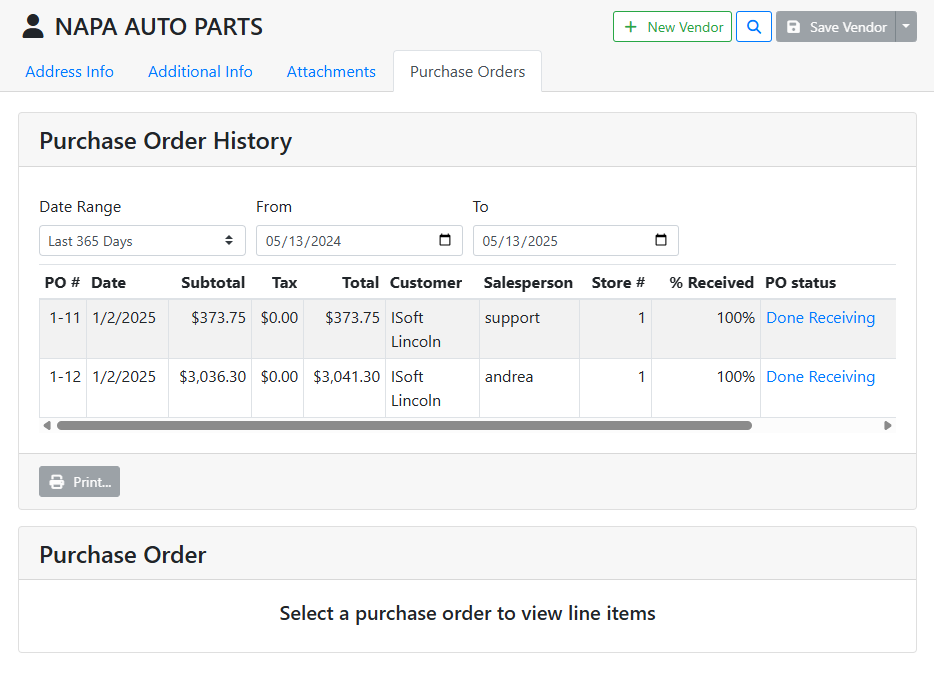
Purchase Orders can only be created in ITrack Enterprise Desktop at this time. The PO information in the Vendor is read-only.
🕙 Purchase Order History
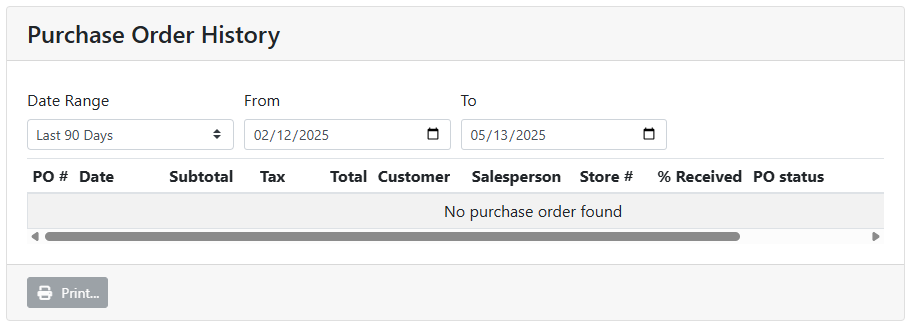
The Purchase Order History box shows you a list of Purchase Orders, filtered by date. By default the date range is filtered to show POs from the last 90 days. Use the Date Range menu or enter a date range manually to find documents from a specific date.
In this example, I don’t see any purchase orders in the last 90 days.
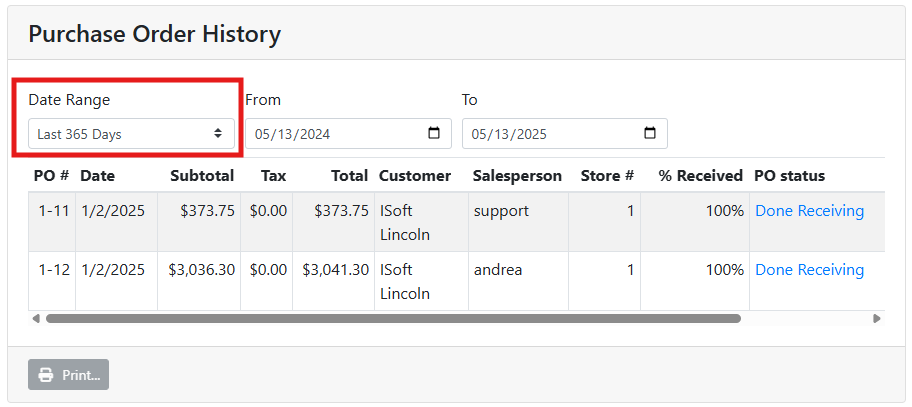
I know I have purchase orders that are older than that, so if I change the Date Range to show me older POs, they show in the list.
Select a PO in the Purchase Order History table in order to see Line Items from that PO or to print a copy of the PO.
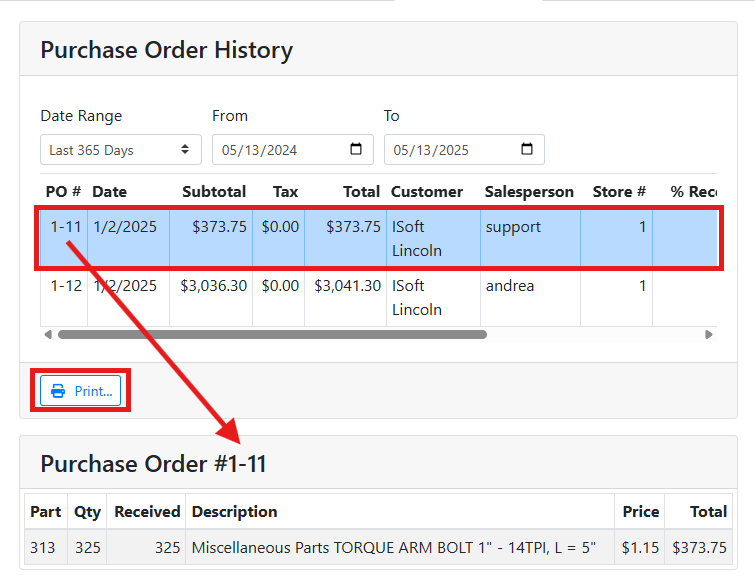
The table shows you the following information about the PO.
PO # - The Purchase Order Number, the first number represents the store number, then a unique number for the specific PO. For example PO # 1-11 is the 11th PO from store 1.
Date - The date of purchase from the PO.
Subtotal - The purchase total before taxes and adjustments.
Tax - The total tax amount on the PO.
Total - The total on the PO, including taxes and adjustments. Note: Adjustments won’t show in the line-item part list. View the purchase order itself to view adjustments.
Customer - The destination store or customer assigned to the PO. If you receive parts into your inventory from a vendor, the Customer will be one of your stores. If you purchase something from a vendor and drop-ship it directly to a customer, the customer information will appear here.
Salesperson - The salesperson (counterperson) who is assigned to the PO. The counterperson defaults to the person who created the document, but can be overridden on the PO.
Store # - The ID number for the store associated with the PO.
% Received - The percentage of order quantity that has been received so far on the PO. This amount will be 0% on new, unfulfilled POs, and 100% on fully fulfilled and received POs. However, it may be a partial percentage if the order was split into multiple shipments or the vendor didn’t send all purchased quantity.
PO Status - Whether the PO has been marked as Done Receiving or whether it is still Open.
Internal Comments - Any internal comments entered on the PO screen.
📄 Purchase Order Line Items
If you don’t have a purchase order selected in the Purchase Order History table, the Purchase Order Line Items table below will be empty.

With a PO selected above, you will see the inventory line items that were ordered on that PO along with the received quantity. The PO # of the selected PO appears at the top of the table.
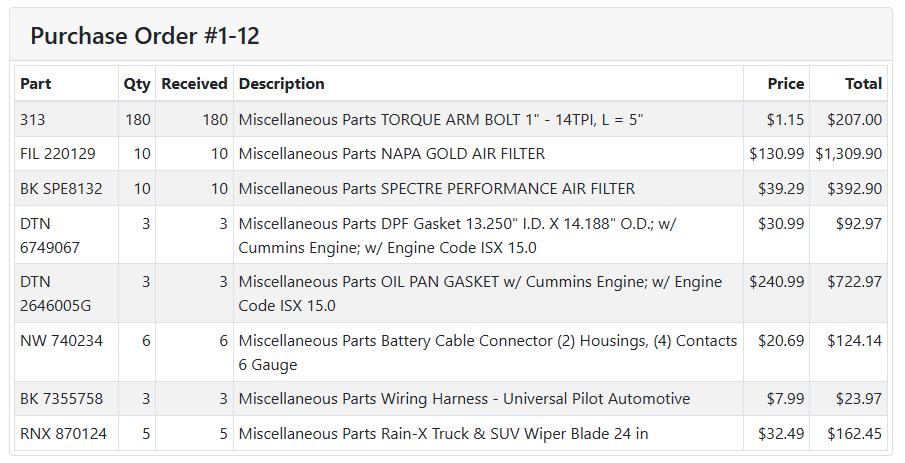
The table shows the following information:
Part - The tag # for a part or stock # for a vehicle associated with the line item.
Qty - The quantity ordered on the PO.
Received - The quantity received on the PO.
Description - The line item’s description.
Price - The price per quantity for the item.
Total - The total price for all quantity ordered.