
The Additional Info tab for Customers and Vendors stores additional details.
Status - The Status lets you specify whether a customer or vendor is currently active. By default, new records are Active. If you no longer work with a customer or vendor for any reason, you can mark them Inactive to prevent them from showing in search results.
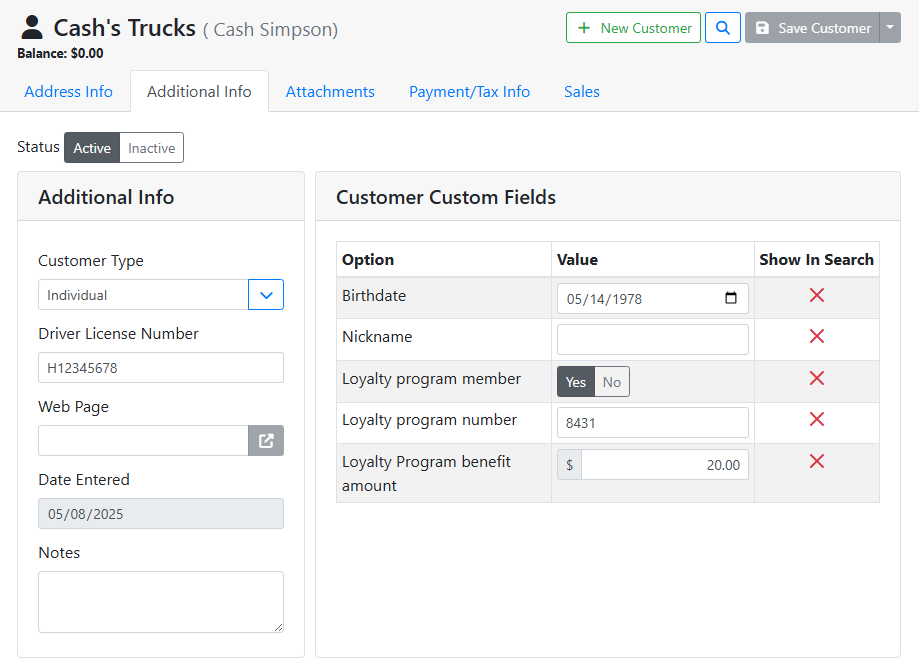
Customer/Vendor Type - The Type is a custom field your company can use to classify vendors and customers however you like. Type a value into the field, and it will be saved for future use on other records. The Customer Type is unique to customers, and the Vendor Type is unique to vendors.
Web Page - If your customer or vendor has a website, you can enter the website link in this field. Click the open link button 
Date Entered - The date the record was first created in the database.
Notes - Any notes you want to keep for this record.
👤 Customer Specific Fields
The Customer and Vendor Additional Info tabs generally work the same. There are a few fields specific to Customers, however, and are described below.
Drivers License Number - The customer’s driver’s license number, if you collect it.
👤 Vendor Specific Fields
The Customer and Vendor Additional Info tabs generally work the same. There are a few fields specific to Vendors, however, and are described below.
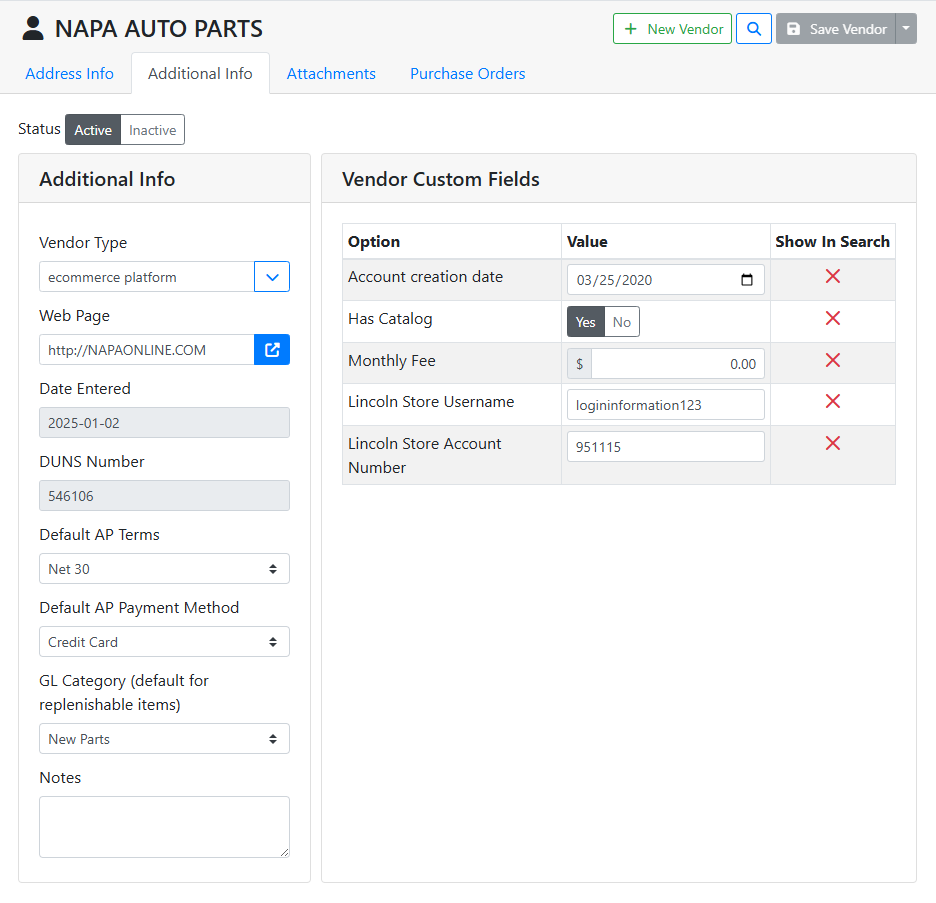
DUNS Number - A business’s DUNS number, if you want to keep track of it.
Default AP Terms - When a Purchase Order is created for this vendor, this field will set the default Terms used on the PO.
Default AP Payment Method - When a Purchase Order is created for this vendor, this field will set the Default AP Payment Method used on the PO.
GL Category - Sets the general ledger category that is used by default for replenishable items purchased from this vendor.
Read more about Accounting.
Purchase Orders can only be created in ITrack Enterprise Desktop at this time.
⚙️ Custom Fields
In addition to the standard fields for vendors and customers, you might also set up custom fields that are specific to your company. These can be found in a group labeled Custom Fields.
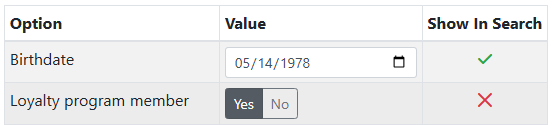
Show In Search indicates if a field will appear in the search screen. A green checkmark 

In this example, the Birthdate will appear as a column in the search result table.
A few different types of custom fields are available. Below are a few examples.





You can fill out custom fields online, but if you need to create or edit the custom fields, you must use ITrack Enterprise Desktop at this time.