
The Sales tab on a customer shows you the history of sales orders associated with that customer, their status, balance, and the line items on those SOs.
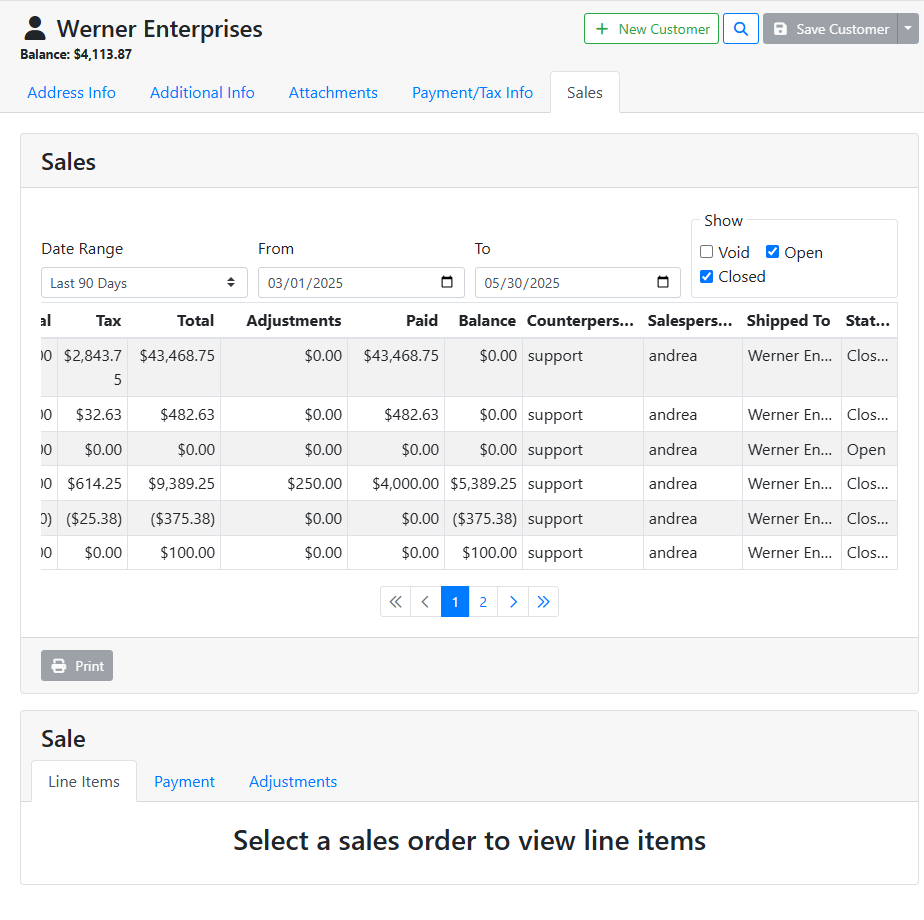
Sales Orders can only be created in ITrack Enterprise Desktop at this time. The SO information in the Customer is read-only.
🕙 Sales
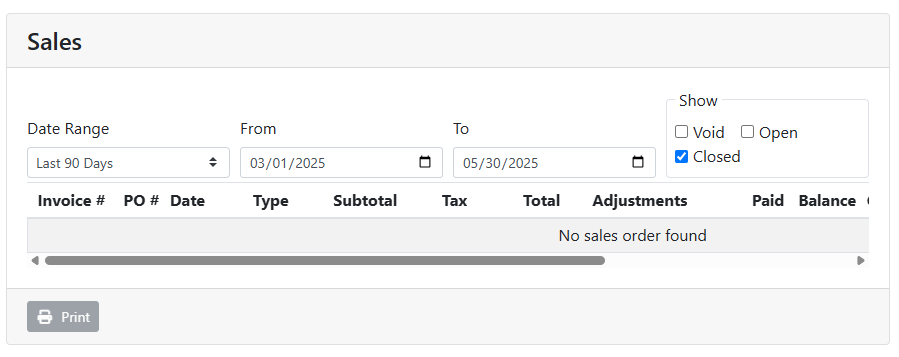
The Sales box shows you a list of Sales Orders, filtered by date. By default the date range is filtered to show closed SOs from the last 90 days. Use the Date Range menu or enter a date range manually to find documents from a specific date. Use the checkboxes in the Show box to specify whether you want to see Void, Open, and/or Closed SOs.
In this example, I don’t see any closed sales orders in the last 90 days.
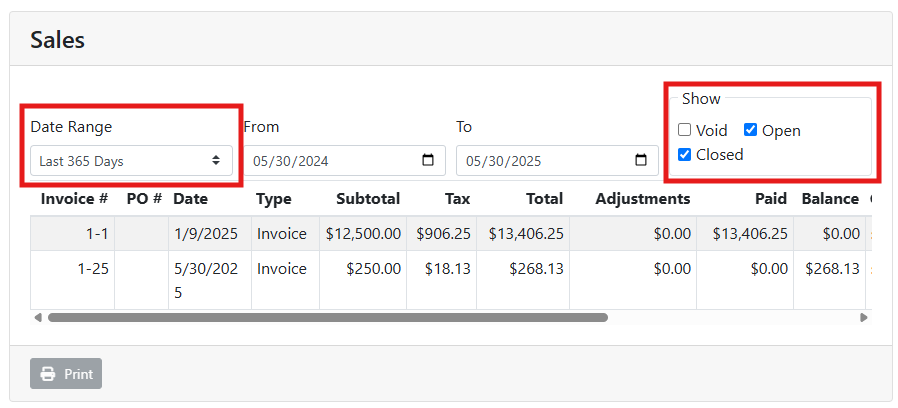
I know I have sales orders that are older than that, and a recent open sales order. If I change the Date Range to show me older SOs and check the Open checkbox, they show in the list.
Select an SO in the Sales table in order to see Line Items, Payments, and Adjustments from that SO or to print a copy of the SO.
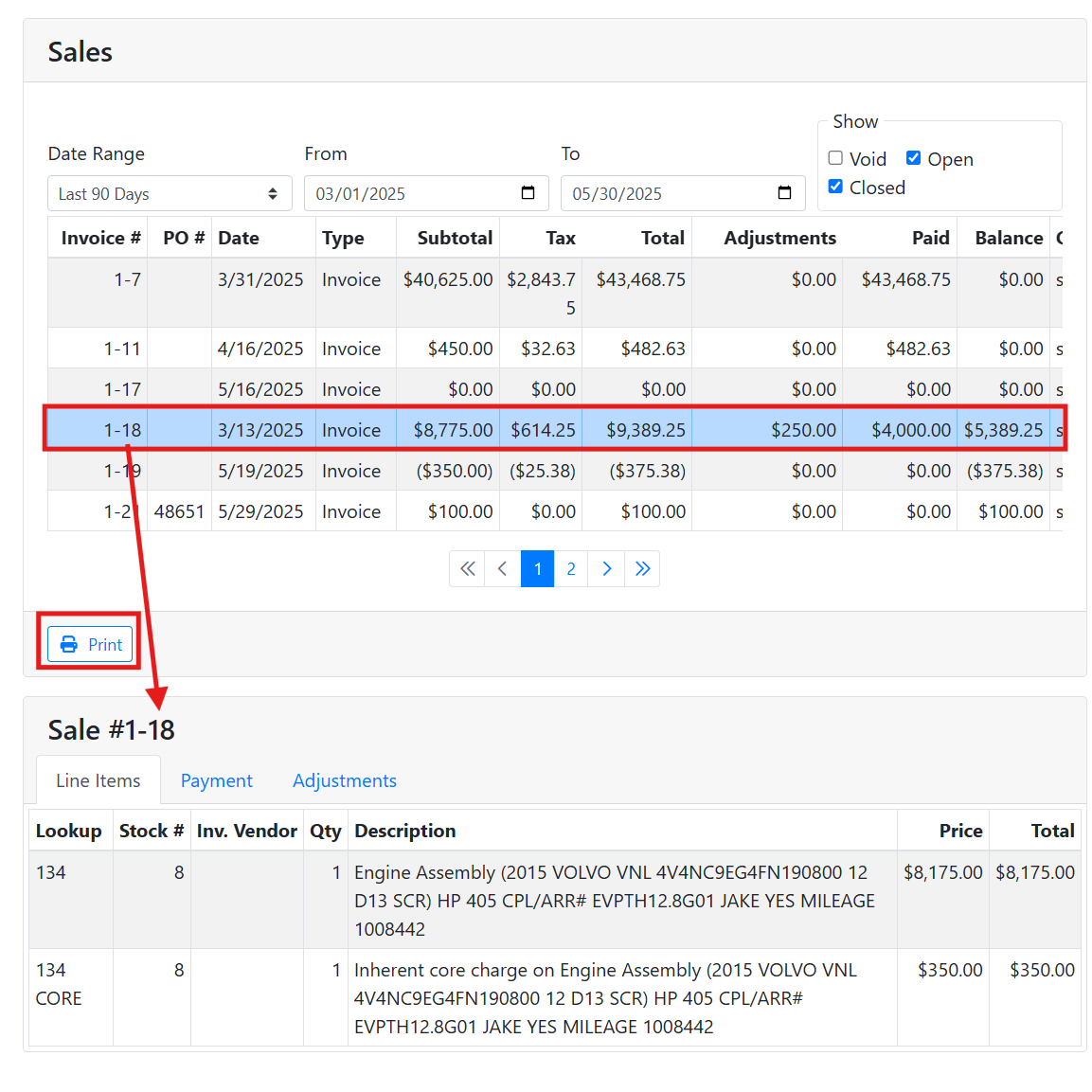
The table shows you the following information about the SO.
Invoice # - The Sales Order Number, the first number represents the store number, then a unique number for the specific SO. For example SO # 1-11 is the 11th SO from store 1.
PO # - If a PO # is entered on the sales order screen, it will be listed here.
Date - The date of sale from the SO.
Type - The Sales Order document type. For example, some common types are Invoice, Hold Order, Quote, Backorder, etc.
Document types can be configured specifically for your company, and will operate differently depending on how they are configured. Read more about Sales Order Document Types.
Subtotal - The sales total before taxes, including all line items and adjustments.
Tax - The total tax amount on the SO.
Total - The total on the SO, including taxes.
Adjustments - The total amount of adjustments on the SO. Note that adjustments are included in the subtotal, this column is informational.
Paid - The amount of payment received on the SO.
Balance - The current open balance of the SO. (Total - Payments).
Counterperson - The counterperson who is assigned to the SO. The counterperson defaults to the person who created the document, but can be overridden on the SO.
Salesperson - The salesperson assigned to the SO who gets credit for the sale. The salesperson on an SO defaults to the salesperson on the customer account.
Shipped To - This column shows the Company Name of the selected shipping address.
Status - Whether the SO has been finalized or not. Finalized SOs are marked as Closed, otherwise the SO will be Open.
📄 Sales Order Line Items
If you don’t have a sales order selected in the Sales table, the Sales Order Line Items table below will be empty.
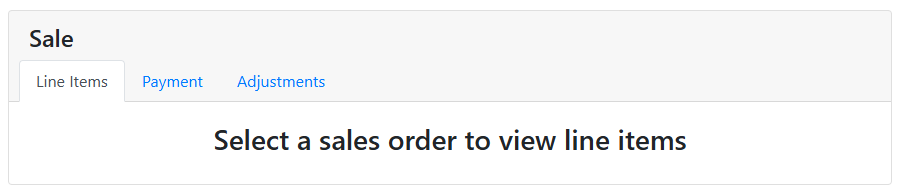
With an SO selected above, the Line Items tab will list the inventory line items that were sold on that SO. The SO # of the selected SO appears at the top of the table.
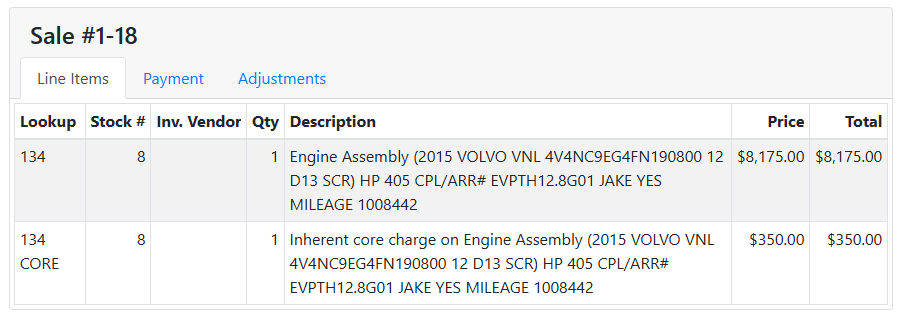
The table shows the following information:
Lookup - The tag # if the line item is a part or the stock # if the line item is a vehicle.
Stock # - If the part was taken from a vehicle, this is the stock # for that vehicle.
Inv. Vendor - For a replenishable part, the Default Vendor at the time of sale.
Read more about replenishable parts.
Qty - The quantity sold on the SO.
Description - The line item’s description.
Price - The price per quantity for the item.
Total - The total price for all quantity sold.
💳 Payments
With an SO selected above, the Payments tab will list any payments applied to that SO. Select a payment if you want to print the payment details or a receipt.
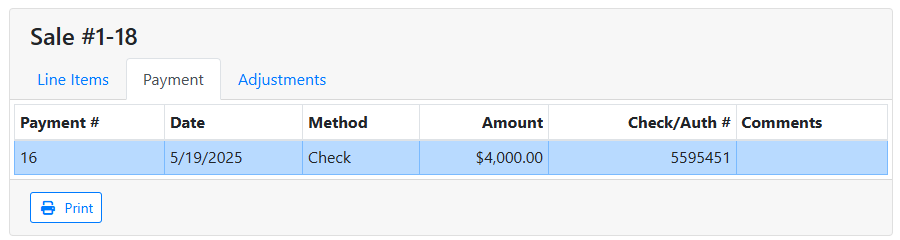
The table shows the following information:
Payment # - The unique ID number for the payment.
Date - The date of the payment
Method - The payment type, for example Check, Cash, or Credit Card.
The list of available payment methods can be customized for your company, but needs to be done in ITrack Enterprise Desktop at this time.
Amount - The payment amount.
Check/Auth# - The check number for check payments or the Auth ID number for credit card payments.
Comments - Any comments entered on the payment, if applicable.
↕️ Adjustments
With an SO selected above, the Adjustments tab will list any adjustments on that SO.
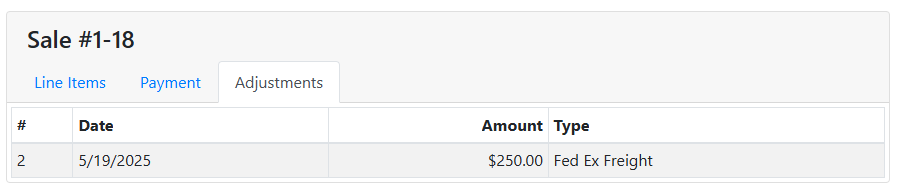
The table shows the following information:
# - The unique ID number for the adjustment.
Date - The adjustment’s date.
Amount - The amount of the adjustment.
Type - The type of adjustment.
The list of adjustment types available can be customized for your company, but needs to be done in ITrack Enterprise Desktop at this time.