
There are four ways to create a new part.
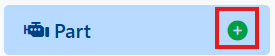
From the navigation menu, click the plus button next to the part menu title.
Read more about navigation.
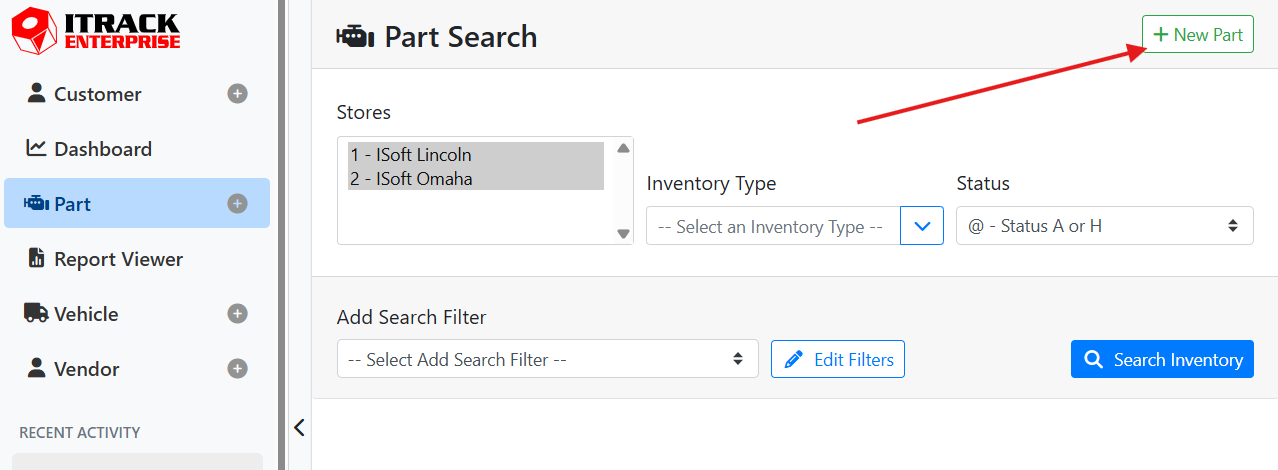
On the Part Search screen, click the + New Part button in the upper right corner.
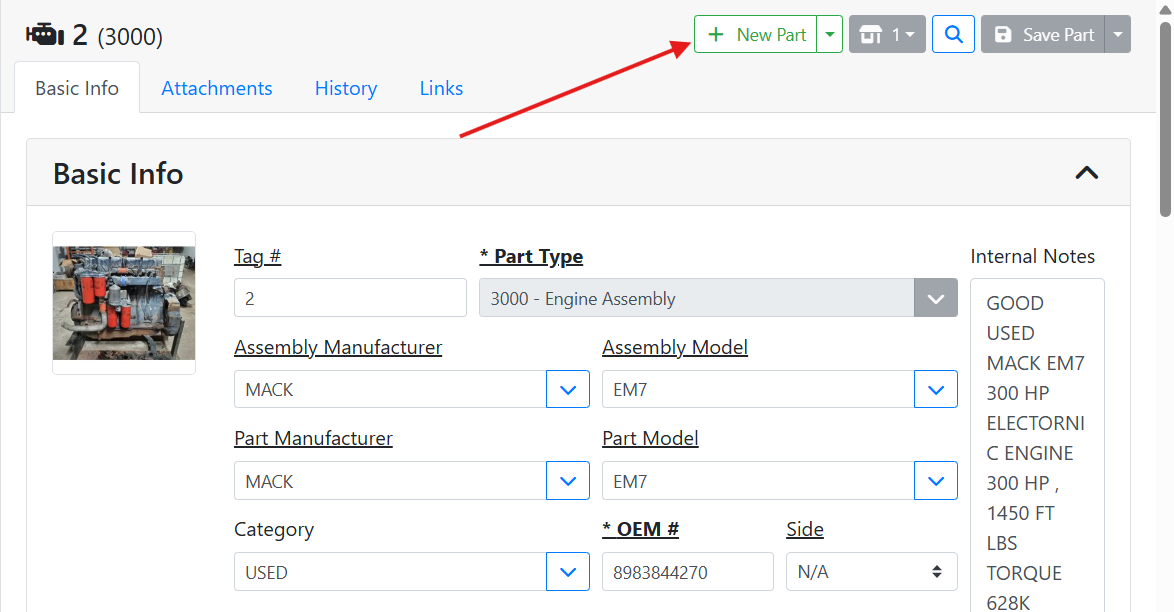
On the Part screen, click the +New Part button at the top of the screen.
You can also Clone a part to make a copy of a part to save you some time on data entry, or Replicate a part if you’d like to stock the same part at more than one store. Read more about cloning and replicating parts.
What's the Difference Between Cloning and Replicating a Part?
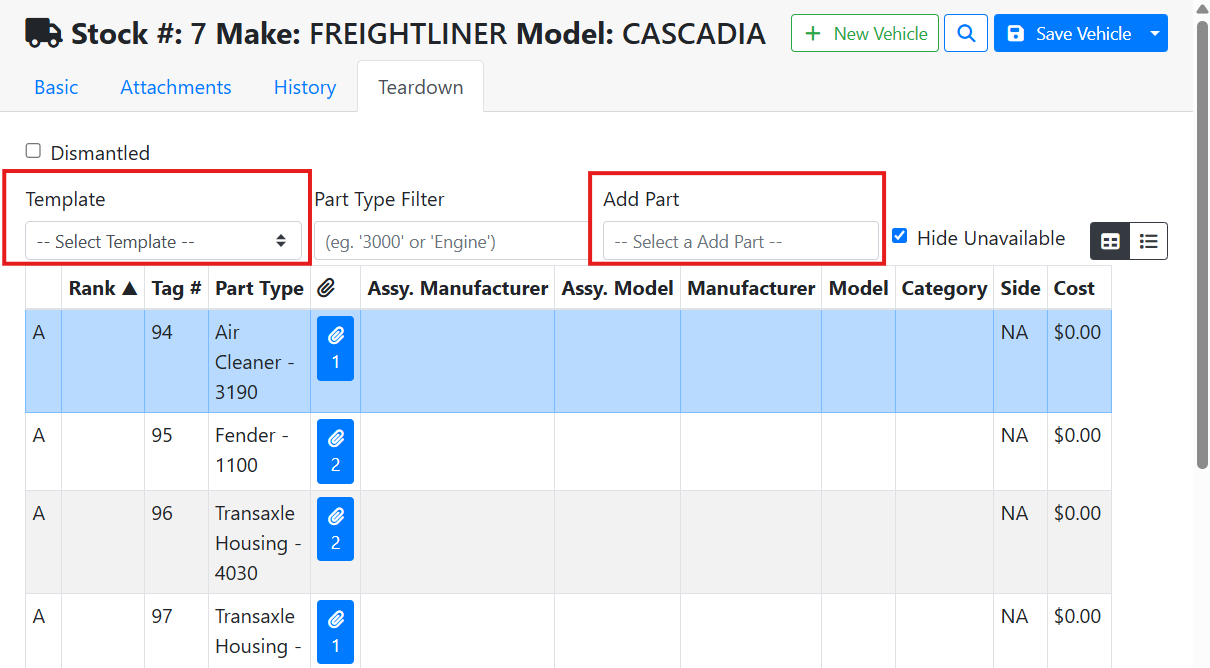
On a vehicle, on the Teardown screen, you can add parts from a teardown template or use the Add Part menu to add parts one at a time.
Read more about adding a part from a vehicle teardown.
Once you start a new record, required fields will be bold and have an asterisk. The Save button is disabled until you complete all required fields.
In this example, the Part Type is the only required field.
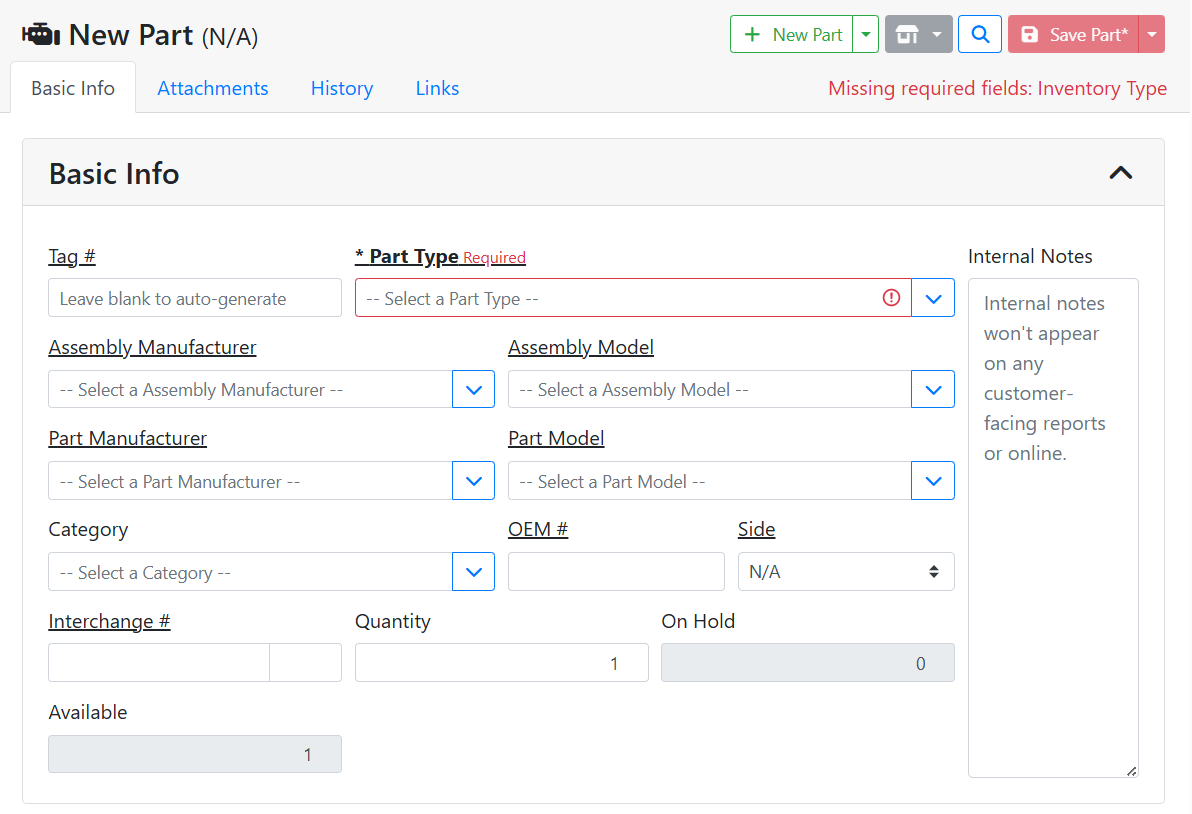
Required fields may differ for every company and can be configured in Configuration > Settings. Read More about Settings.
📎 Related Articles
What's the Difference Between Cloning and Replicating a Part?