
Sales Orders on the web are currently Read-Only. To create or edit a Sales Order, use ITrack Enterprise Desktop.
📄 Document
The Document box on a sales order contains high-level information about the document.
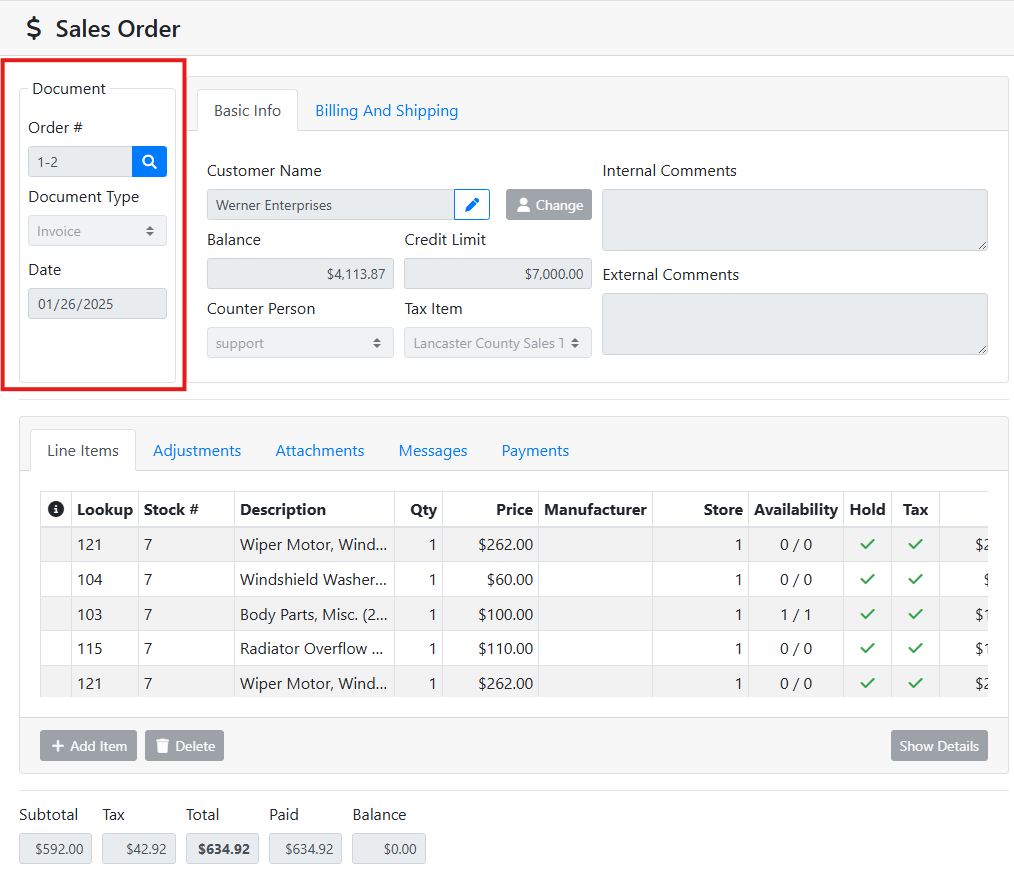
Order # - The sales order number contains both the Store ID number and the Document ID number. For example, a SO # 1-10 is sales order 10 at store 1.
Document Type - The Sales Order document type. For example, some common types are Invoice, Hold Order, Quote, Backorder, etc.
Document types can be configured specifically for your organization, and will operate differently depending on how they are configured. Read more about Sales Order Document Types.
Date - The date of the sales order. When making a new sales order, the date will default to the current date, but can be overridden.
👤 Basic Info
The Basic Info tab contains information about the customer, counter person and comments.
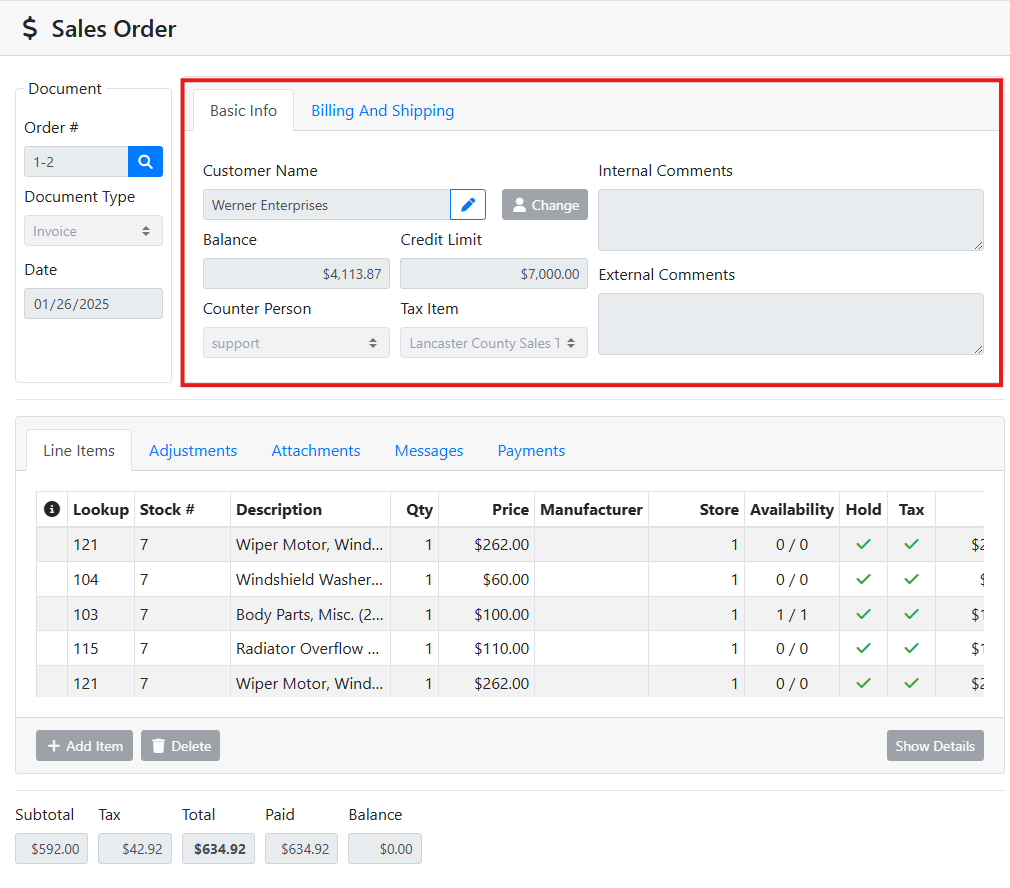
Customer Name - The customer attached to the sales order.
Balance and Credit Limit - The customer’s current account balance.
Credit Limit - The customer’s allowed credit limit. If the sales order causes the customer to exceed their credit limit, payment either needs to be collected on the sales order before finalizing, or it might require approval.
Counter Person - The counter person associated with the sales order. By default this is the person who created the sales order, but this can be overridden.
Tax Item - The sales tax rate associated with the sales order. The customer can have a default tax rate associated with their customer record, or the tax might be calculated based on the customer’s address if using a tax integration service.
Read more about Tax Service integrations.
Internal Comments - Comments associated with the sales order, visible only to ITrack users. Internal comments don’t print on customer-facing documents.
External Comments - Comments associated with the sales order, which will also print on the customer’s copy of the document.
🚚 Billing and Shipping
The Billing and Shipping tab contains information about the customer’s billing address and the shipping address associated with the document.
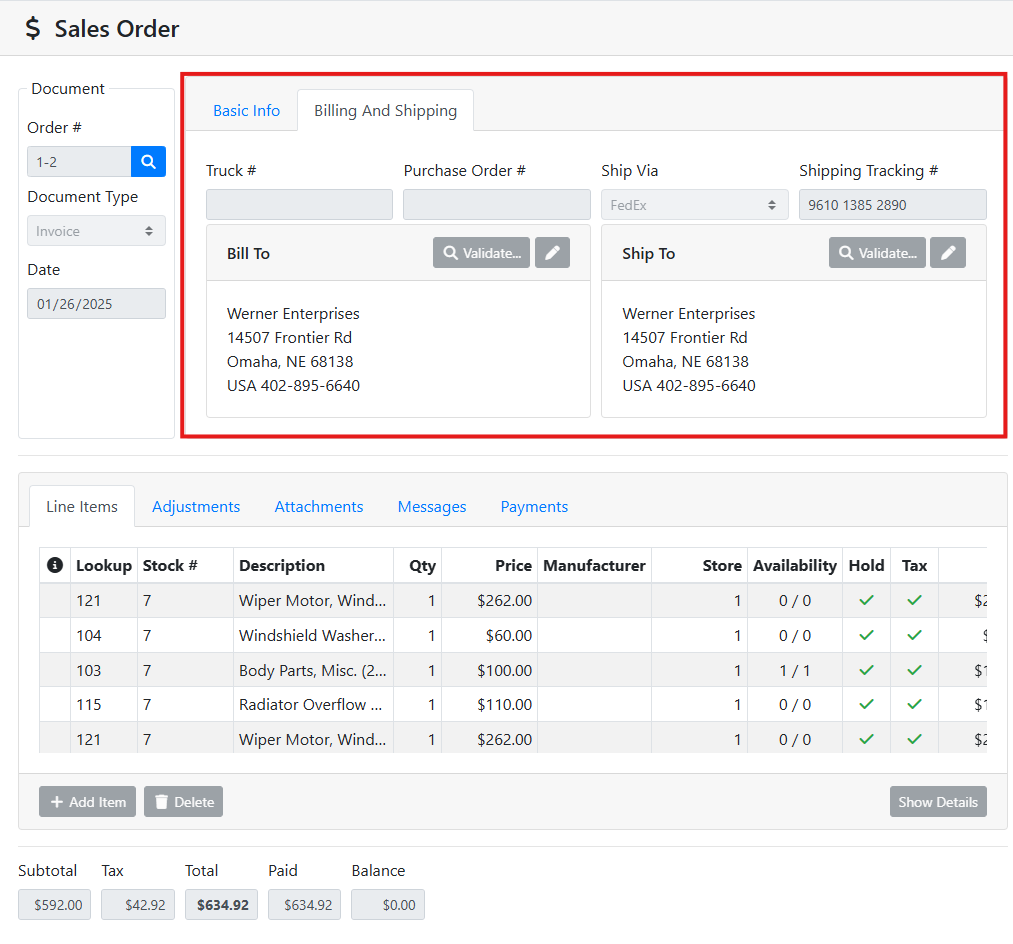
Truck # - Customer’s vehicle description for this order. This field is for a customer’s reference and not used in ITrack Deliveries.
Purchase Order # - Customer’s purchase order number. This field is for a customer’s reference and doesn’t relate to a PO in ITrack.
Ship Via - The shipping method used for this order.
Shipping Tracking # - The shipping provider’s tracking number for the order, for reference.
Bill To - The billing address for this order.
Ship To - The shipping address for this order.
🔩 Line Items
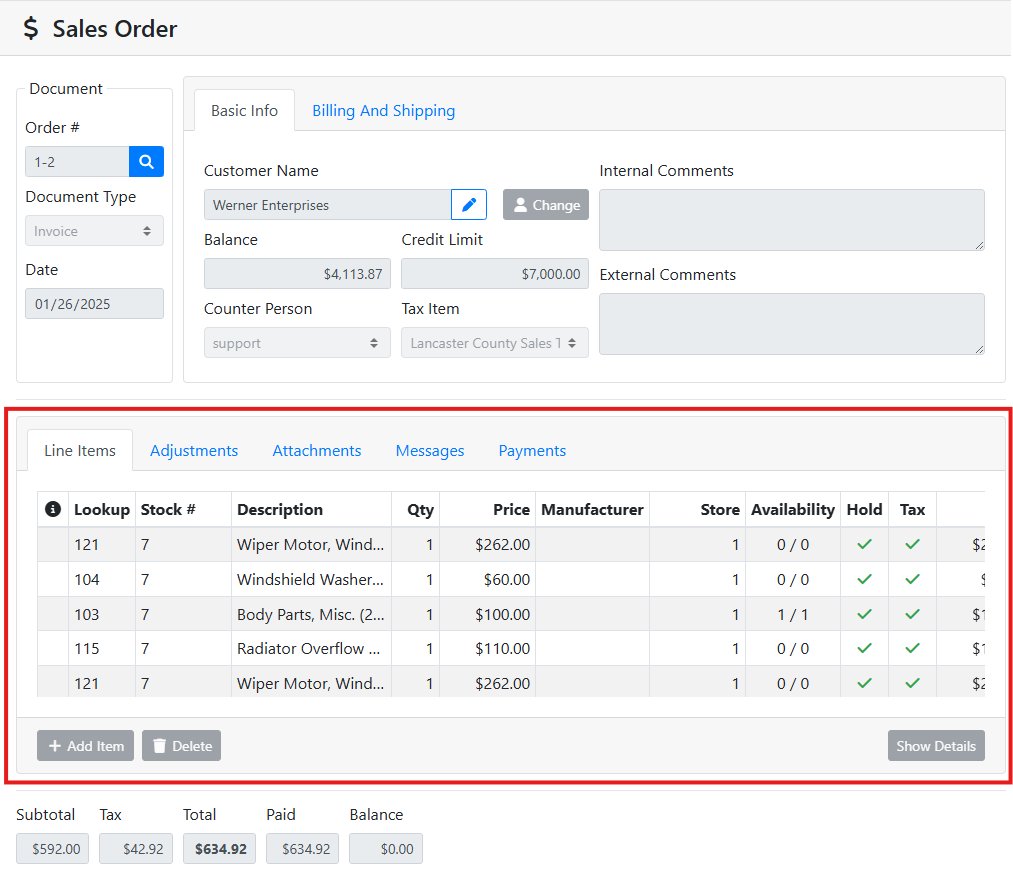
The Line Items tab displays the inventory items on the sales order.

Attn 
Lookup - The item tag number.
Stock # - The vehicle stock number for parts pulled from a vehicle.
Description - The item description.
Qty - The line item transaction quantity.
Price - The amount charged to the customer.
Manufacturer - Item manufacturer code.
Store - The store the item is sold from or returned to.
Availability - Quantity available / quantity on hand.
Hold - If the document is not closed, this indicates if quantity is to be put on hold and unavailable for other documents.
Tax - Whether sales tax is to be charged for this line item.
Total - The total line item charge, price + tax.
Cost - The cost for the item.
Costing can be handled many ways. Read more about costing.
Locations - The location(s) this item will be sold out of.
↕️ Adjustments
The Adjustments tab shows adjustments to the sales order that are not inventory items. Adjustments might include freight charges, surcharges, discounts, or some other fees.
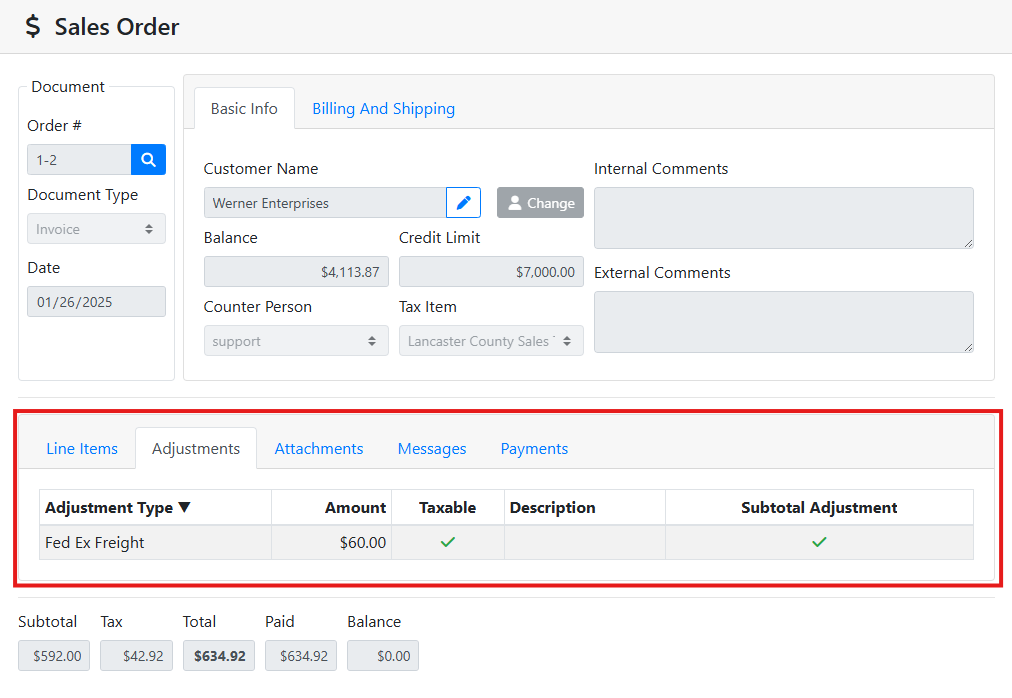
Adjustment Type - The type of adjustment.
Adjustment types can be configured for your company’s needs and may have different default behavior. Read more about Adjustment Types.
Amount - The amount of the adjustment.
Taxable - Whether tax is charged for the adjustment.
Description - The description for the adjustment if the user entered one on the document.
Subtotal Adjustment - Whether the adjustment affects the subtotal of the document or the total balance of the document instead.
🖇️ Attachments
The Attachments tab shows all items that are attached to the sales order. Click on an attachment to preview it.
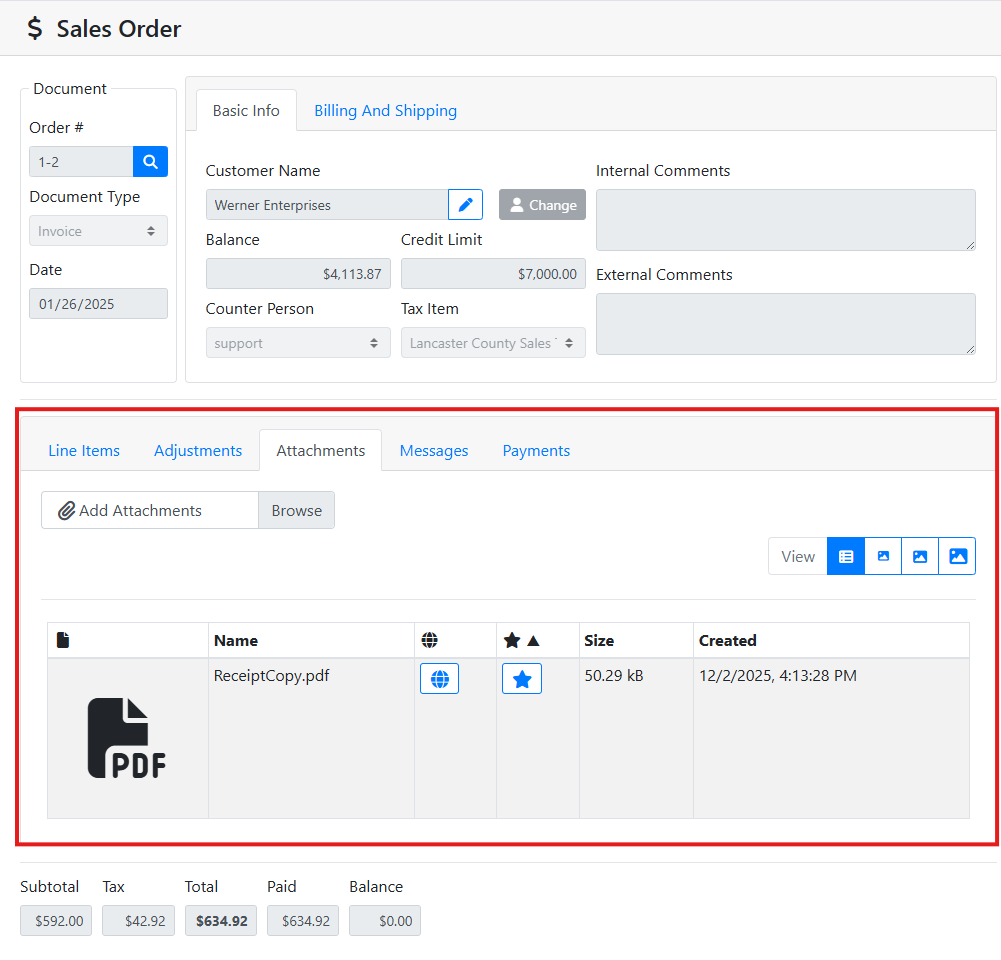
View - The view control lets you change the display of the attachment thumbnail or switch to a table layout.
Attachments generally work the same everywhere in ITrack. Read more about Attachments.
🗨️ Messages
The Messages tab displays any messages for the currently loaded customer or parts. Messages marked as Important will appear in red text.
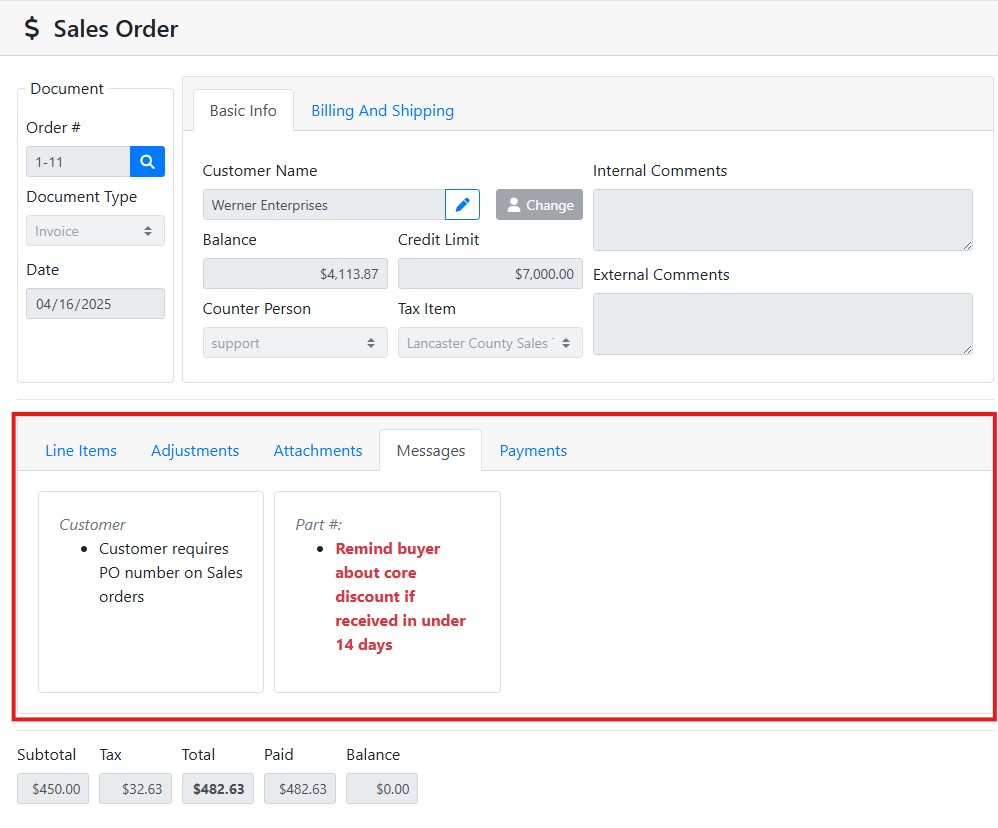
Messages can be configured and used in many ways in ITrack. Read more about Messages.
💵 Payments
The Payments tab shows you any payments that are applied to the sales order. When the Payments tab is open, you will also see Payment Details which includes the finance terms and payment due date.
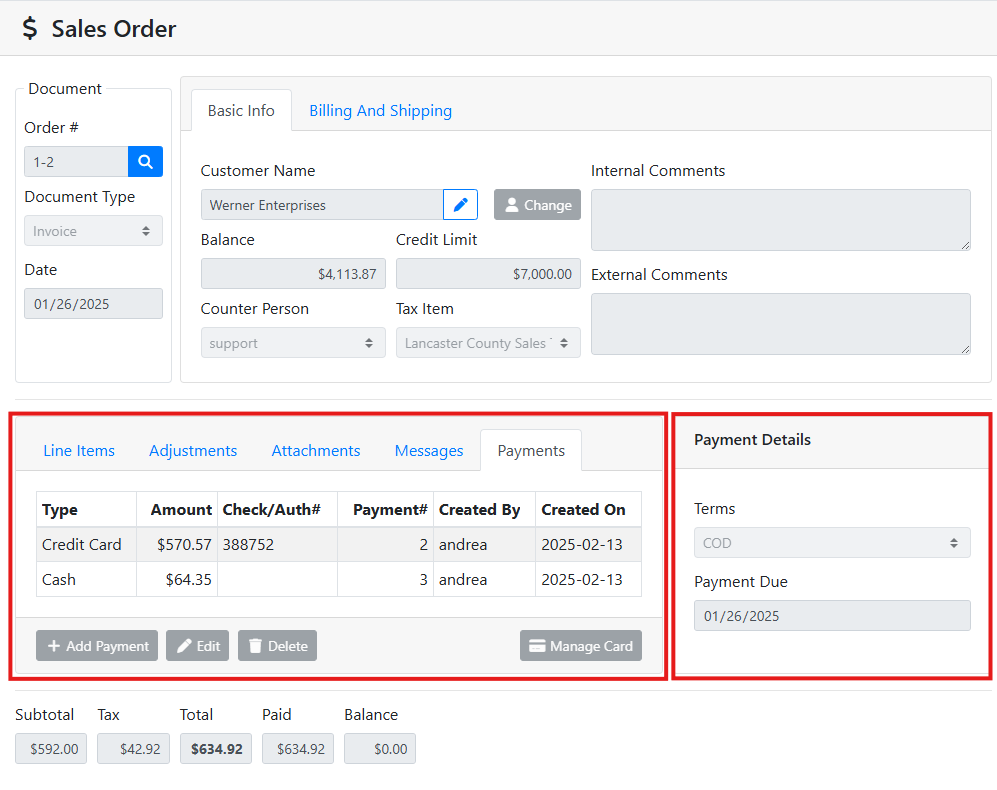
In the Payments table, you can see the following data:
Type - The payment type or payment method.
Payment types can be customized for your organization. Read more about Payment Methods.
Amount - The amount paid.
Check/Auth # - The check number, authorization number, or trace number for the payment, if entered.
Payment # - The ID number for the payment in the database.
Created By - The user to created the payment.
Created On - The date the payment was entered.
In the Payment Details box, you can see:
Payment Terms - The invoice payment terms on the sales order. Sales orders will use the customer’s default terms unless you override them on the sales order.
Payment Due - The date the payment is due, based on the document date and the terms.
Terms are customizable and can be defined for your organization. Read more about Terms.
🧮 Totals
The bottom of the sales order will show you document totals.
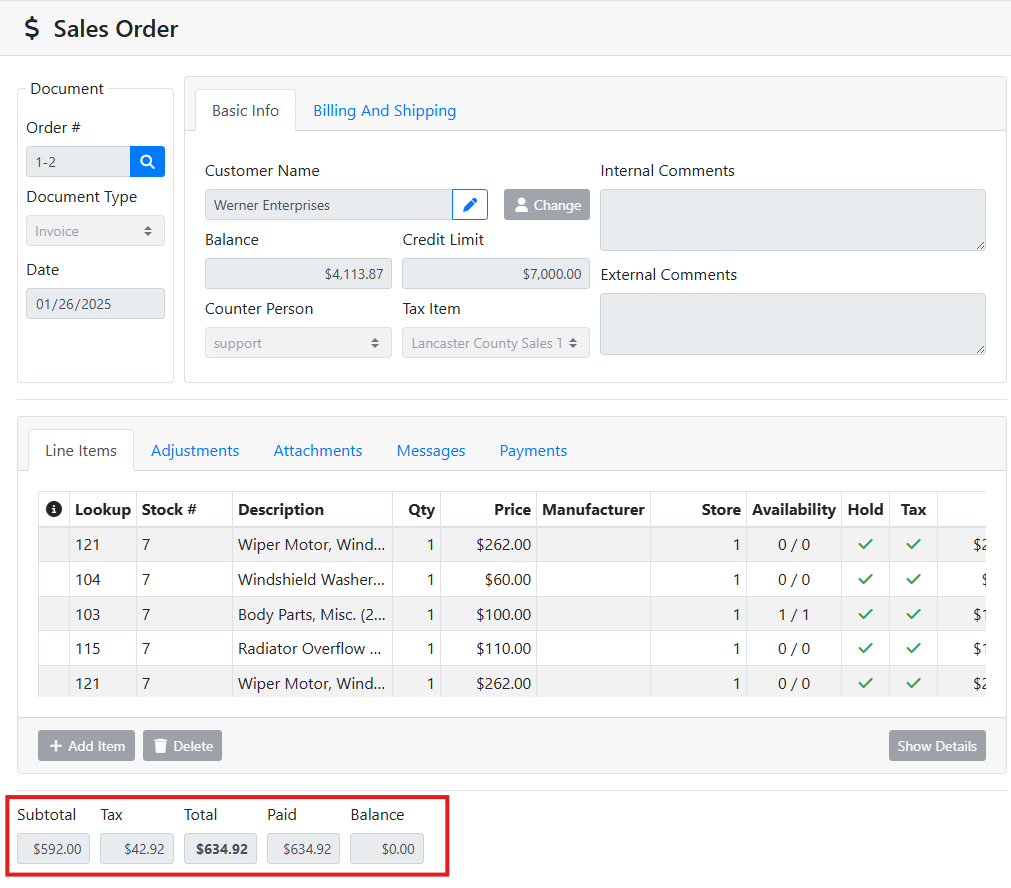
Subtotal - The subtotal of the sales order line items and adjustments, before tax.
Tax - The total sales tax on the sales order.
Total - The total value of the sales order, including tax (subtotal plus tax).
Paid - The total amount currently paid on the sales order.
Balance - The sales order’s unpaid balance, (total minus payments).