
ITrack Enterprise uses a menu to navigate between different features. What you see listed in the menu depends on your specific User Permissions, and what features are available.
Read more about User Permissions.
Since ITrack Enterprise Web runs in your web browser, you can take advantage of your browser’s features to navigate, such as using your browser’s back, next, and reload buttons, or bookmarking specific pages. If you want to multitask, you can open more than one tab or window with ITrack.
For example, this might be useful when comparing two parts for a customer. You can open two tabs and load different parts in each tab to quickly flip between them.
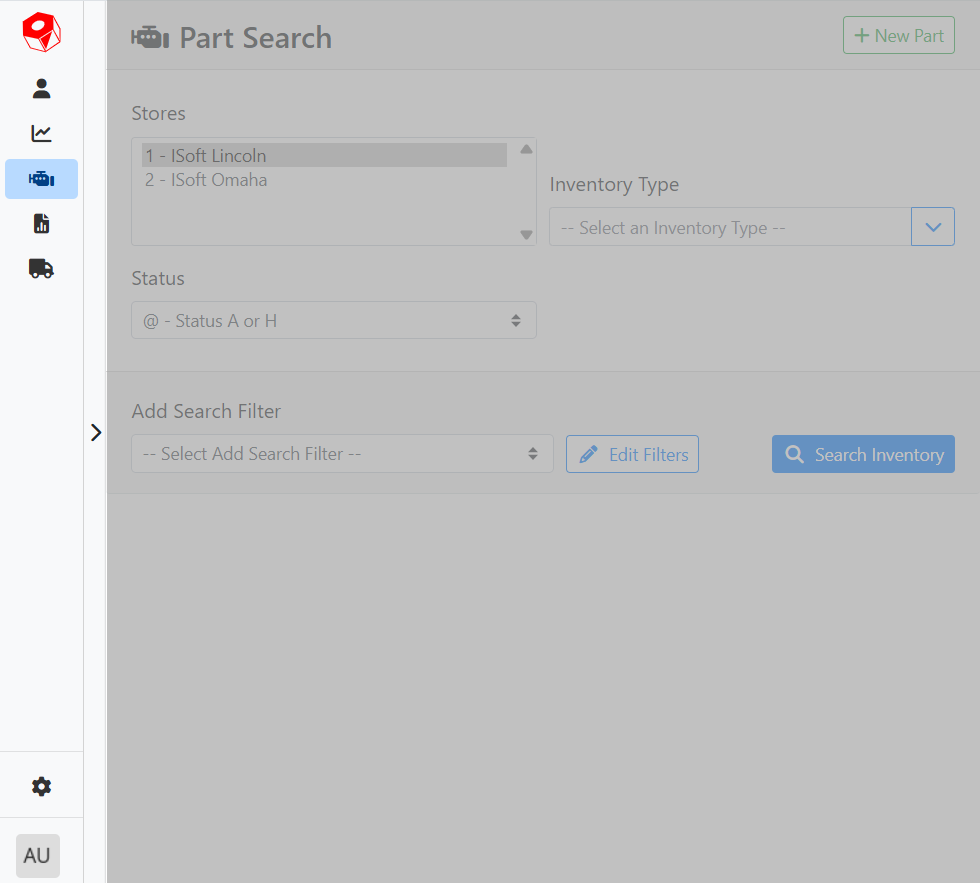
On desktop-sized screens, the menu is in a sidebar on the left, and has two optional sizes. Click the bar with the arrow 
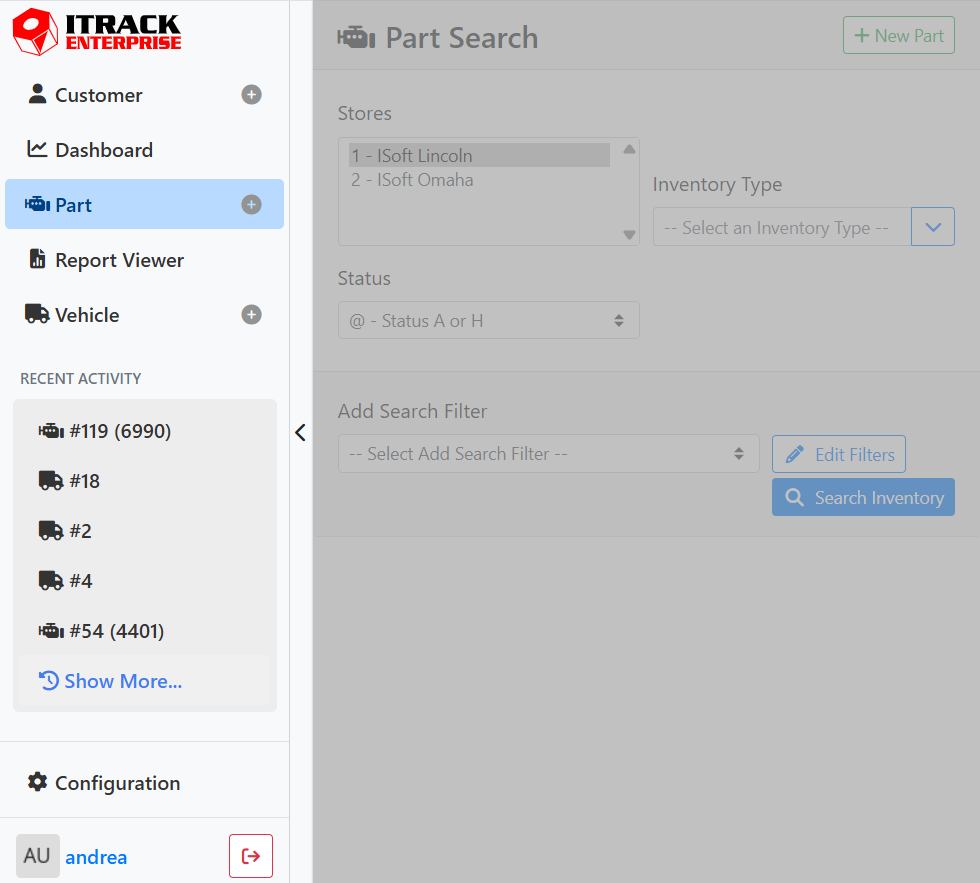
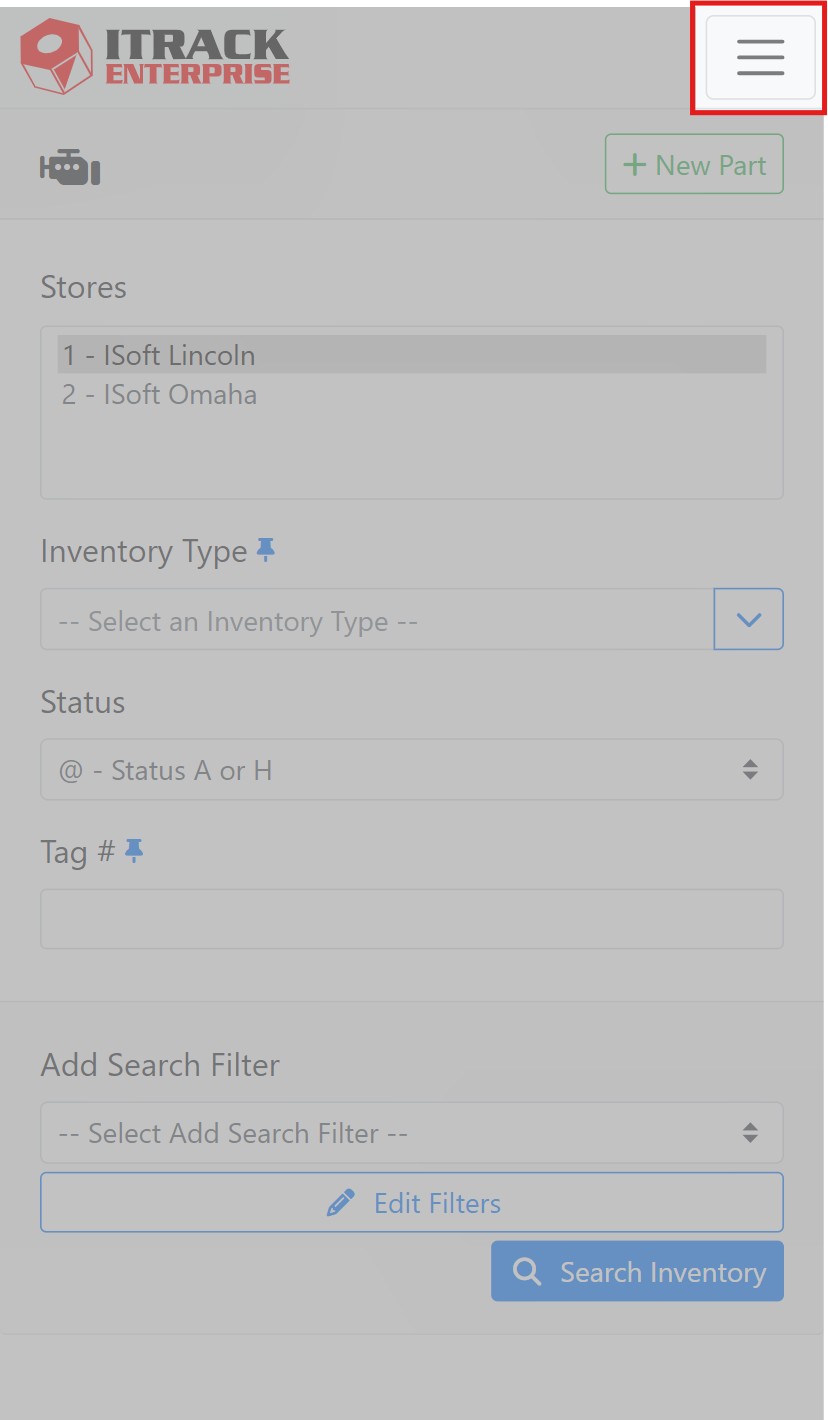
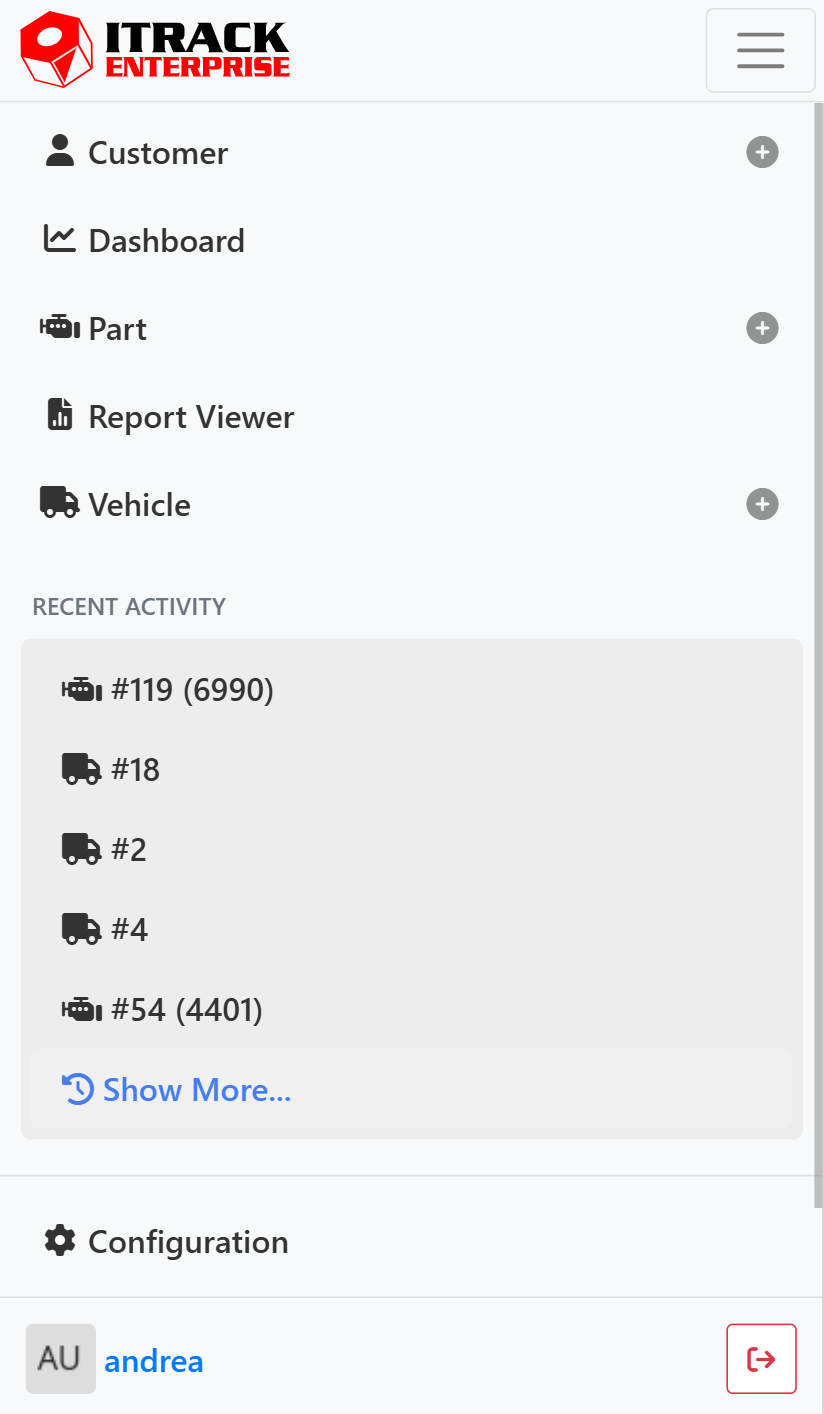
On mobile-sized screens, you will find the navigation menu by clicking the button on the top right of your screen. Click the button again to close the navigation menu.
➕ Quick Add Buttons
In addition to navigation, the navigation menu has buttons that allow you to quickly perform some actions. On the right-hand side of the navigation menu, click the plus button to quickly create a new record, such as creating a new part, new vehicle or new customer. This saves you from having to click into the search screen, and then clicking the +New button to start a new record.
🕓 Recent Activity
ITrack keeps track of items you have recently visited in the Recent Activity area. The most recently visited item is listed at the top. Click on any item to quickly open it.
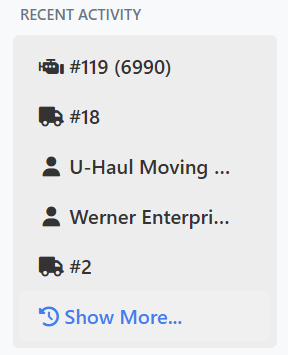
In this example, the part with tag #119 (part type 6990) was the most recently opened item, followed by vehicle #18, and the customer U-Haul Moving & Storage.
Activity is specific to each user and each device and is stored in your browser. This means if you log in on both your phone and your laptop, the history will be different on each.
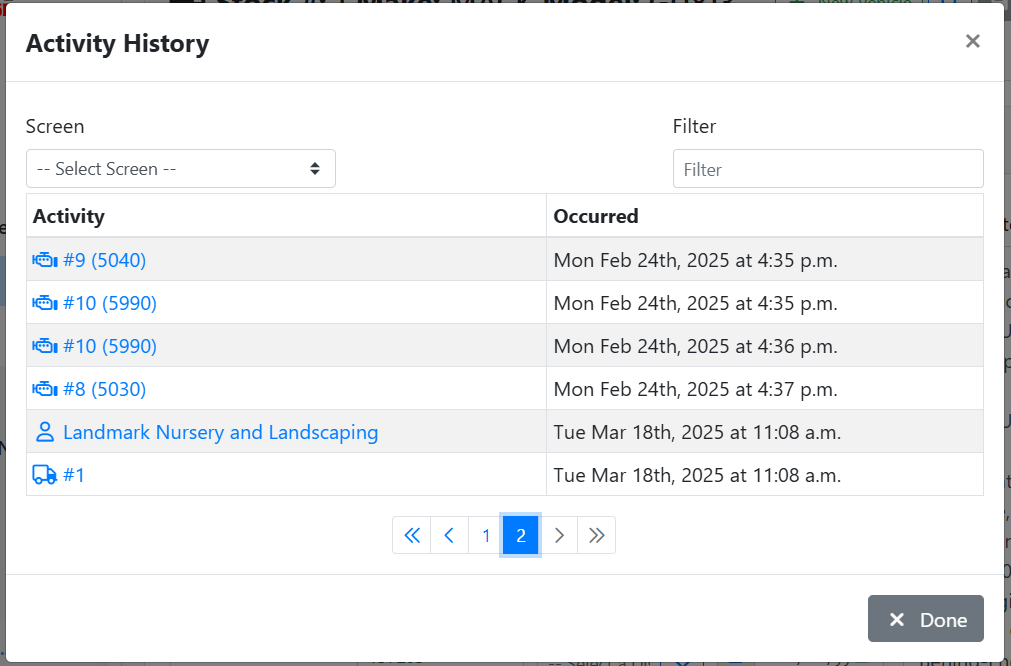
You can see additional history by clicking the Show More… button. The Activity History window also lets you filter the activity by Screen, such as viewing just Parts or Vehicles, as well search for specific items by using the Filter field.
ITrack Enterprise Web can’t open multiple windows the same way that a desktop application does. Instead of opening multiple windows and letting you switch between them, the Web version keeps track of the pages you’ve visited. You can run ITrack Enterprise Web in multiple browser windows or tabs if you want a multi-window experience.
↖️ Logging Out
To log out of ITrack, click the red button at the bottom of the navigation menu, next to your user name.
