Attachments appear in many places in ITrack and generally work the same everywhere. This guide will walk you through all attachment functions, but some areas may not use all attachment features.
👁️ Viewing Attachments
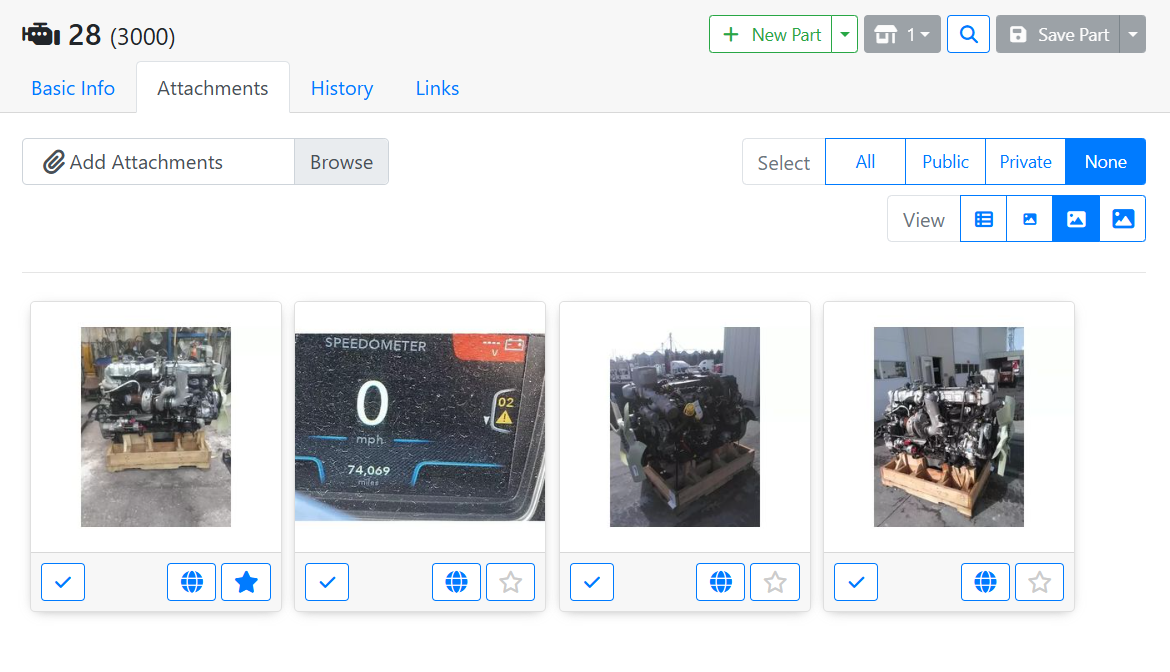
Most items in ITrack allow you to upload multiple attachments. When viewing attachments, they may appear either as thumbnails or in a table.
Use the View option to change the size of the attachment thumbnails on your screen, or to toggle to a table view.

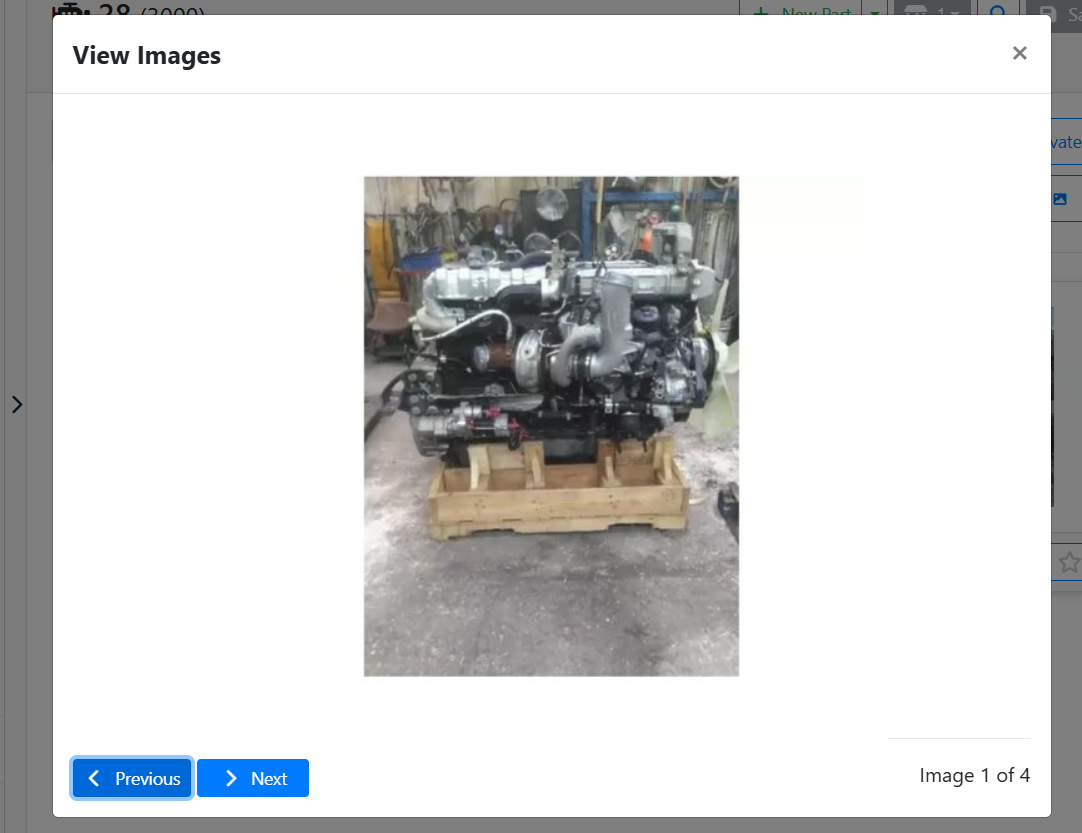
Click on an attachment thumbnail to see a larger version of it.
If your attachment is a PDF, click the zoom button
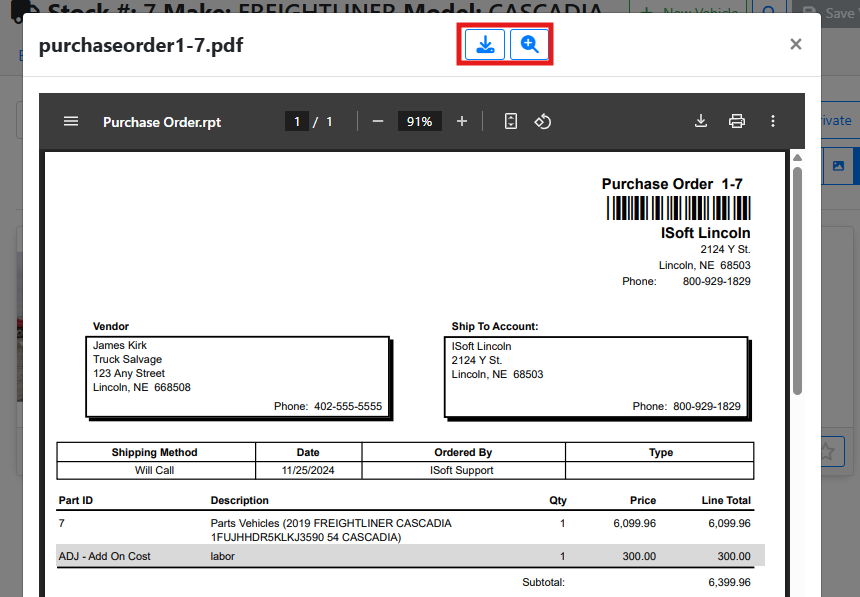
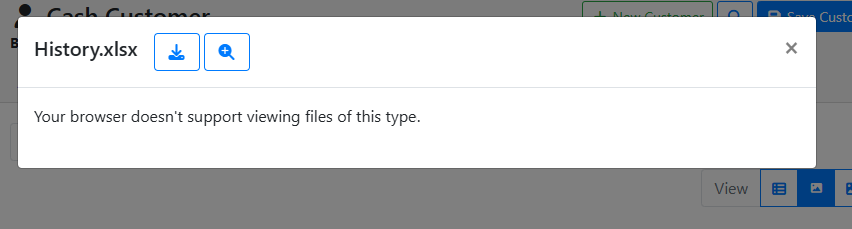
Some document types can’t be viewed in a browser window, and will need to be downloaded so they can be opened with the correct application. Click the download button
 Adding Attachments
The easiest way to add photos and videos is to log in to ITrack from your smartphone. This way you can take photos and upload them while you’re taking them, instead of uploading them later.
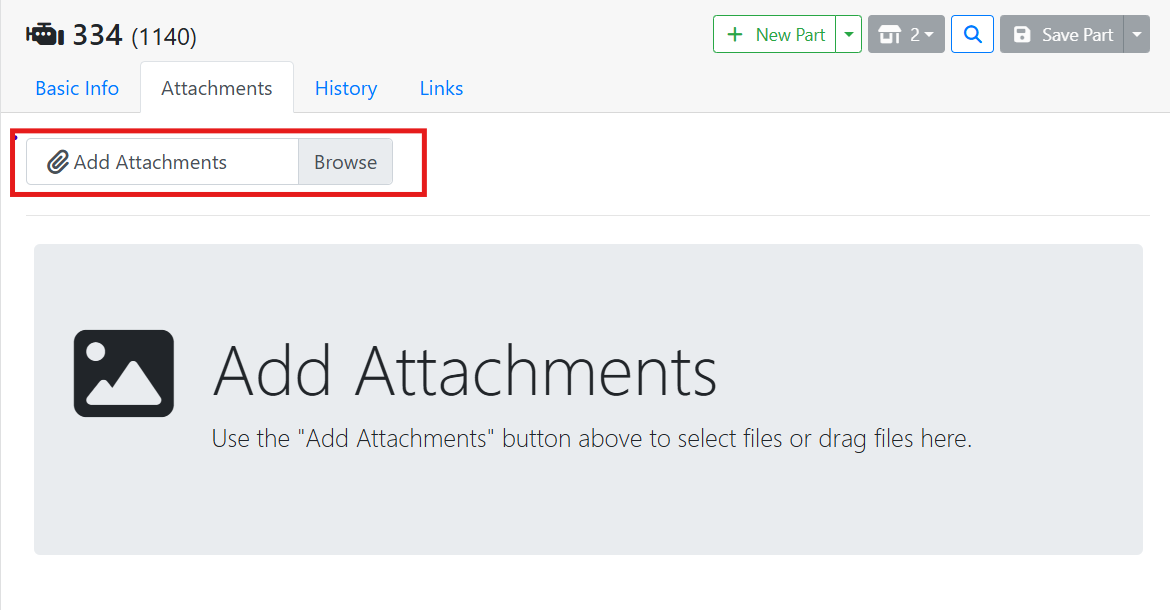
On a mobile device, tapping the Browse button will ask if you want to use your camera to take a photo or video, or if you want to browse your device for files.
To add files from a desktop computer or laptop, click the Browse button to open your file system to find an image or file. You can also drag files into the attachments area.
You can always drag files into the attachments area, even if you already have some attachments.
You can attach any type of file in ITrack, but please note that only images and PDFs can be viewed online. If you upload another type of document, you’ll need to download it so that you can open it in the correct application to view it.
📷 Managing a Single Attachment
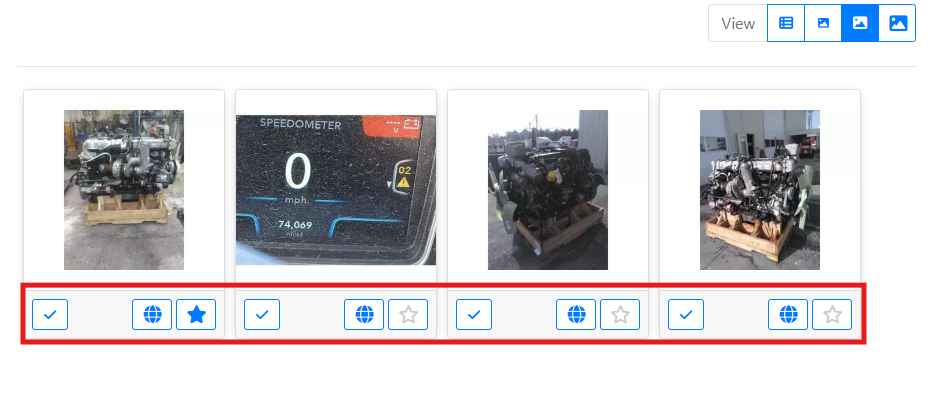
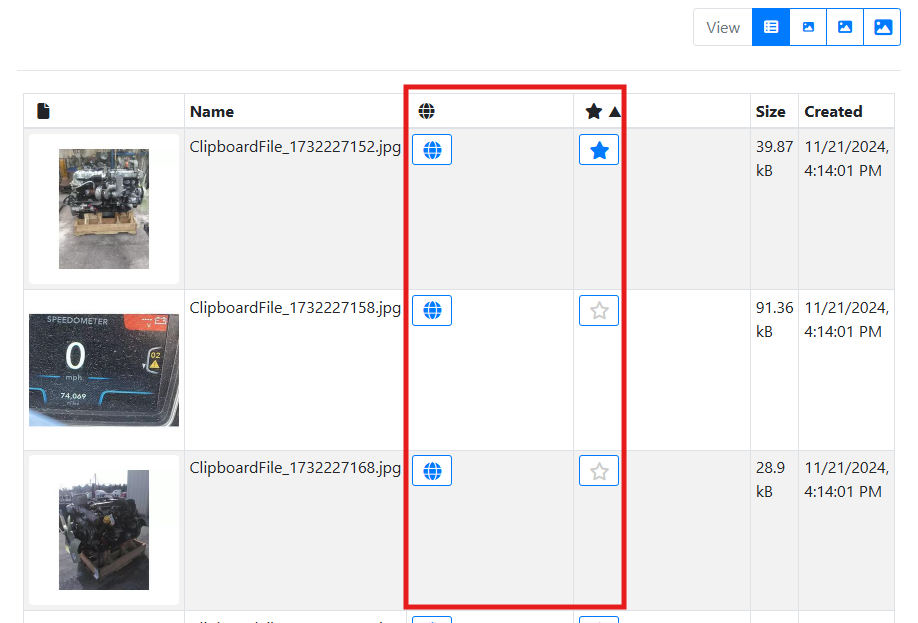
To manage a single attachment, use the buttons at the bottom of the card in thumbnail view mode, or on the row in the table view mode.
💻 Showing an Attachment Online
Click the globe button
Not all attachments will appear online, regardless of this setting. Whether an attachment appears online depends on what it’s attached to, and whether that item appears online as well. For example, parts and vehicles might be listed online, either on HeavyTruckParts.net or on your own website, and you likely want their attachments online as well.
⭐ Setting an Attachment’s Rank
The star button
⬇️ Downloading an Attachment
Hover over an image and click the Download button
📷 Managing a Group of Attachments
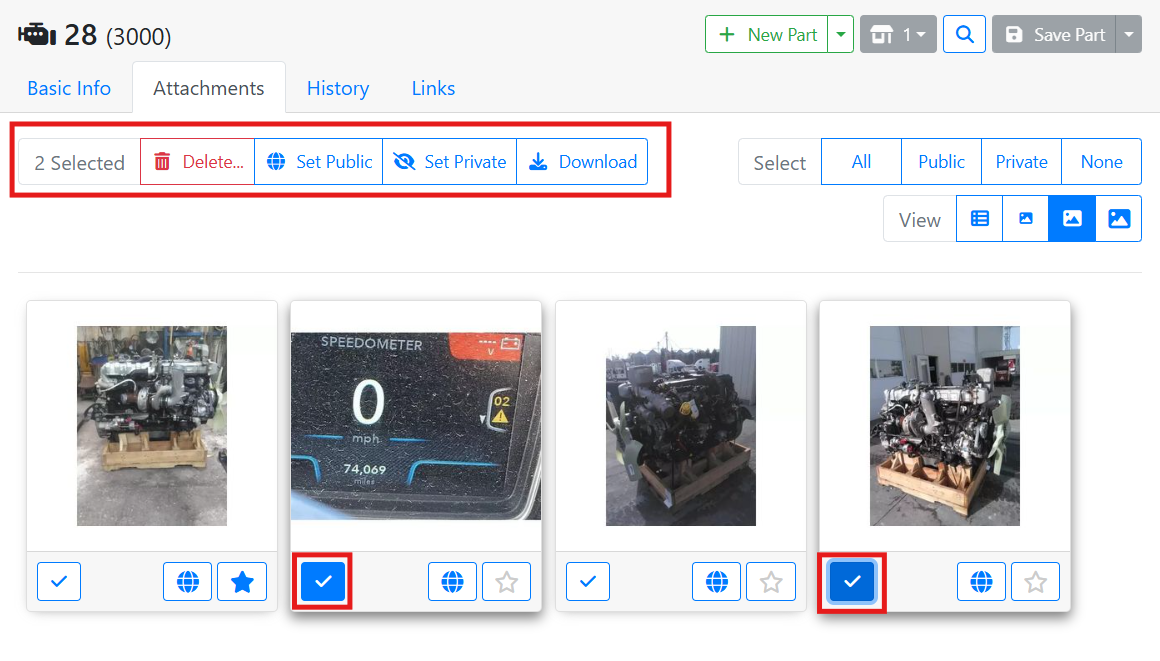
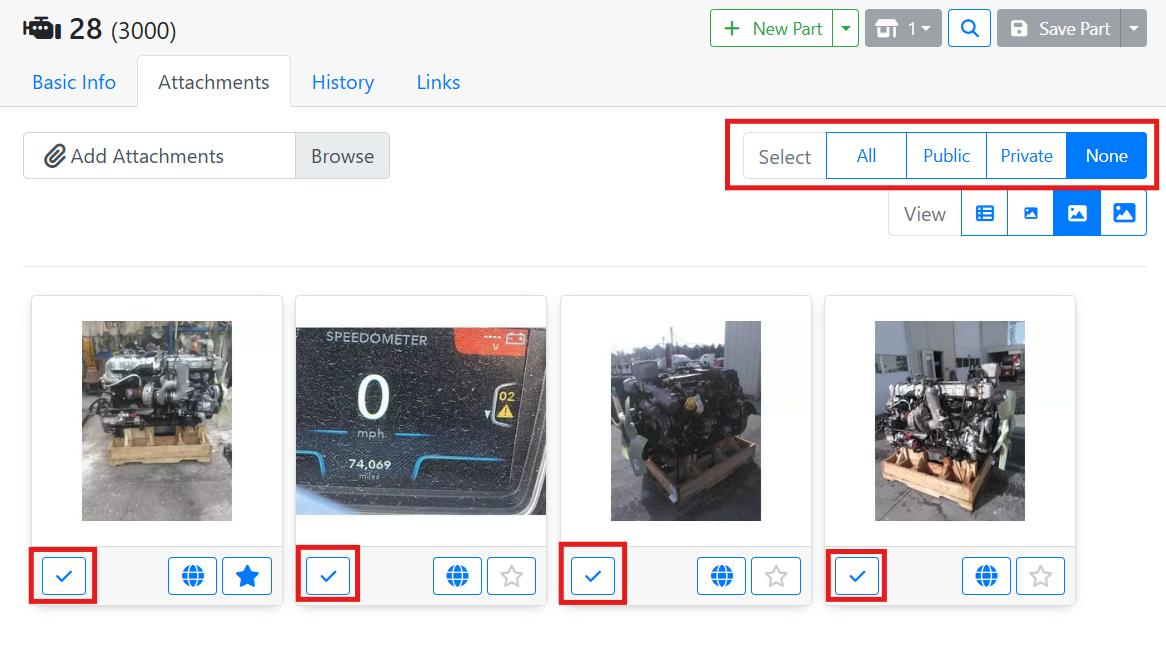
Use the checkbox buttons or the Select option near the top right to select more than one attachment.
If you’re viewing attachments in the table, click on rows in the table to select or deselect them.
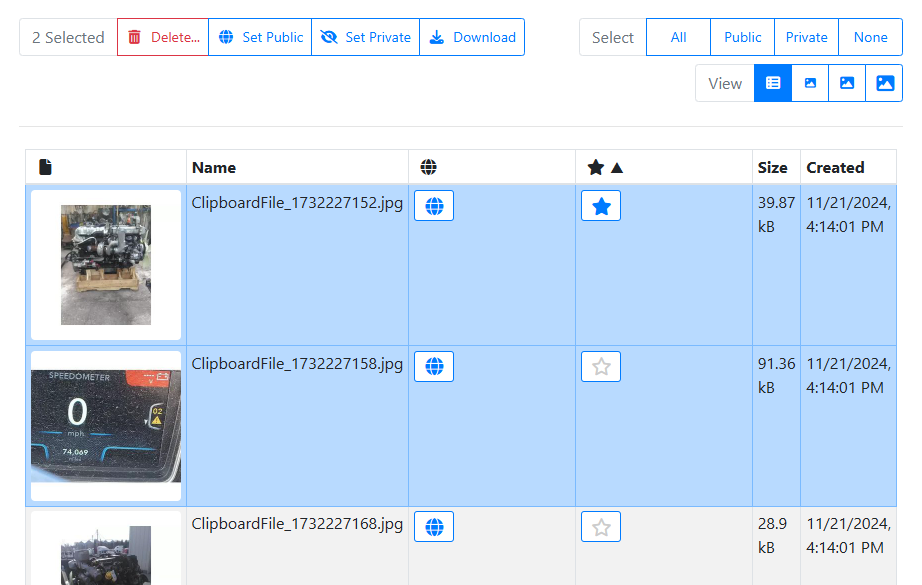
With at least one attachment selected, you will see some options in the upper left. You can delete, download, or change the online status of all selected items.