
There are three ways to create a new vehicle.
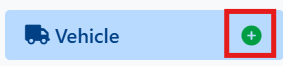
From the navigation menu, click the plus button next to the vehicle menu title.
Read more about navigation.
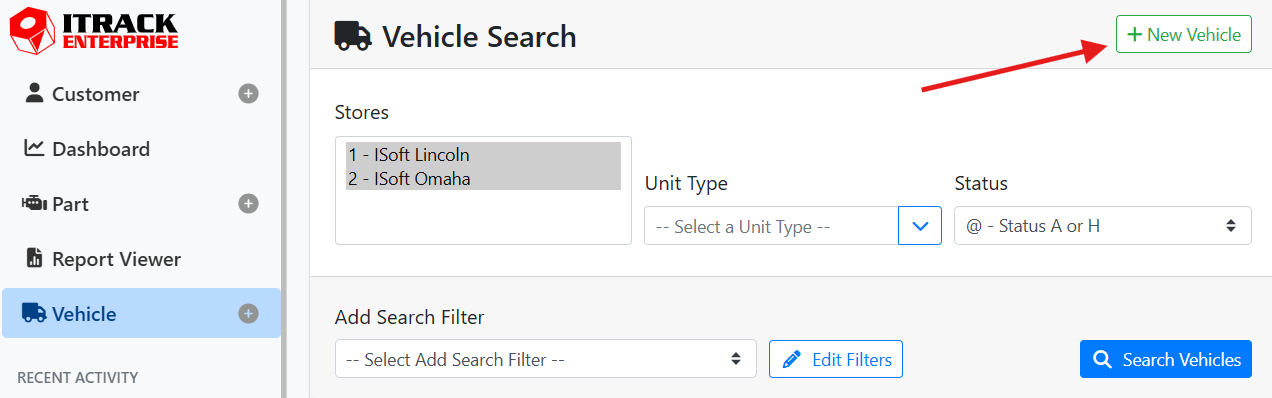
On the Vehicle Search screen, click the + New Vehicle button in the upper right corner.
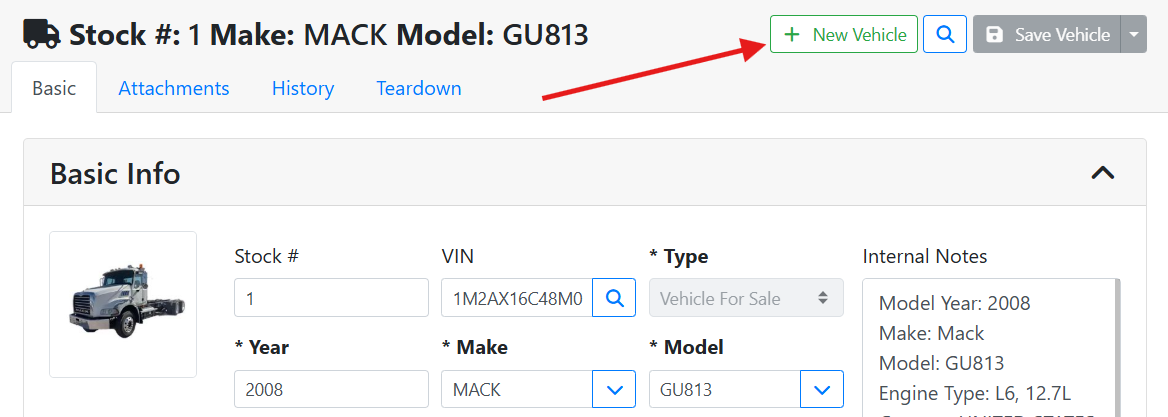
On the Vehicle screen, click the +New Vehicle button at the top of the screen.
Once you start a new record, required fields will be bold and have an asterisk. The Save button is disabled until you complete all required fields.
In this example, Type, Year, Make, and Model are all required fields.
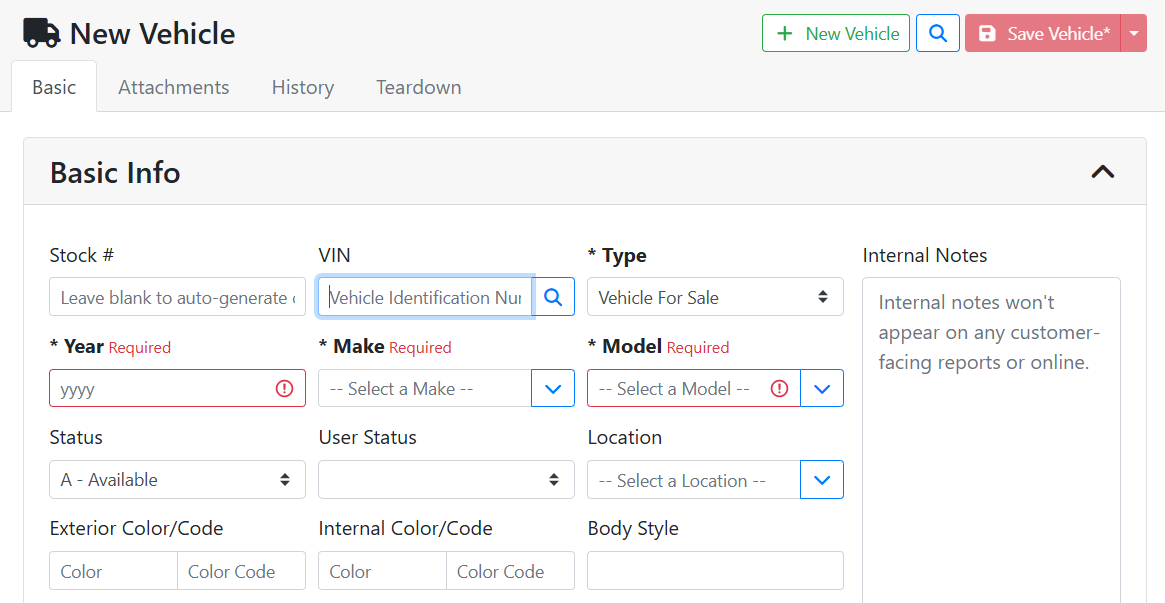
Required fields may differ for every company and can be configured in Configuration > Settings. Read More about Settings.
Looking up a vehicle by VIN is the fastest way to automatically enter some of the data when creating a new vehicle. After starting a new vehicle, enter the VIN and press Enter on your keyboard or click the spyglass button 
The Year, Make, and Model fields will auto-fill from the VIN, and additional details will populate in the Internal Notes field.
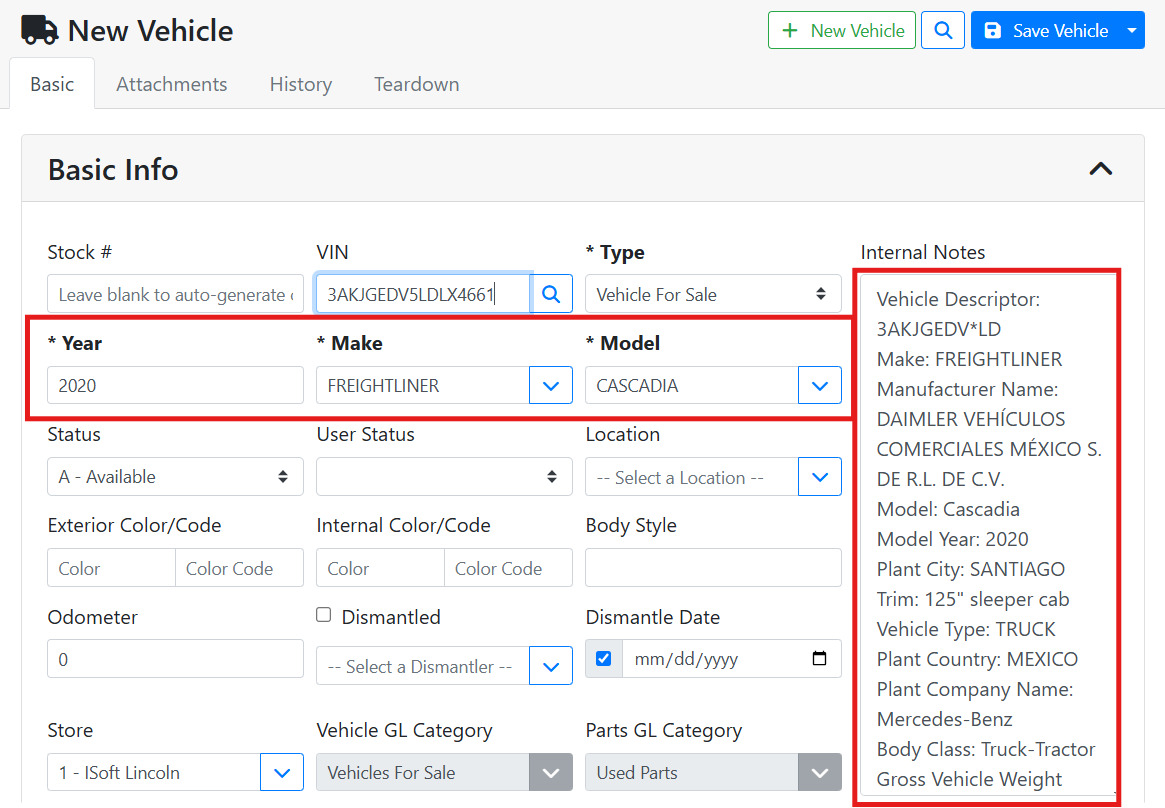
Read more about using the VIN lookup tools.
➕ Stocking a Vehicle into Inventory
Creating a vehicle record doesn’t immediately add that vehicle into your stocked inventory. It is recommended that you use a Purchase Order to purchase the vehicle into your stocked inventory and start a record-keeping trail for accounting and reporting.
Purchase Orders are only supported in ITrack Enterprise Desktop at this time.