ℹ️ Basic Info
The Basic Info box on the Vehicle screen contains some of the most important information about your vehicle, such as the Stock #, Type, Year, Make Model, Status and Location. Not all fields are required, required fields are bolded and have an asterisk on the label.
Required fields may differ for every company and can be configured in Configuration > Settings. Read More about Settings.
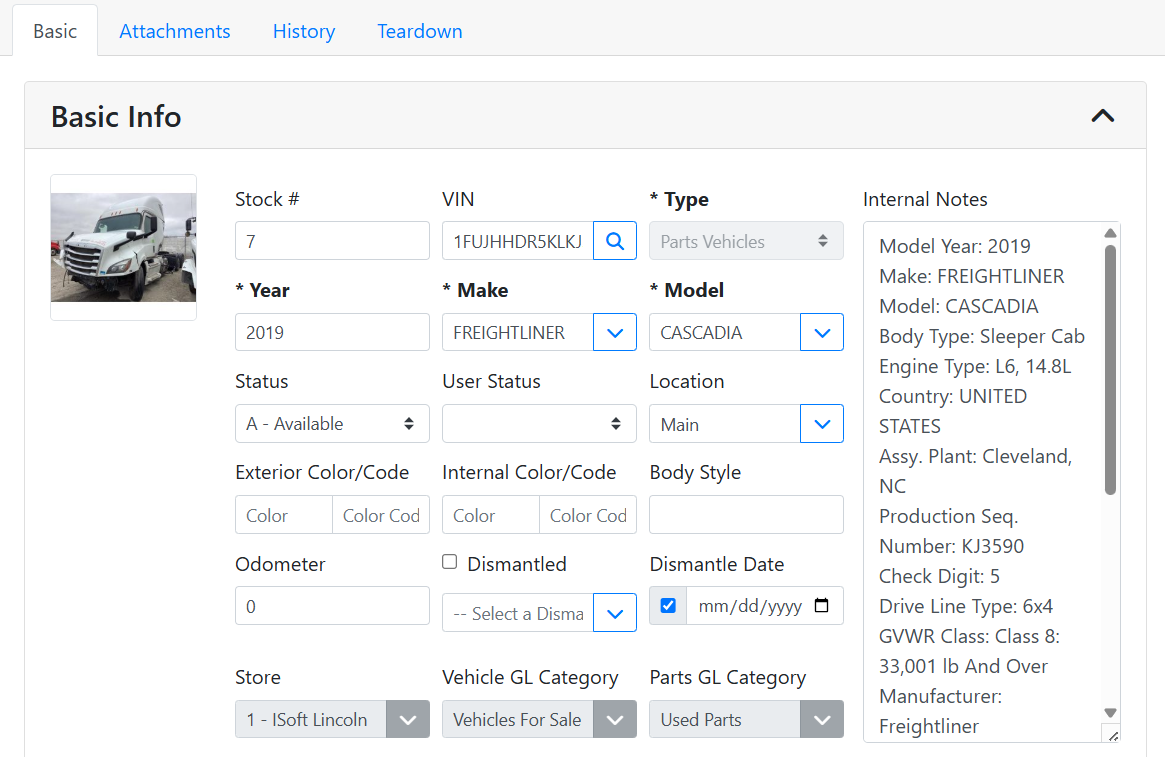
Stock # - The Stock Number is the unique identifier for this vehicle. If you do not set a Stock # when creating a vehicle, it will be automatically assigned.
VIN - Vehicle Identification Number. ITrack uses a VIN lookup tool to help you fill out vehicle details based on the VIN.
Read more about using VIN lookup.
Type - The Inventory type is an important field that determines how the inventory record is classified. Different inventory types will be treated differently and may have different default settings, different custom fields, it will determine how the item is listed online, whether it is pickable, and so on.
Read more about Inventory Types.
Internal Notes - Notes you want to track on the vehicle. Internal Notes won’t appear online or on any customer documents.
Year, Make, and Model - The vehicle manufacturer’s classification of the vehicle.
Status - The status is used to determine whether the inventory item is stocked or not.
Read more about Inventory Statuses.
User Status - The User Status is a custom field that can be used by your company however you like. Contact ITrack support if you would like to use this field and they can help you insert it into your database.
Location - The location is used to determine where in your facility the vehicle is located. You can assign locations to each store based on how you organize everything.
Read more about Inventory Locations.
Exterior Color/Code, Interior Color/Code, Body Style, Odometer- These optional fields let you add more details to the vehicle. It can be helpful to get the paint color if you repaint parts, for example.
Dismantled, Dismantled By User, Dismantled Date - For parts vehicles, you can use these fields to track whether you’ve dismantled the vehicle yet, who dismantled it, and on what date.
Store - The store that has the vehicle stocked. The store is assigned when creating the vehicle and can’t be changed manually. Use a Transfer Order if you need to transfer inventory between stores.
Read more about Stores.
Vehicle GL Category - The general ledger category that the vehicle is assigned to. When accounting transactions occur on a vehicle such as a purchase or sale, this determines which accounting table is used.
Parts GL Category - The general ledger category that the parts pulled from this vehicle will get assigned to.
Read more about Accounting.
Custom Fields - Custom fields can be set by your company based on whatever information you want to capture on a vehicle. The custom fields that show can be different depending on the inventory type and the vehicle make and model.
Read more about Custom Fields.
💵 Sales & Marketing
The Sales & Marketing box on the Vehicle screen lets you specify how the vehicle appears online and in Sales Orders.
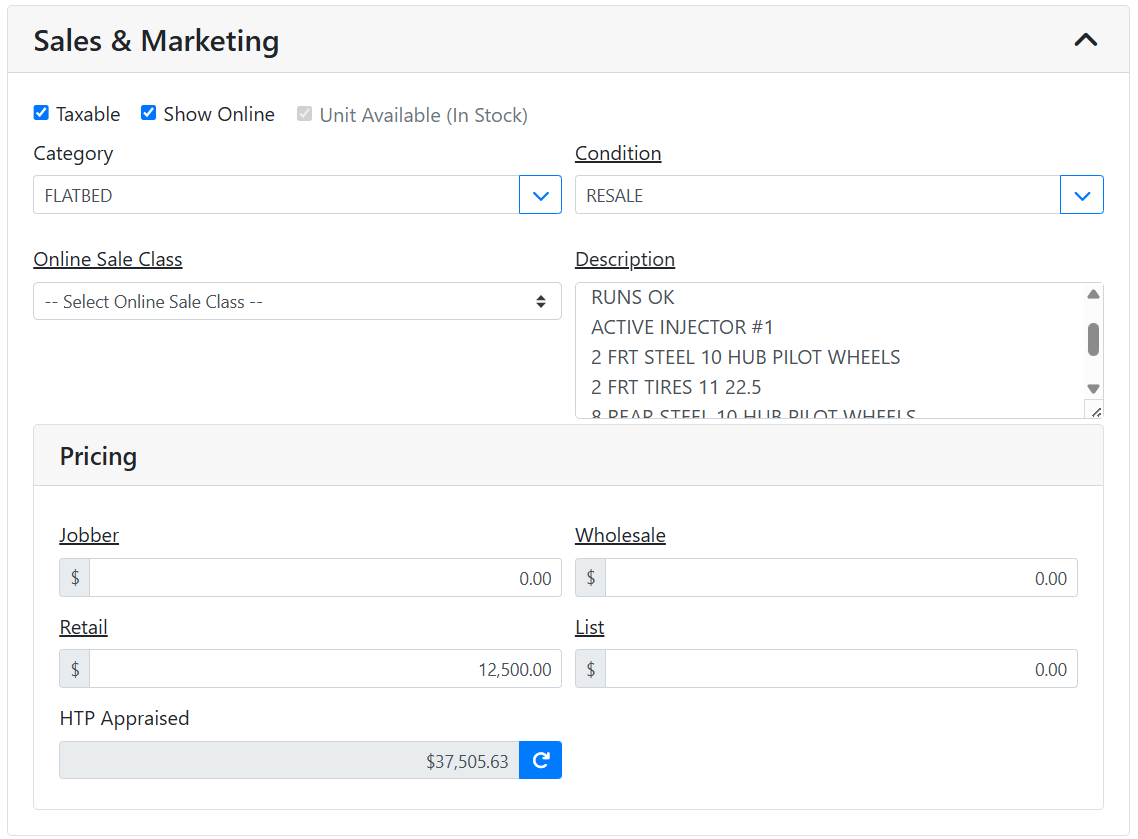
Taxable - Whether to charge sales tax when the item is sold.
Show Online - Whether the item appears on ecommerce sites, such as HeavyTruckParts.net.
Unit Available (In Stock) - Whether there is sufficient available quantity for the item. This checkbox can’t be edited, it simply shows you here whether the item has enough quantity to be sold. This is determined by its status and stocked quantity.
Category - Categories are used to map a group of similar items together for online marketing. For vehicles, usually this is the type of vehicle, like Flatbed or Cab & Chassis.
Condition - The condition the item is in, for example, New, Used, etc. Type in the field to add new values.
Online Sale Class - This field is used on HeavyTruckParts.net to indicate your promised turnaround time on orders.
Description - The description is a public field, and will appear with the item in online listings and will print on documents such as customer invoices. It is very common to put a lot of detail in here to help your online customers decide if they want to buy your item.
Jobber, Wholesale, Retail, and List Pricing - The prices you want to set for the item. Pricing fields let you set optional pricing categories that you can assign customers to. For example, you might set a Wholesale price tier that you offer to specific customers, and on those customer records you can assign them to use wholesale pricing. Typically the values are used in the following way:
-
Retail price is the default price your item will use when sold, and will be the price that appears online by default.
-
Jobber is usually a markup between the distributor price and the wholesale price.
-
Wholesale is usually a markup between jobber and retail.
-
List price may appear in advertising or may be the manufacturer’s suggested price.
HTP Appraised - The HTP Appraised value uses price information from HeavyTruckParts.net to show you what other similar vehicles are being priced at. It does not guarantee that your vehicle has that value, since that depends a lot on the vehicle’s condition. However, it can help you see what other vendors are listing.
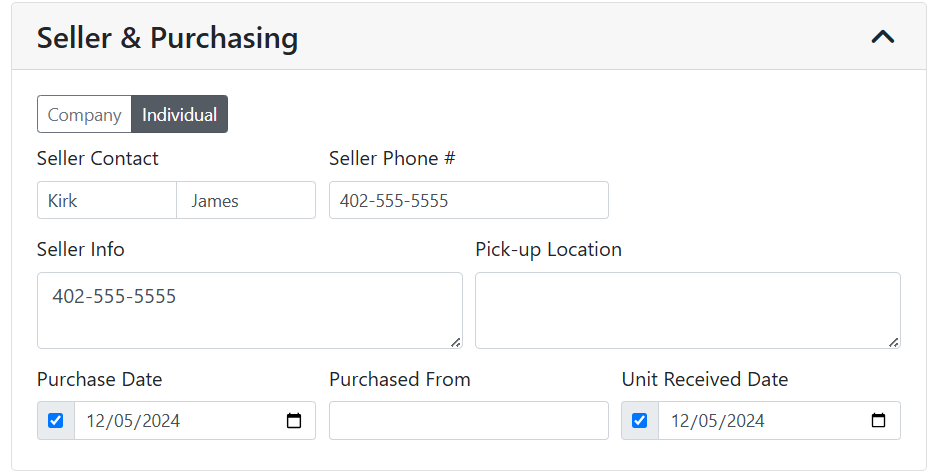
💵 Seller Information
The Seller Information box on the Vehicle screen shows you where you purchased the vehicle from. If you received the vehicle on a Purchase Order, this information will automatically be filled out.
📝 Title and Insurance
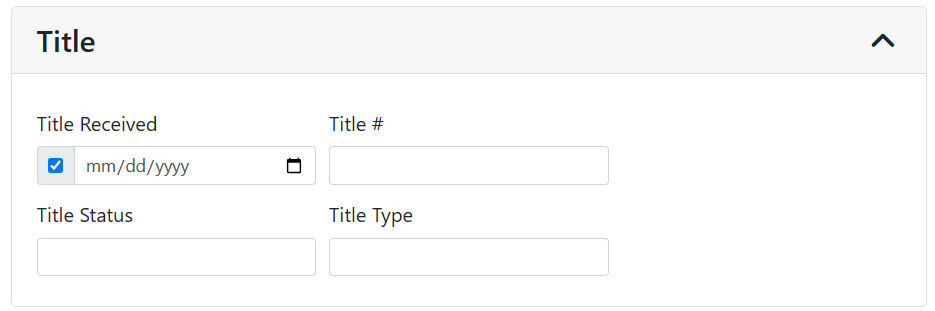
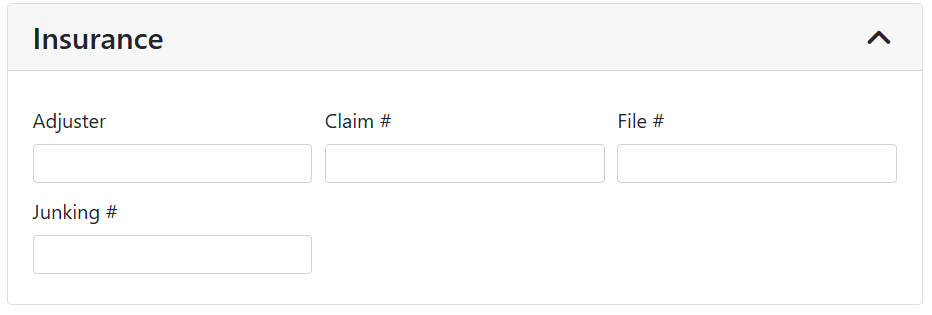
The Title and Insurance boxes on the Vehicle screen are optional, in case you want to keep track of the vehicle’s title and any insurance claim info.