
This articles covers editing a store’s settings. Read more about how to use Stores.
🏢 Editing a Store
To edit a store, select the Store tab.
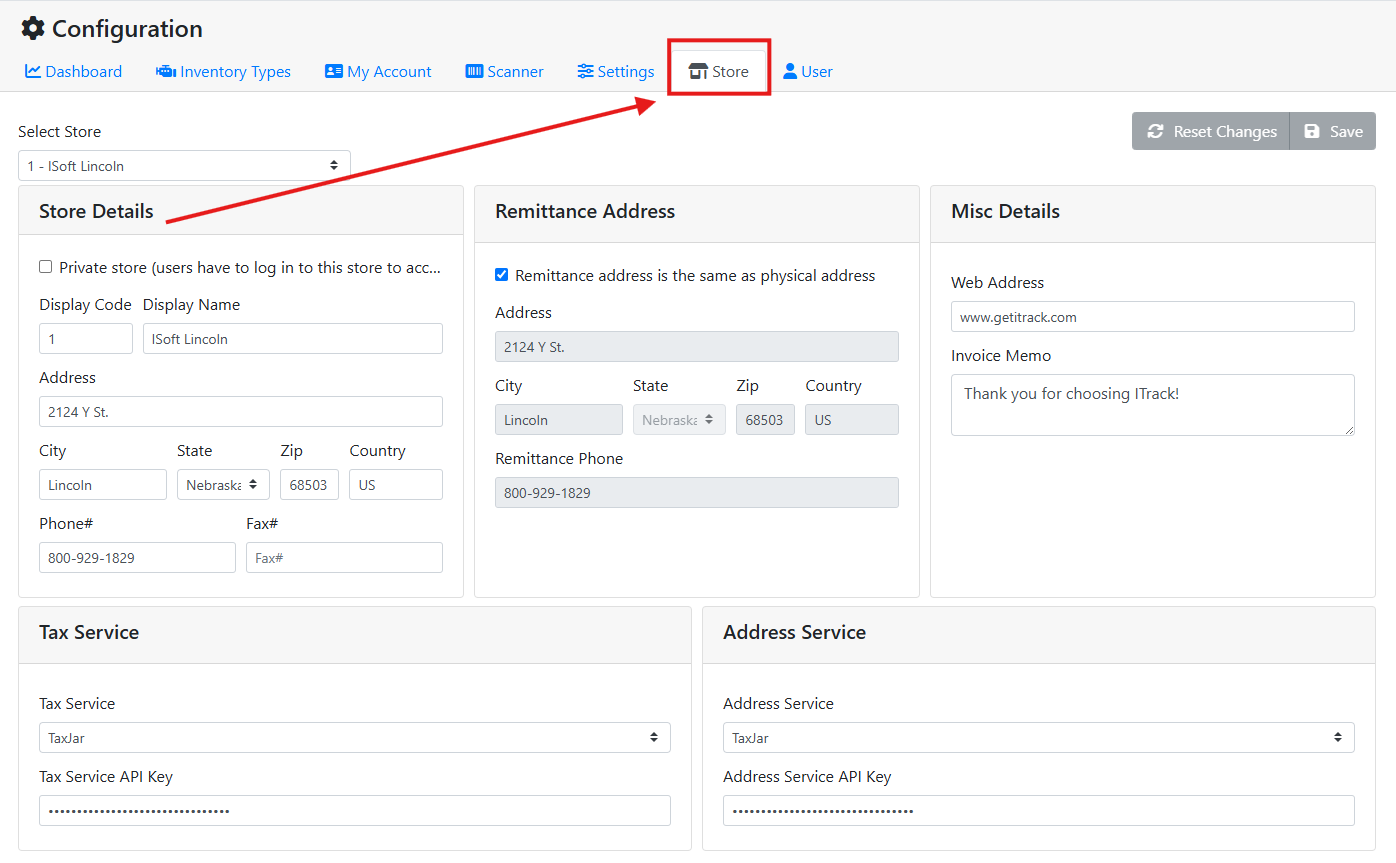
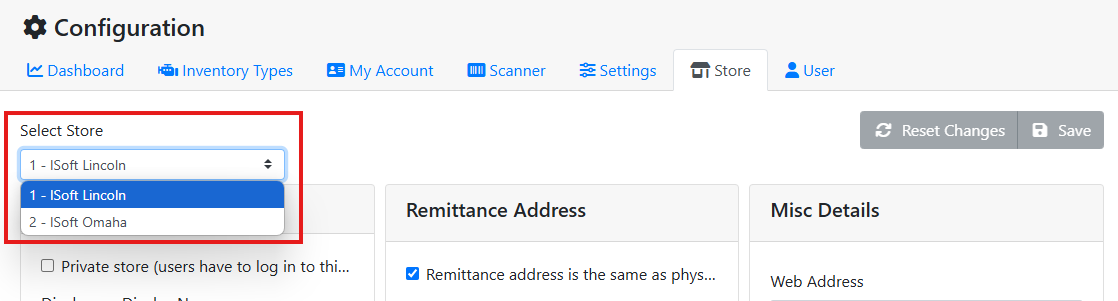
If you have more than one store, use the Select Store menu to choose which store to edit.
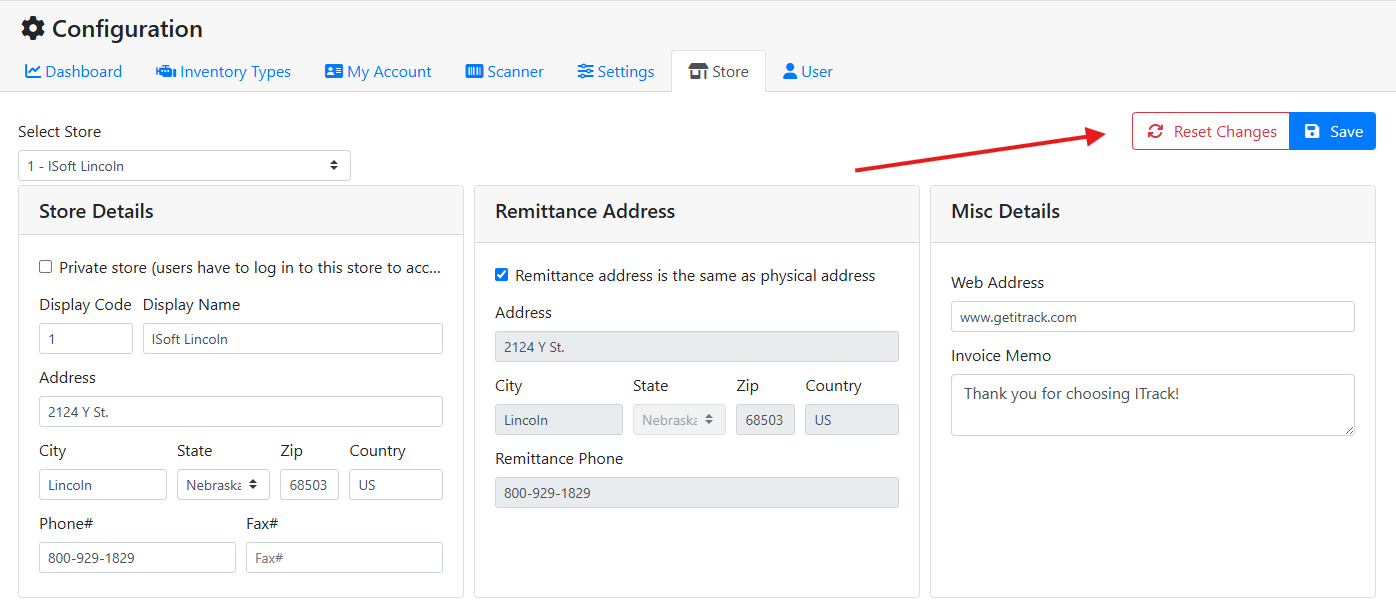
After making your changes, make sure to click the Save button in the upper right. Click Reset Changes if you need to discard the changes you made.
🏢 Store Details
The Store Details box contains the primary information about the store.
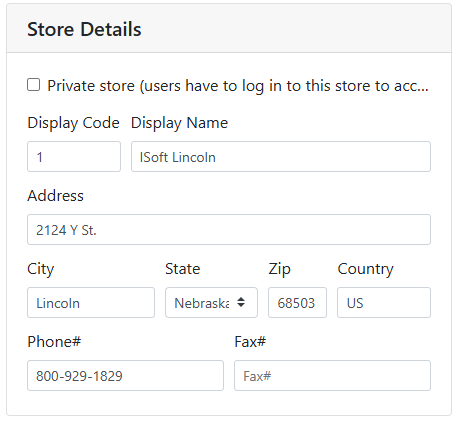
Private Store - If a store is marked as a Private Store, then a user can’t view anything associated with that store unless they are specifically granted access to that store. Most of the time you won’t want to mark your stores private, so that employees can help customers find parts at other stores. Only set a store to private if you want it highly restricted.
Display Code - The store’s Display Code is used to identify the store in a lot of menus and tables to save room. By default stores will be assigned a number, but you can change this to anything you like. Display codes need to be short and unique.
Display Name - The stores' name.
Address, City, State, Zip and Country - The physical address for the store, and is used for shipping.
Entering the Zip code first will auto-fill the City, State and Country fields.
Phone # and Fax # - The contact information for the store.
The Remittance Address box controls what is printed on billing statements.
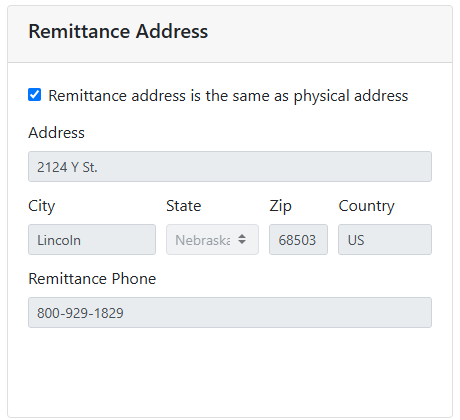
Remittance address is the same as the billing address - By default, Remittance address is the same as the billing address is checked. This syncs the Remittance address with the store’s primary address. Uncheck this box if you would like to use a different remittance address, for example, if you receive billing at a central location or use a PO Box.
Address, City, State, Zip Country and Remittance Phone - These fields are disabled if Remittance address is the same as the billing address is checked. Unchecking that checkbox will allow you to set different contact information for billing statements.
The Misc Details box contains other information associated with the store.
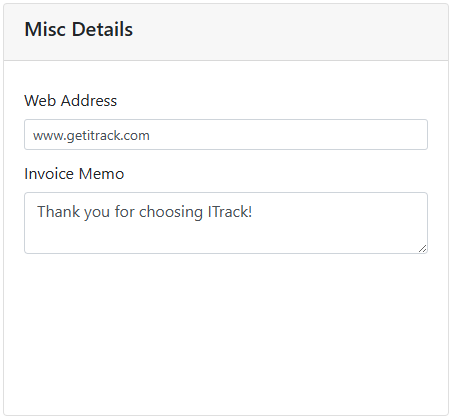
Web Address - The website address (URL) associated with a store, if applicable.
Invoice memo - The invoice memo will print on all invoices from this store, if set.
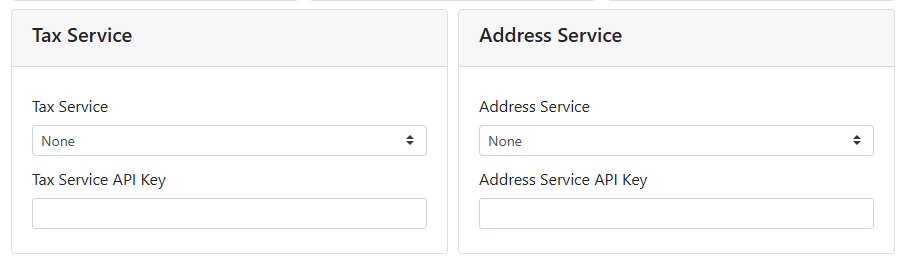
The Tax Service box is used to configure your store to use a tax calculation service. The Address Service box is used to configure your store to use an address validation service, provided by a tax calculation service.
🏢 Adding and Deleting Stores
Since a store gets linked to almost every record in the database, they can’t be deleted unless everything associated with it is also removed. Make sure that a decision to add or remove a store is fully considered.
Stores can only be added or removed in ITrack Enterprise Desktop at this time.