
Depending on what you are trying to do in ITrack, you may want to either start with a clean search, or re-run a previous search. This can happen manually by clicking buttons, or automatically depending on your behavior.
↪️ Restoring a Search
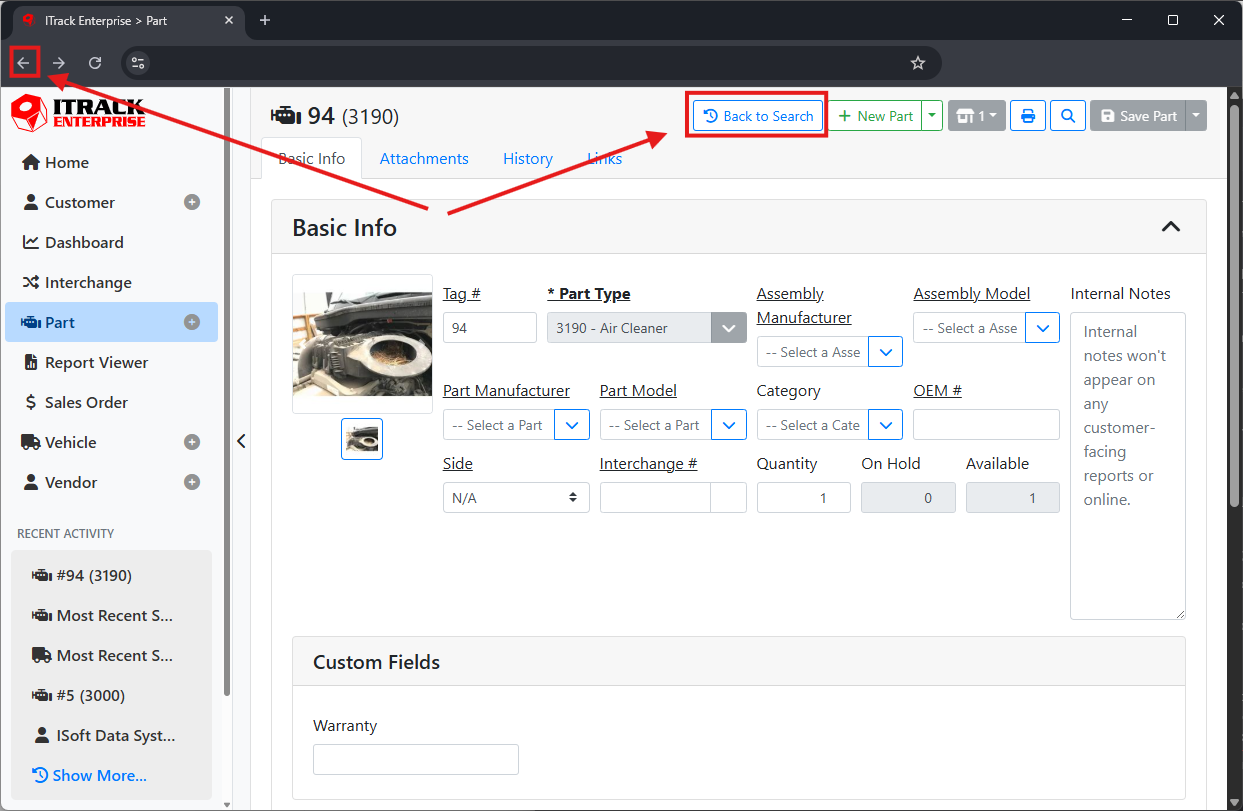
If you perform a search, then open a part or a vehicle from that search, using the Back button or gesture in your browser, or using the Back to Search button on the part screen will return you to your previous search and load the previous search results. This is handy if you want to browse through several parts and look at details before making a final selection, such as if you are working with a customer to review several parts and make a choice.
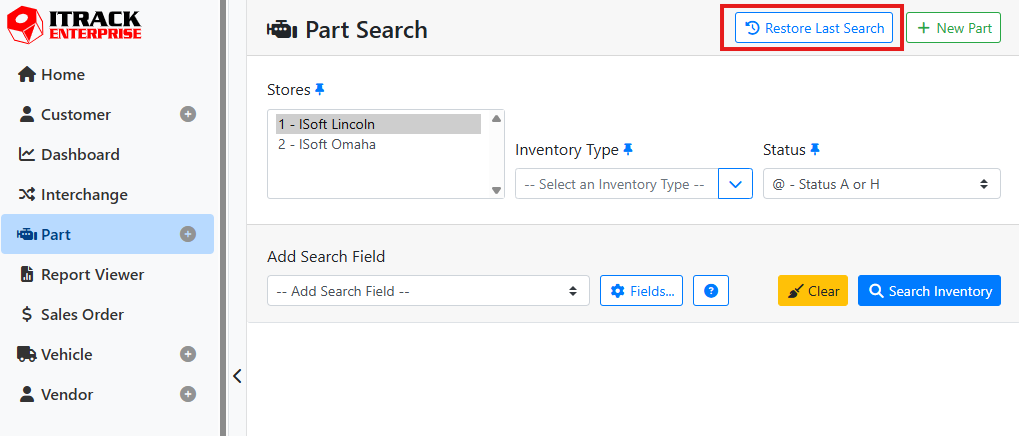
You can also restore a previous search from an empty search screen by clicking the Restore Last Search button near the top of the screen. This button is only available if there isn’t a current search on the screen.
🧹 Starting a Fresh Search
You can clear all search results and filters from the search screen by clicking the Clear button. The search will also start out empty when you first log in, or if you navigate directly to the search screen from the sidebar instead of using one of the Back options.
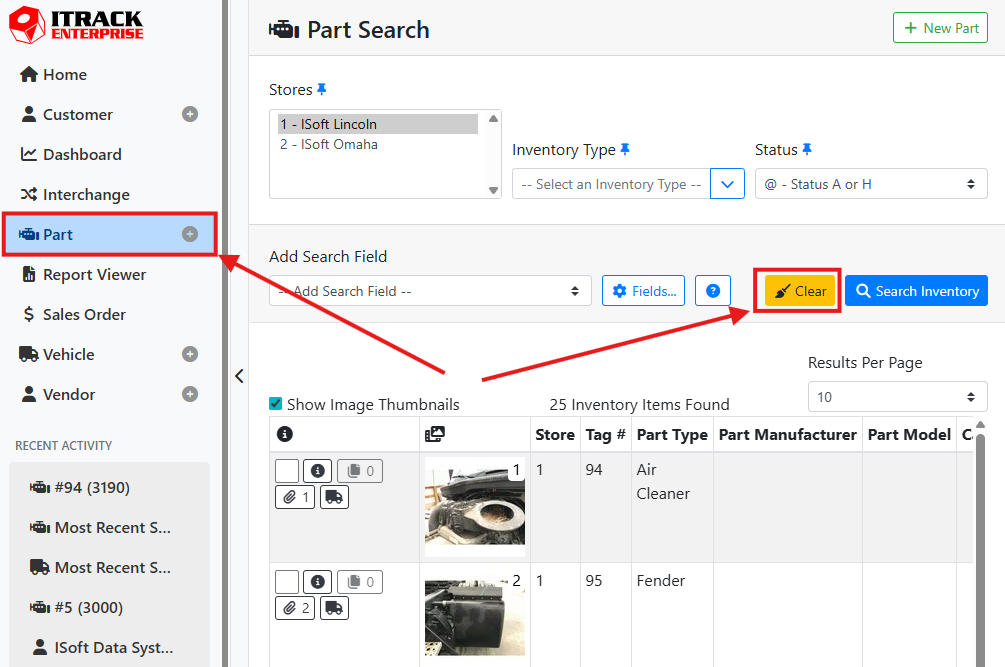
From a clear search screen, you can either restore your last search or perform a new one.
Did you know you can configure default search filters? Read more about pinning your favorite search criteria.