
A Smart Search filter is available on the Part Search screen.
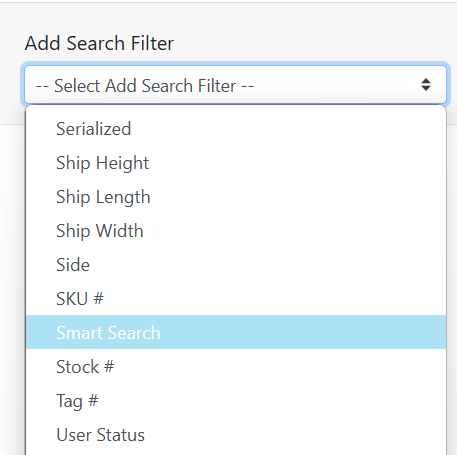
Smart searching lets you search multiple fields with one filter, which can save you a lot of effort when performing a search.
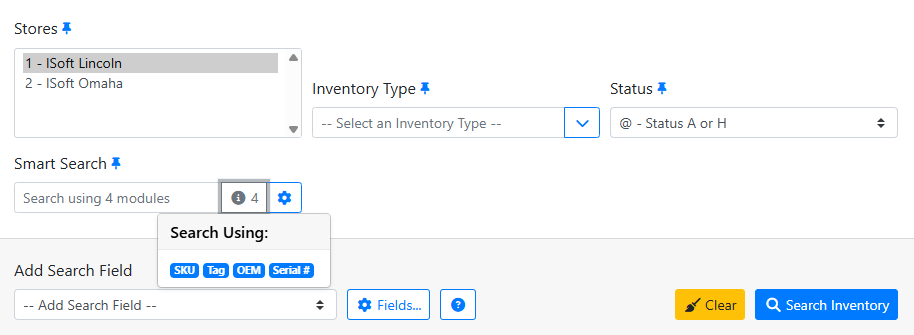
In this example, the Smart Search field is configured to search the SKU, OEM, Tag # and Serial # fields.
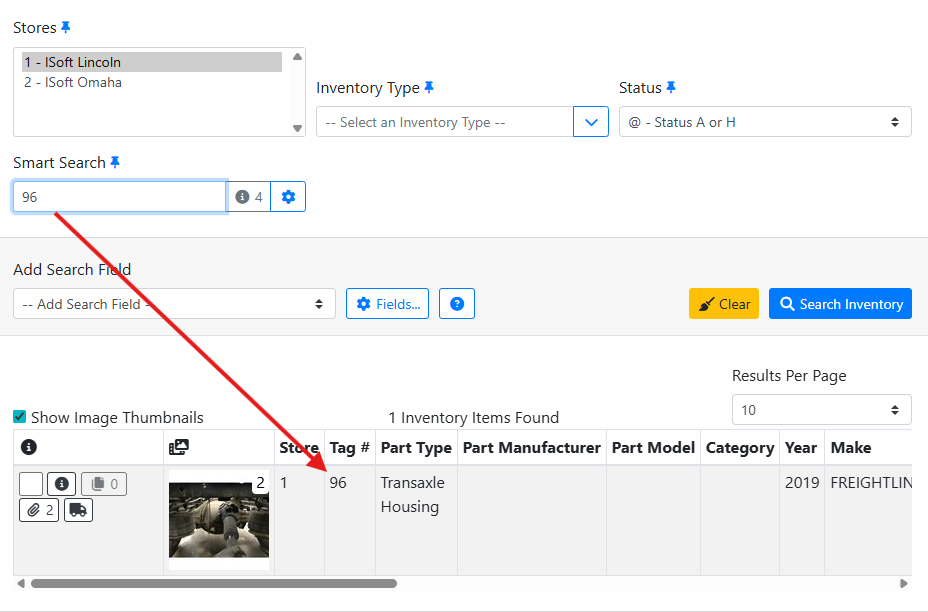
I can enter something in the field, and it will find matches in any of those fields. In this case, I was able to directly pull up a part by the Tag #.
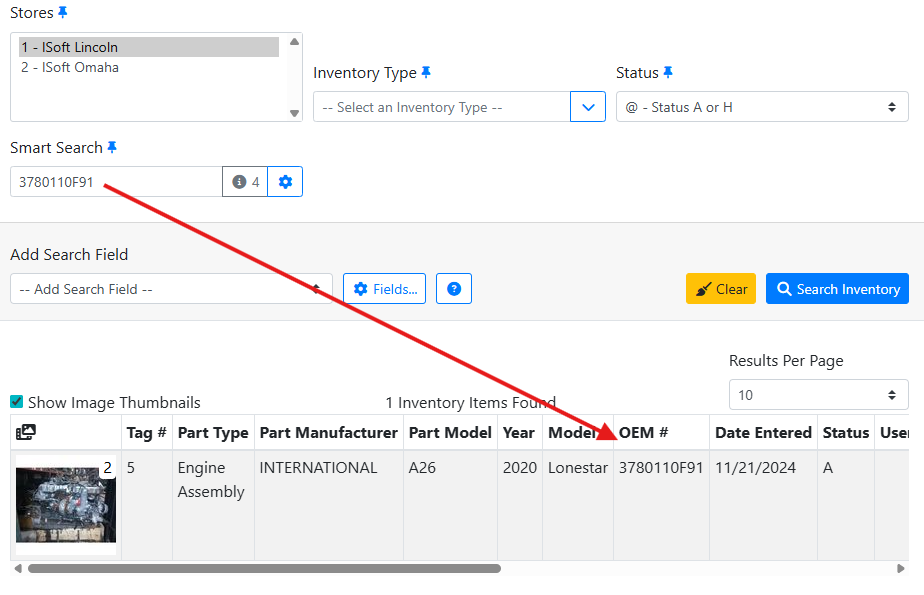
The smart search can be useful in case you don’t know the tag number. For example, you might have the OEM number handy.
The gray i button next to the Smart Search field shows you how many fields, or Modules, are being searched. Click the i button to show these Modules in a preview.
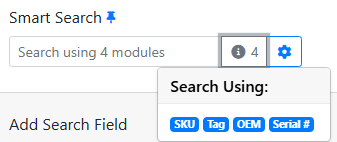
You may want to pin smart search to your search screen. Read more about pinning search filters.
⚙️ Smart Search Modules
Your smart search modules are unique to each user. You can configure your smart search filter by clicking on the gear 
Click on fields, or use the buttons at the bottom to select or deselect items. Click Done when you are finished.
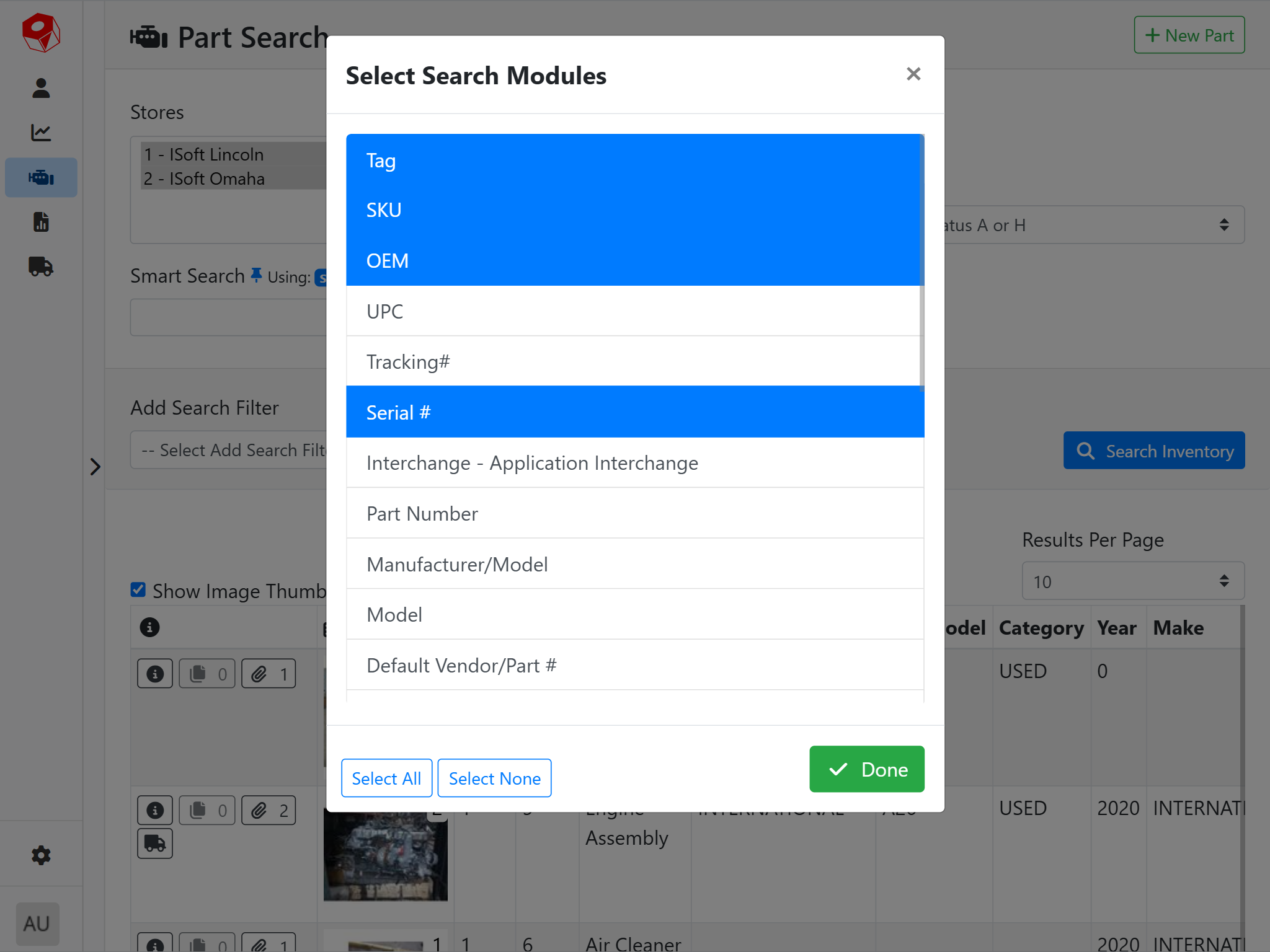
Your selected smart search modules will sync with ITrack Enterprise desktop. At this time, if you want to change your default smart search modules, they need to be configured in the desktop application.