
When you add a filter to your search page, it is temporarily added until your search is performed. This is useful for one-off searches where you’re looking for something specific. If you use a search filter frequently, you may want to pin it to the search page for faster access.
When a filter is pinned, it will automatically appear on the search screen for all of your new searches. Pinned filters are unique to each user. Your pinned filters may be different from someone else’s.
To pin a search filter, click the Fields… button.
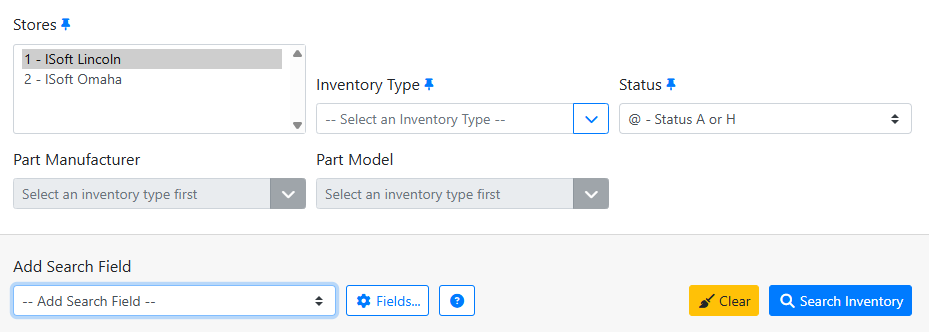
The search page will change to an edit mode. The filters will be grayed out, buttons will appear next to each filter, and the Fields… button changes to a Done button. Click the Pin 

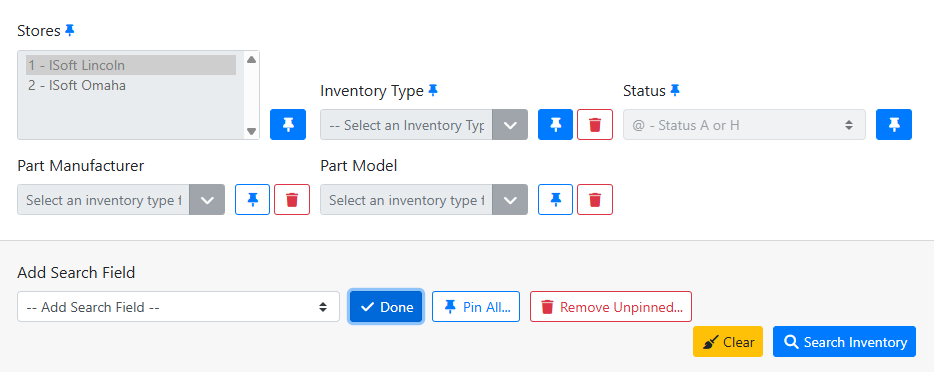
When you are finished, click the Done button to exit the edit mode. Pinned filters will have a small pin icon next to the filter name.
