
The part History tab shows you documents this part has been used on such as Purchase Orders, Work Orders, and Sales Orders, as well as a change log that shows you important updates to the part record.
The type of changes that get logged in the Change Log can be configured for your company. This setting can be controlled in ITrack Enterprise Desktop.
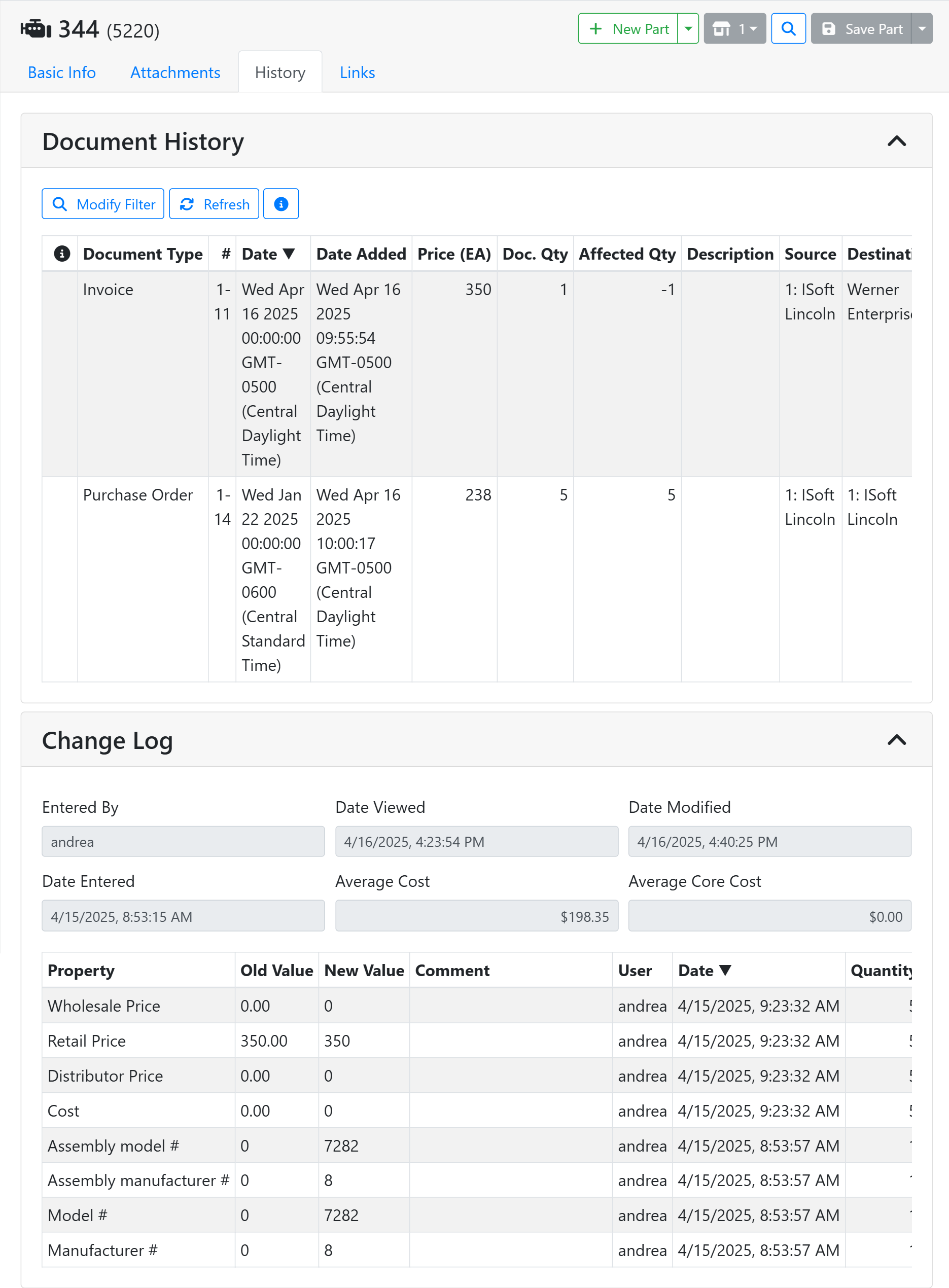
📄 Document History
The Document History box shows you all documents and adjustments that affect your part’s quantity. By default this view shows you data from the last 30 days, click the Modify Filter button to change your filter options. Click the Refresh button to refresh the table. You would only need to do this if another person made a new change while you’ve had this screen open.
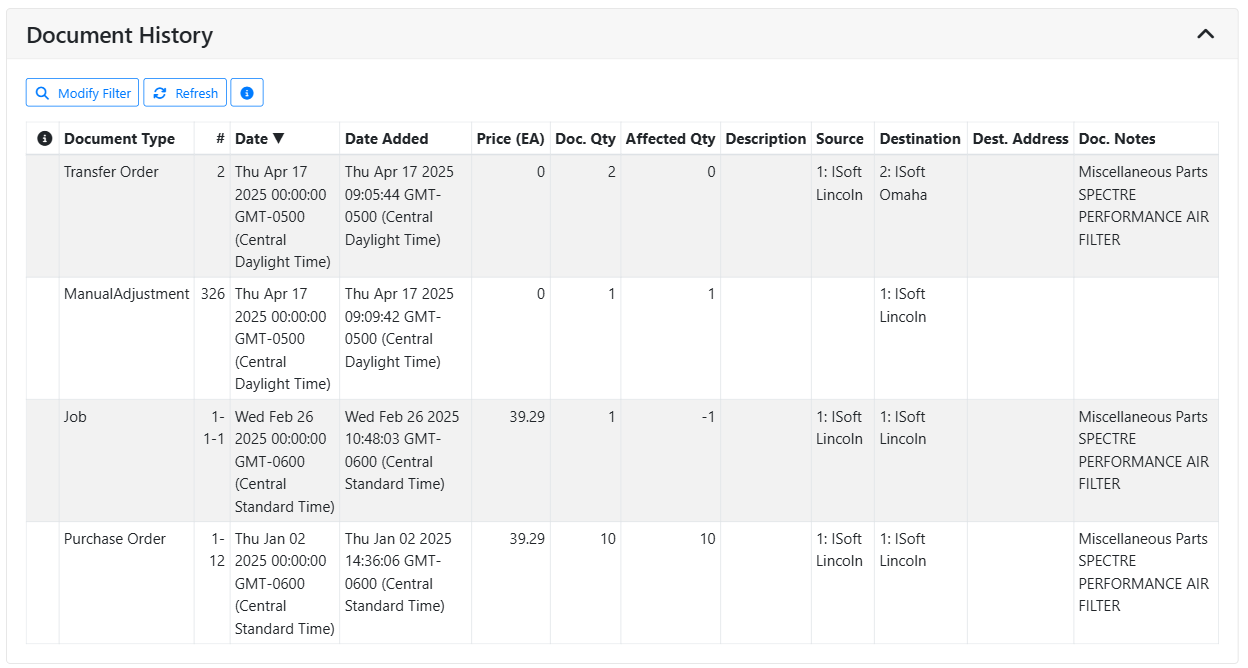
📄 Columns in this table
Document Type - what type of transaction caused the adjustment, such as Transfer Orders, Work Orders (Jobs), Purchase Orders, Sales Orders (Invoices), and Manual Adjustments. Manual adjustments might occur if a user adjusts the quantity directly on a part, without making a document.
# - The ID number assigned to the document or the adjustment.
Date and Date Added - The Date column refers to the document’s date. The Date Added is the date the part was added to the document. These are usually the same, especially for manual adjustments, but they may be different if you don’t add the part to the document the same day you created the document.
Doc Qty and Affected Qty - The Doc Qty is the amount of part quantity used on this document. The Affected Qty is how the part record’s quantity has been affected or not. For example, a Sales Order or Work Order will decrease quantity, a Purchase Order will increase quantity, a manual adjustment could do either, refunds will reverse the previously affected quantity, and so on. Affected Qty may be zero if the document isn’t finalized. For example a Purchase Order that hasn’t been received yet will have 0 Affected Qty.
Price (EA), Description, Source, Destination, Dest. Address, and Doc Notes - These columns provide additional information regarding the document. The columns may be empty if nothing applies. For example a manual quantity adjustment doesn’t have a price associated with it, so the price is 0.
⚙️ Transaction Filters
If you have a lot of data in your Document History, or are looking for a specific transaction, it might be useful to filter the table. Click the Modify Filters button to open the Transaction Filters window.
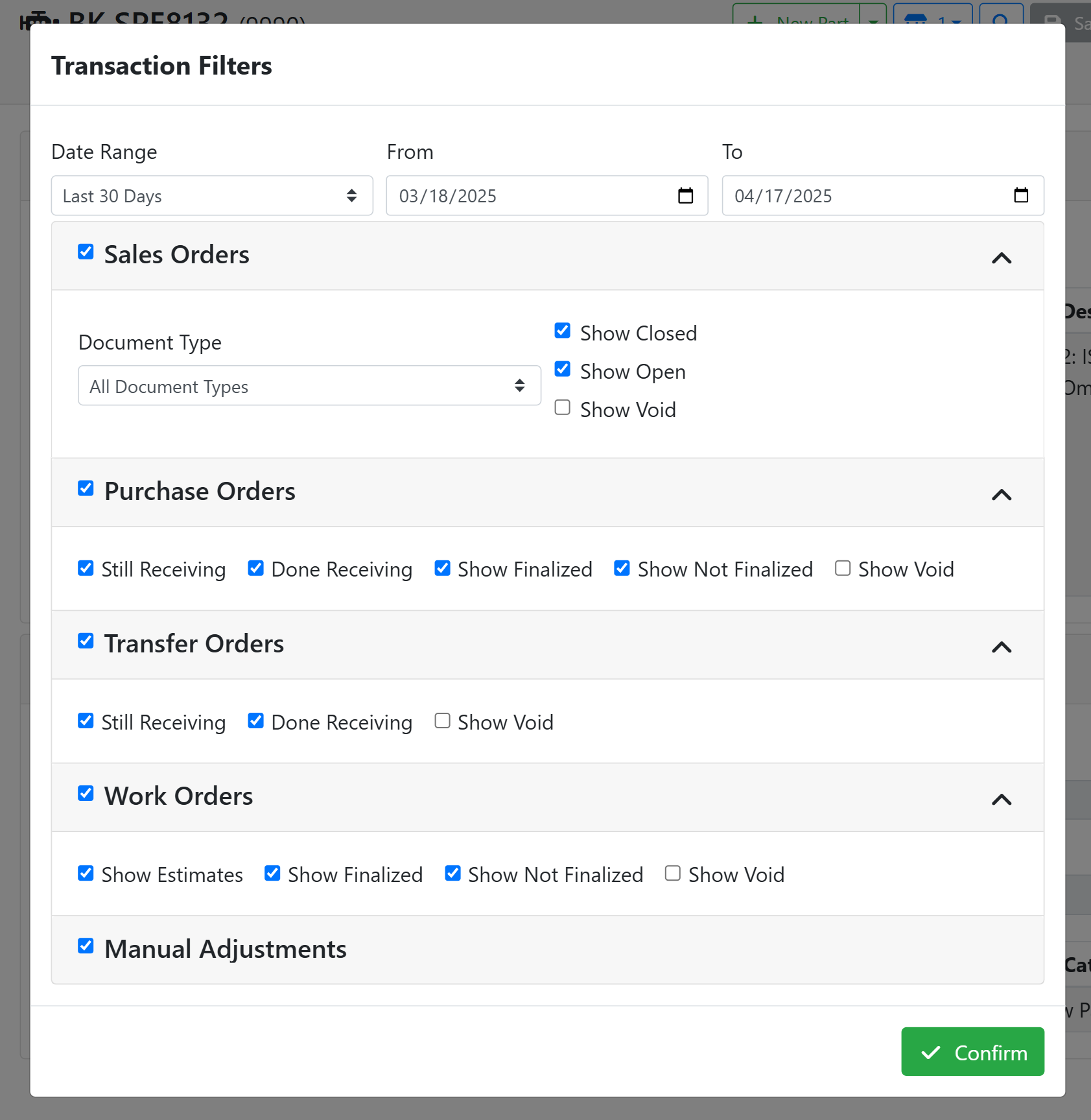
Date Range - Use this filter to specify a date range. You can use the menu to pick from some preset date ranges, or you can input any date into the date fields.
Order Types and Manual Adjustments - Toggle the checkbox next to the order type name to include or exclude the entire category of that particular document type. If you exclude an entire category, it will collapse since none of the status filters apply.
Document Type - For Sales Orders, you can specify what type of Sales Order document to include.
Statuses - For all documents, you can toggle the checkboxes to include or exclude documents with any particular status. Voided documents are excluded by default since they don’t affect quantity.
🕓 Change Log
The Change Log shows some general history data on the part such as when it was created, as well as some specific logging based on your company’s logging policies.
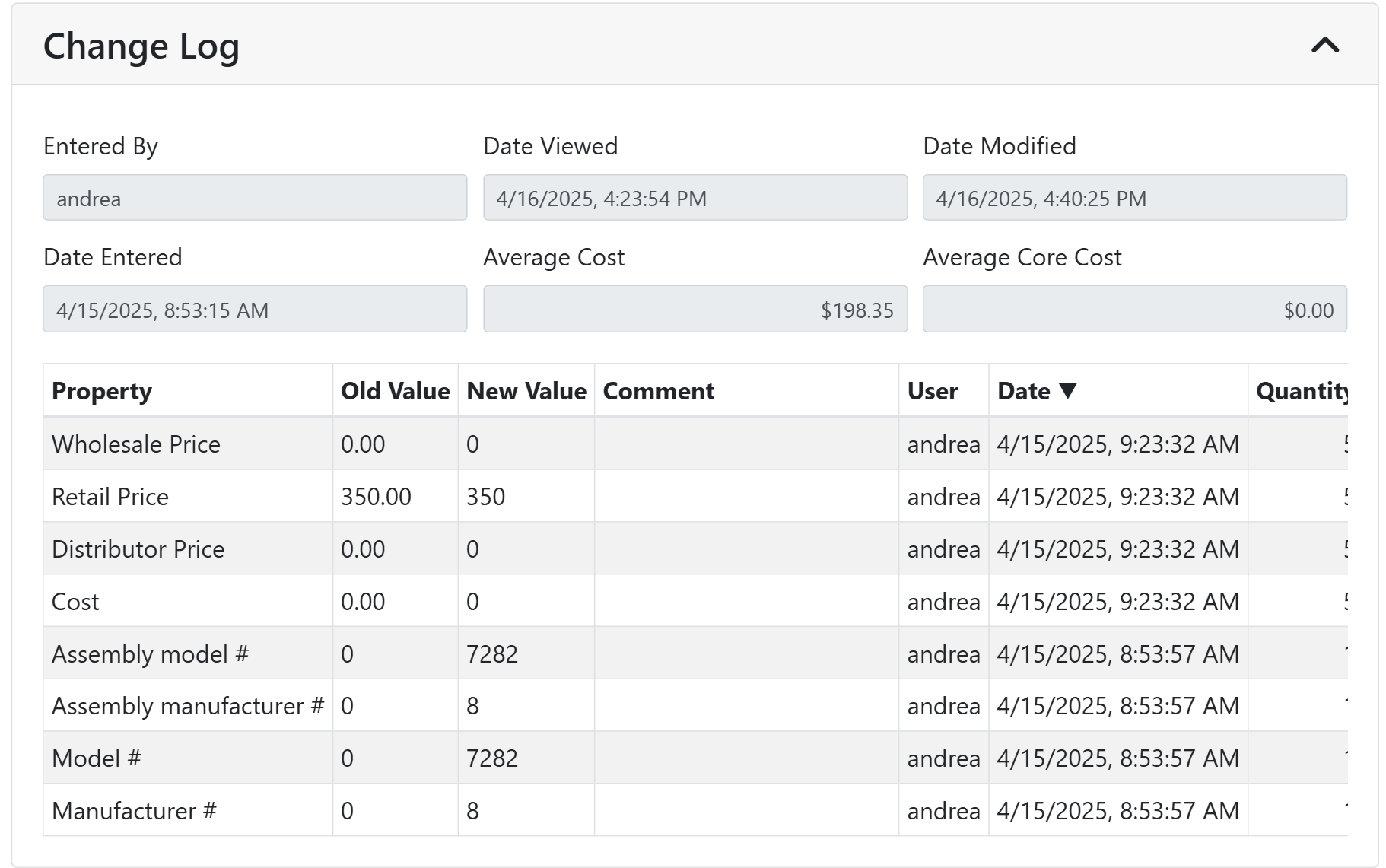
The top section of the Change Log shows high-level data about the part.
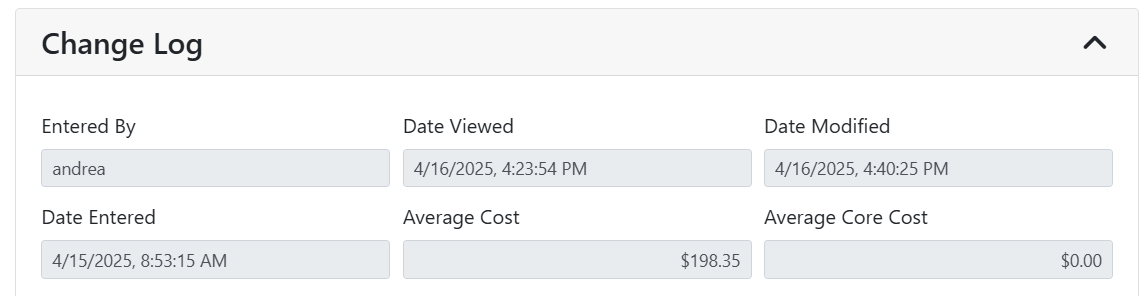
Entered By and Date Entered - Who created the part and when.
Date Viewed - The most recent time someone opened the part
Date Modified - The most recent time someone modified the part on the Part screen.
Average Cost and Average Core Cost - The average cost per quantity of the part on hand, based on data from purchasing and work orders. If the part also has a core charge, there will be an average cost for the core calculated using the same method, otherwise the Average Core Cost is 0.
The table below contains logged information about specific fields that were modified on the part.
The fields on the part record that get watched for changes are specific to your company and can be controlled in ITrack Enterprise Desktop.
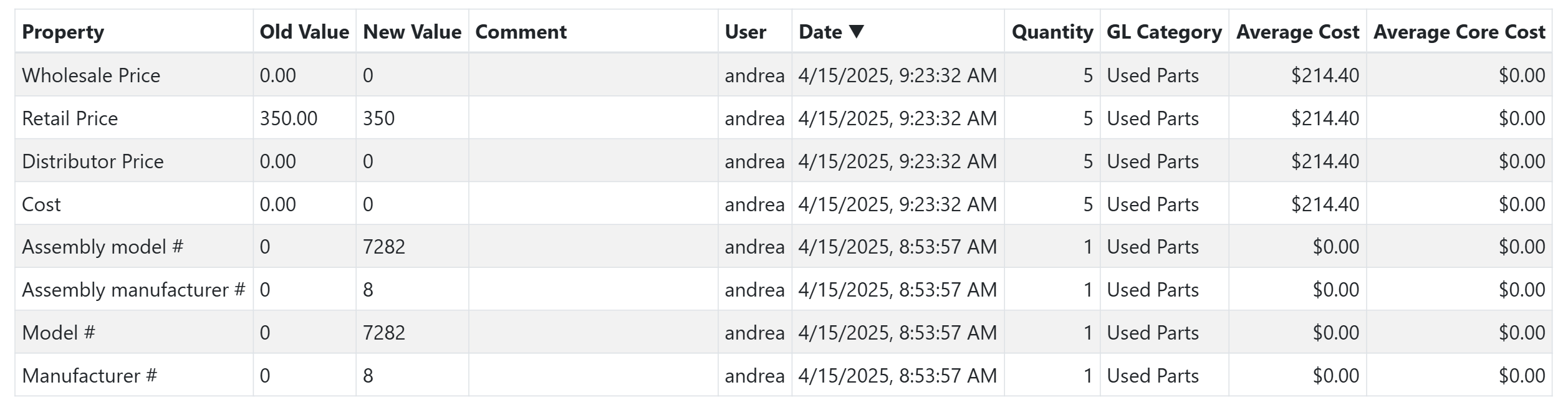
Property - The name of the field that was modified.
Old Value and New Value - The Old Value was the previous data that was saved in the field, and the New Value is what it was changed to.
Comment - If your users left a comment, it will be tracked here.
User and Date - The user who made the change and when.
Quantity - The amount of affected quantity from the change.
GL Category - The accounting ledger that applied to the part at the time of the change.
Average Cost and Average Core Cost - The average costs at the time of the change.