
Locations represent where in your facility your inventory is located. Each store’s locations can be unique, to represent the different layouts at different stores. Since every company and every store will be different, your inventory locations should be configured before you start entering and receiving inventory in order to be effective.
Locations are also hierarchical, meaning you can organize locations in relation to each other. Locations can also be configured for different behaviors such as not allowing inventory, selling, or counting, depending on how you want to use those locations.
For example, you can have locations that are in rows in your yard, such as in the South East quadrant, Row A, in the 18th spot. You might name this location YSE-A-18. You might also have temporary locations for shipping or receiving, and might have a receiving location named Dock.
Your inventory locations need to be configured in ITrack Enterprise Desktop at this time. Once configured, you can use the location information on the web.
📥 Assigning Inventory to a Location
Inventory can be assigned to a location while receiving on a Purchase Order, during an Inventory Move, during picking for Deliveries, or manually assigned at any time.
Receiving Purchase Orders, performing Inventory Moves, and Picking can only be done in ITrack Enterprise Desktop at this time. Assign locations to inventory manually is currently the only way to assign a location on the web.
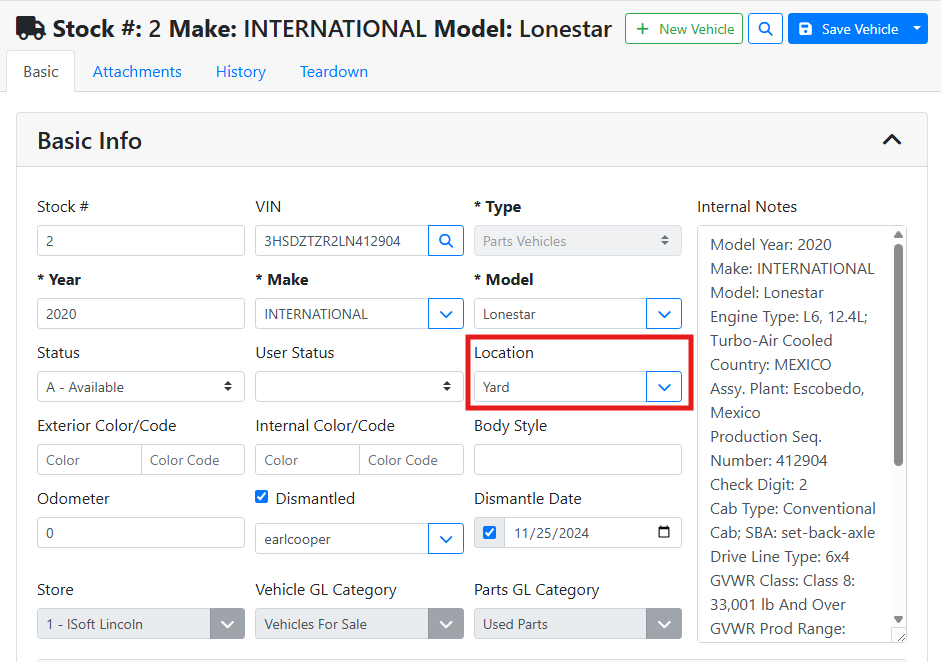
To set an inventory location on a vehicle, select the location in the Basic Info box.
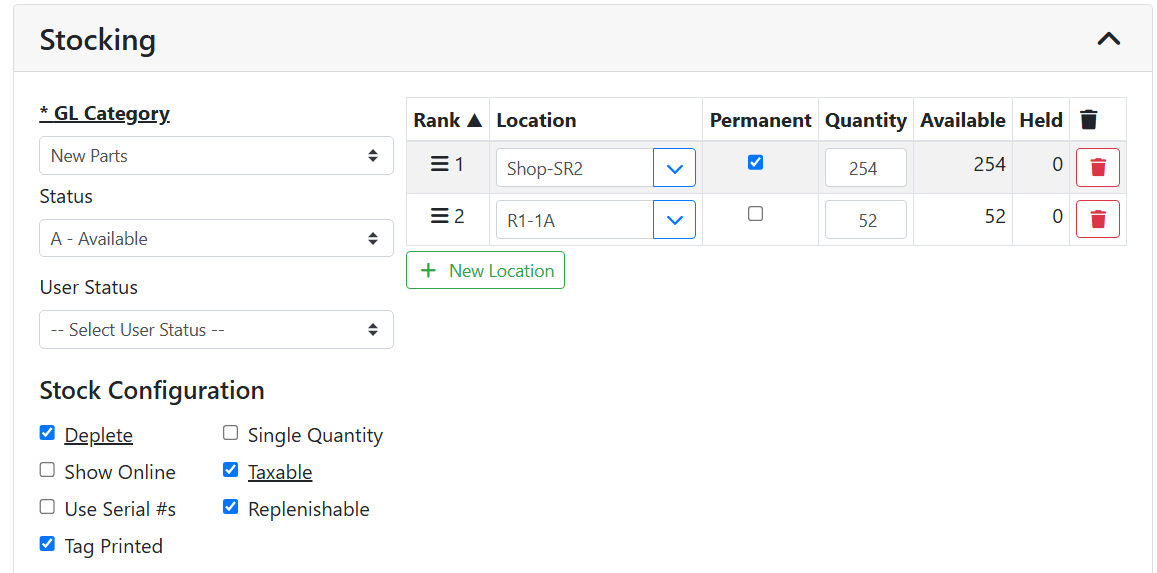
To set an inventory location on a part, scroll down to the Stocking box. You will find the location table on the right.
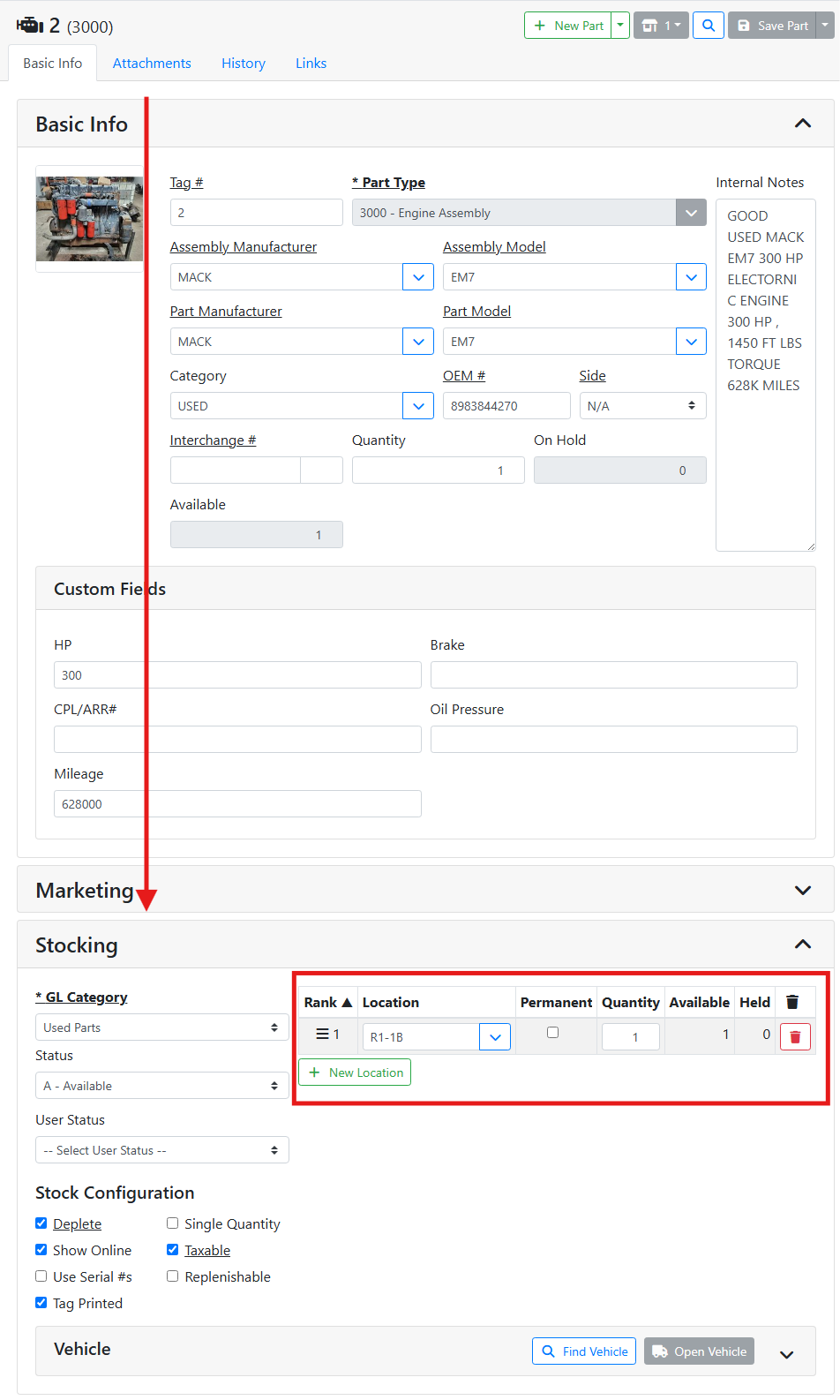
Location - Use the Location drop down menu to set the location for the part.
Permanent - Keeps the location in the location list for the part even when quantity at that location reaches zero. This is typically used for replenishable parts, in order to restock the part in the same location.
Read more about replenishable parts.
Quantity - The total stocked quantity for the part.
Available - The total available quantity, not held by a document such as a work order or quote.
Held - The amount of held quantity. Quantity may be held by a quote or work order, but still be stocked in inventory because it hasn’t been consumed or sold yet.
📦 Multiple-Quantity Parts with Different Locations
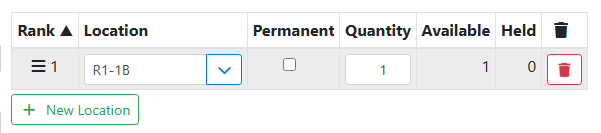
Since parts can have multiple quantity, you might have some of your quantity at different locations. You can use the location table to specify how much of quantity is stocked at each location.
The + New Location button lets you add a new row to the list of locations for the part. Use the trash 
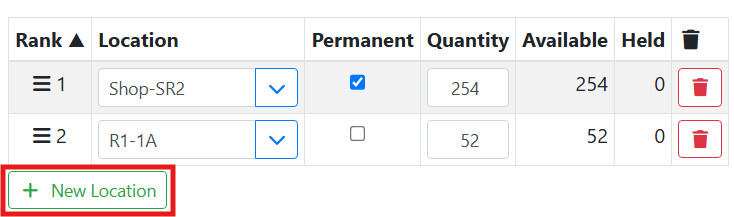
Rank - Drag locations up or to change the rank. Higher ranked locations are prioritized to keep inventory stocked. Meaning, when selling or consuming parts the software will automatically pick from lower-ranked locations first, and when receiving parts on inbounding documents higher-ranked locations will be picked first.
In this example, I have a replenishable part that I keep stocked in the workshop to consume on Work Orders. I also have some quantity stocked in the warehouse. I mostly use this part on Work Orders, so I made that location ranked first in the list by dragging it to the top, and I marked that location Permanent.
❓ What is Variance?
After doing an inventory count you may find that some parts show a Variance location. Variance is a virtual location that is added automatically when an inventory audit finds parts at a location they were not expected at, or missing from a location they were expected at. Variance is shown in order to keep Available Quantity accurate when Quantity at a Location is inaccurate.
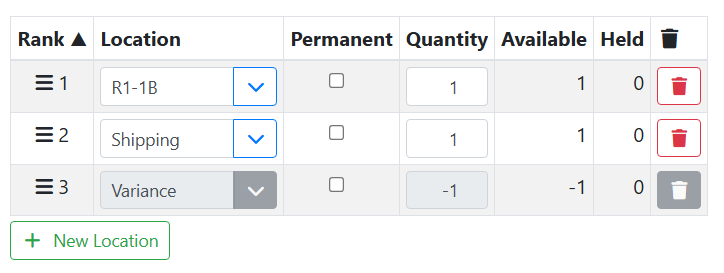
If extra quantity is found at a location or multiple locations that it isn’t expected at, the quantity at Variance will be negative. In this example, I should only have one of these parts, but I found one at R1-1B and one at Shipping. Variance is -1 to offset the extra quantity since I should only have 1 available.
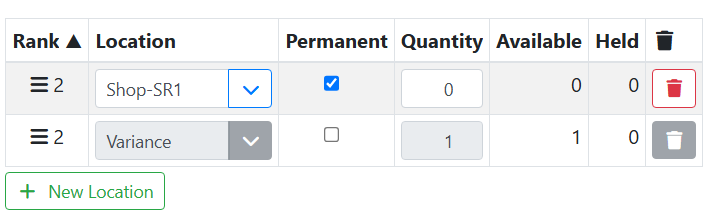
On the other hand, if quantity is missing from a location it is expected at, the quantity at Variance will be positive. In this example, I have one of these parts, but during a count it wasn’t found at its location, Shop-SR1. Variance is +1 to indicate the quantity that should be available, just not at this location.
Quantity at Variance should be corrected for warehouse accuracy. If the part was simply miscounted at a location, the location quantities can be adjusted. If the quantities were incorrect, an Inventory Adjustment should be performed to indicate the lost or found quantity.
Warehouse Management such as scanning, manual counts, and Inventory Adjustments can be performed either using ITrack LXW or in Itrack Enterprise Desktop at this time.
🔢 Serialized part locations
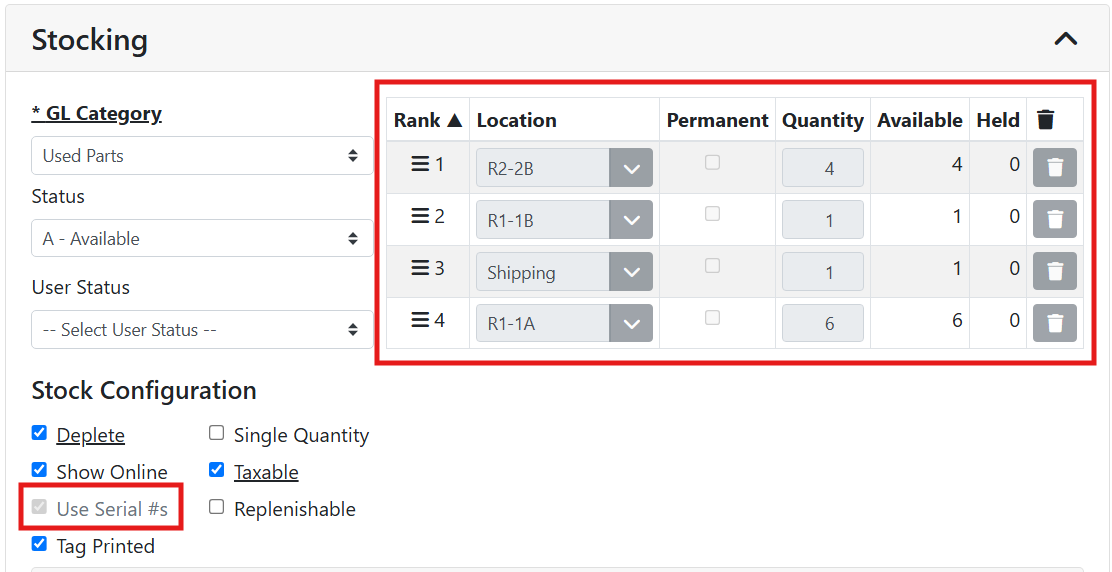
When a part Uses Serial #s, locations are assigned to each part in the Serials table. The Location table will show you the total quantity at each location, but editing the locations there will be disabled. Edits you make to the locations on each serial number in the Serials table below will be automatically accounted for in the Location table.
Read more about Serialized Parts.
📱 Scanning
Scanning is currently supported to look up tag numbers for parts and vehicles.
Scanning to perform actions other than lookup is not supported in Enterprise Web edition yet. Use ITrack LX to perform scanning operations such as Counts and Moves at this time.