
The Payment/Tax Info tab on a Customer shows you the customer’s balance information, allowed payment methods, tax exemptions, terms, account limits and more.
💵 Balance Information
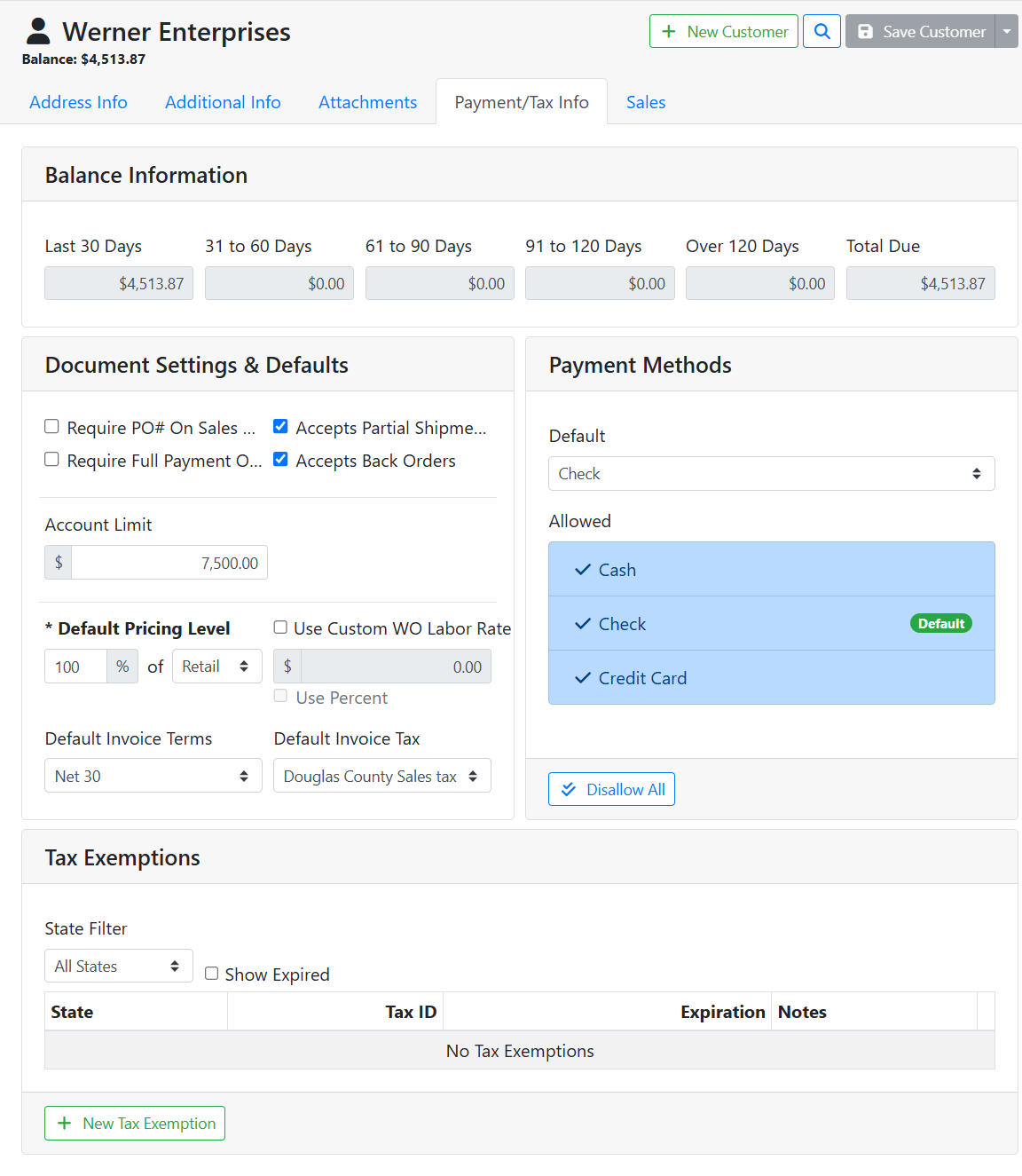
The Balance Information box shows you the customer’s balance aging brackets, as well as their total balance. The aging is determined by any open balance on Sales Orders, based on the SO date. Credit balances are represented in parentheses.
In this example, the customer has a partially unpaid invoice balance of $5,389.25 in the 61-90 Days bracket, and a core return credit balance of $875.38 in the Last 30 Days bracket. Subtracting the credit from the invoice balance gives a total balance of $4,513.87 in the Total Due.

📝 Document Settings and Defaults
The Document Settings & Defaults box allows you to determine how this customer affects Sales Orders and Work Orders.
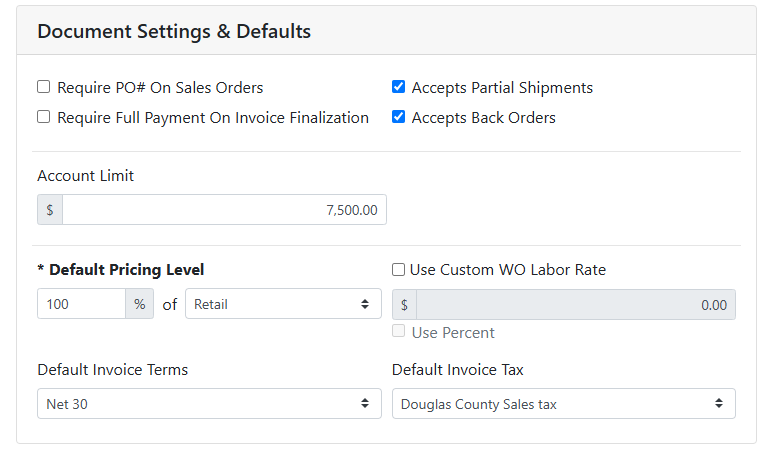
Require PO# On Sales Orders - When this box is checked, a Sales Order for this customer can’t be finalized until a PO# is entered.
Require Full Payment On Invoice Finalization - When this box is checked, Sales Order invoices for this customer can’t be finalized unless the balance on the invoice is zero.
Accepts Partial Shipments - If a customer doesn’t accept partial shipments, a Sales Order can’t be closed until full quantity is on hand. Check this box if the customer allows partial shipments and items with insufficient quantity can be back ordered.
Accepts Back Orders - If a customer doesn’t accept back orders, any unavailable quantity is converted to a Lost Sale.
Account Limit - The maximum balance you want to allow the customer to carry. If a Sales Order would put the customer over the limit, it can’t be finalized until a payment is applied to reduce the amount.
Default Pricing Level - Use this to set a price override for the customer. For example, most customers will probably pay 100% of the Retail price. But if you have a contract negotiation with a high-volume customer, they may pay a discounted rate of the retail price such as 90% of Retail, or they may pay wholesale prices and you may set this to 100% of Wholesale. The amount will be calculated for the customer on new Sales Orders.
Use Custom WO Labor Rate - Use this to set a labor rate override on Work Orders for this customer. You can set this to a flat dollar amount (per hour), or check the Use Percent checkbox to set this to a percentage of the default rate.
Default Invoice Terms - The default payment terms that are used on Sales Orders created for this customer.
Default Invoice Tax - The default sales tax rate used on Sales Orders created for this customer.
💵 Payment Methods
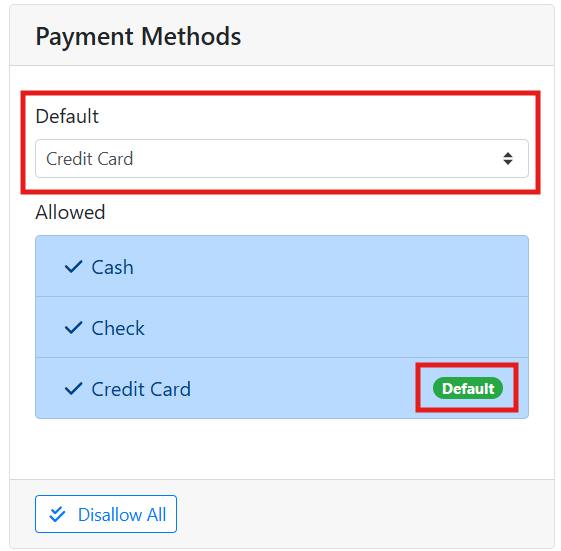
The Payment Methods box shows you the payment methods you want to accept from the customer.
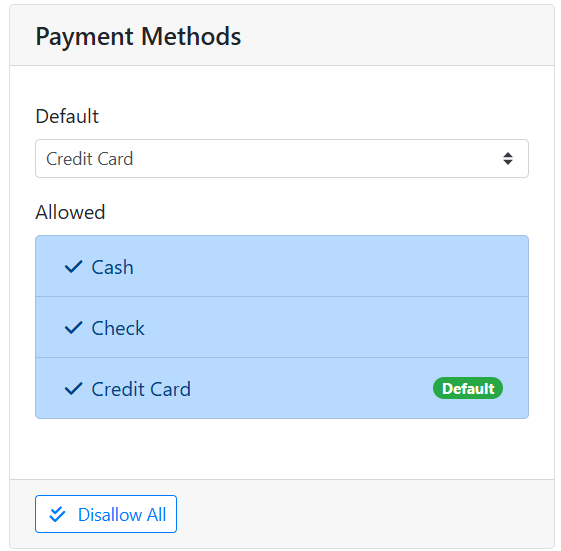
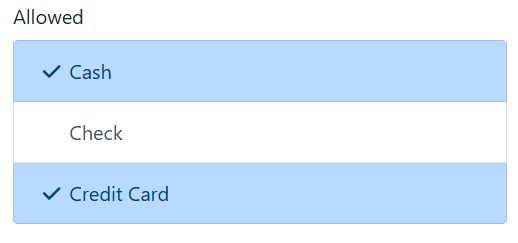
Click on a payment method in the Allowed table to toggle its status. A blue check 
For example, you may not want to allow checks from a customer who has a history of writing bad checks, but still allow cash or card payments.
You can set a Default Payment Method, which sets which payment method is selected by default when entering a new payment on a Sales Order.
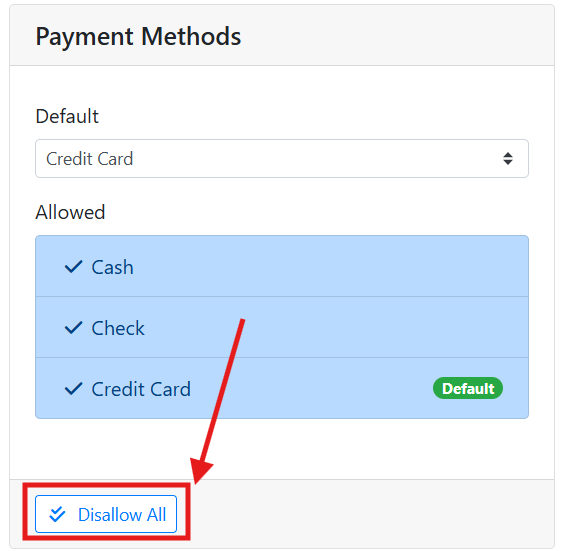
Use the button at the bottom of the box to quickly toggle all payment methods allowed or disallowed.
The list of available payment methods can be customized by your company. For example, you may want to add a payment method for each major credit card company, instead of having one payment method for all credit card payments.
Customizing the list of available payment methods needs to be done in ITrack Enterprise Desktop at this time.
💵 Tax Exemptions
The Tax Exemptions box allows you to keep track of states where the customer has tax exemptions.
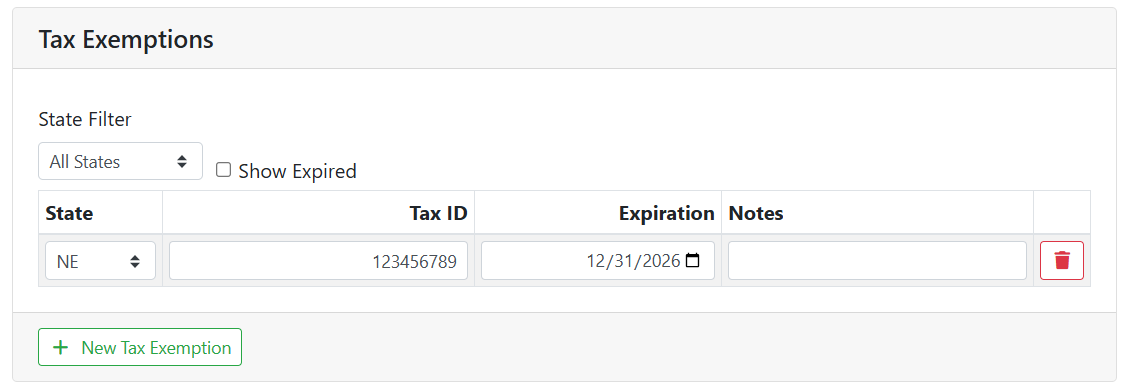
If a customer has a sale tax exemption, you might want to set up a sales tax rate specific to their exemption, and assign that as their Default Invoice Tax in the Document Settings & Defaults box. The Tax Exemptions box only stores their tax exemption history and doesn’t affect the tax on documents.
To add a tax exemption, click the New Tax Exemption button at the bottom of the box. Select the State, and enter the Tax ID, Expiration date and any Notes.
You can filter the list of tax exemptions by state by using the State Filter menu. Check the Show Expired checkbox if you want to see expired tax exemptions in the list.