
To search your inventory for parts, select Part from the navigation menu.

Read more about navigation in ITrack.
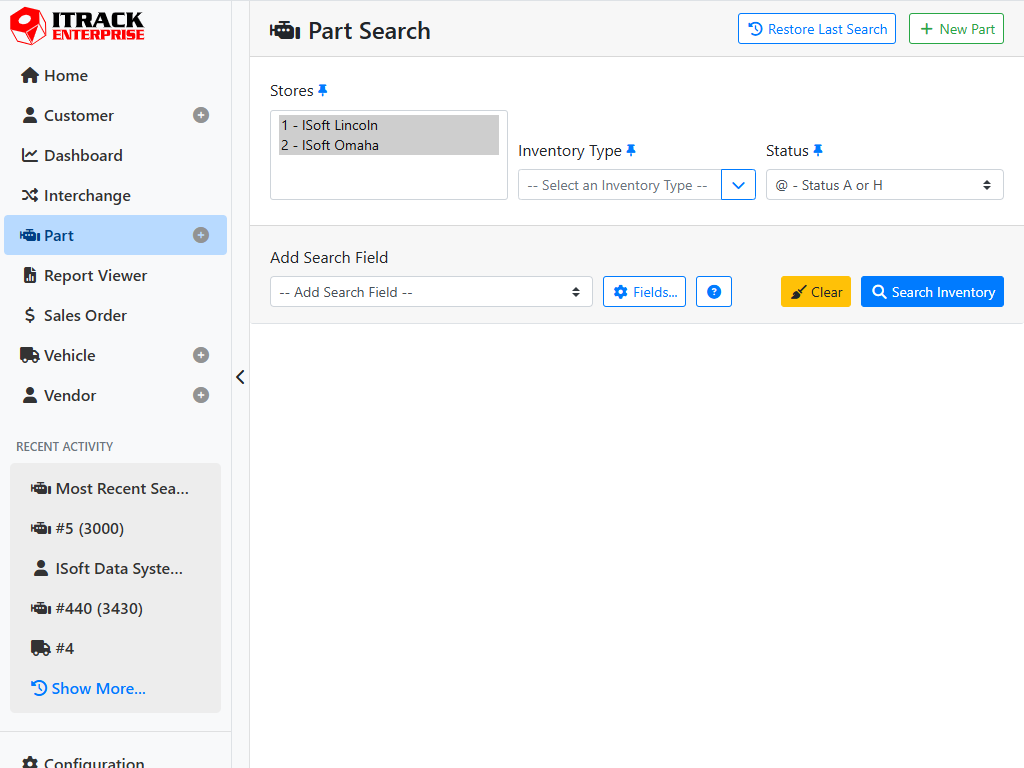
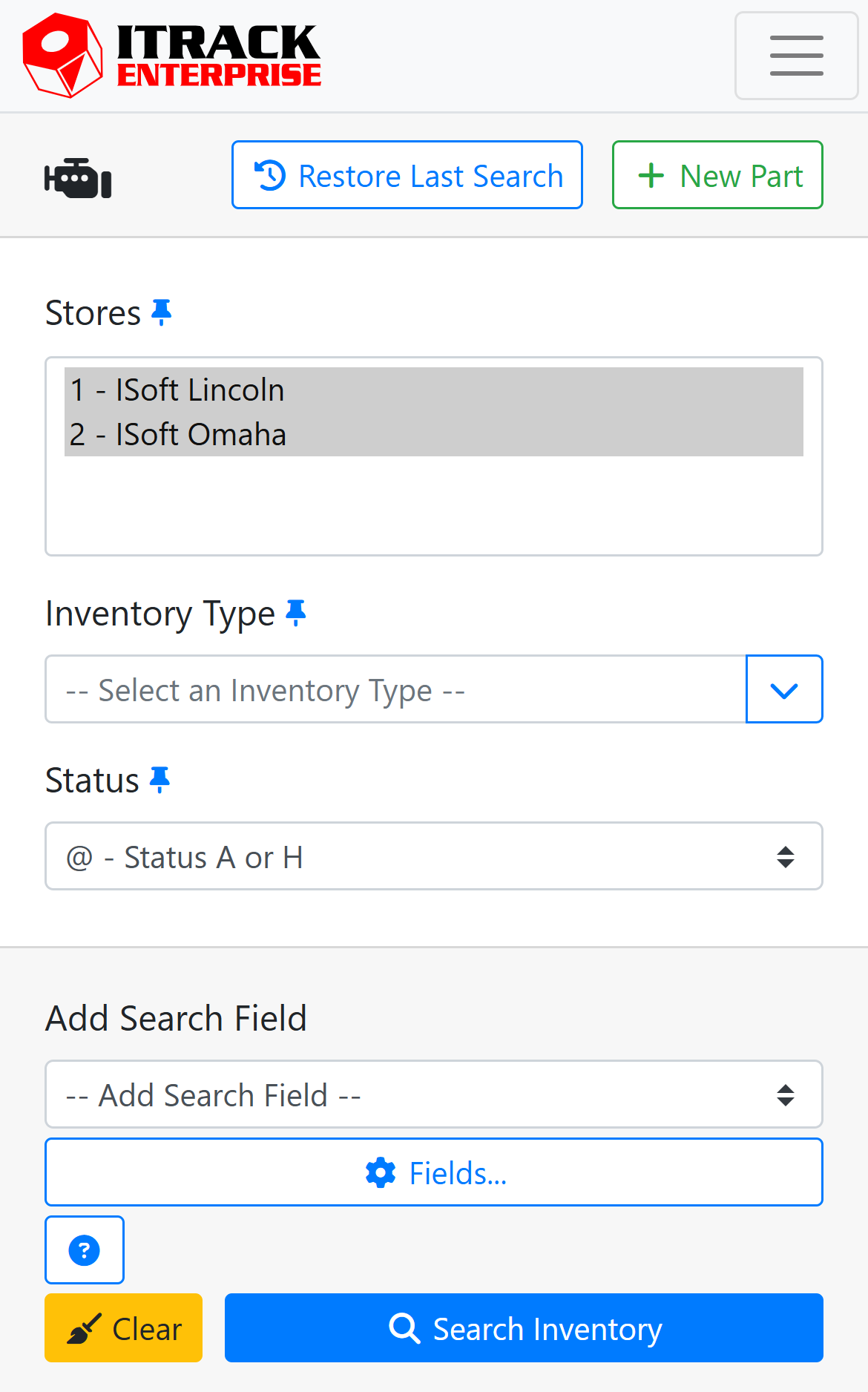
The Part Search screen lets you find parts in your existing inventory, or create a new part by clicking the +New Part button. Clicking the Search Inventory button with no filters will load every part in the database, which may take a while.
🔎 Filters
Use filters to find a specific a specific part, or a set of similar parts. Enter as many filters as you like and click the Search Inventory button, or press Enter/Return on your keyboard to bring up matching search results.
ITrack supports wild card symbols for searching. Use * in place of a character or multiple characters, or use ? in place of a single character.
For example, entering “F*” in the Make field will find Freightliner and Ford parts. Entering “3116?” in the Model field will find all 3116E and 3116T parts.
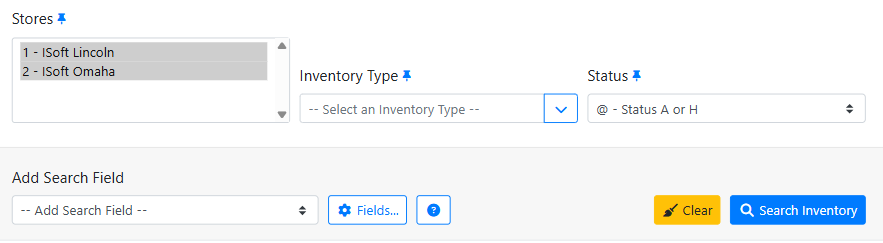
Read more about advanced filtering features like Smart Search and pinning your favorite filters.
🔎 Search Results
After you perform your search, the search results will appear in a table below the filters. Depending on the size of your screen, you may have to scroll sideways to see all of the columns in the table. Click on any column header to sort results by that column.
Did you know you can customize the columns that show in the search results table? Read more about managing table columns and specific columns available.
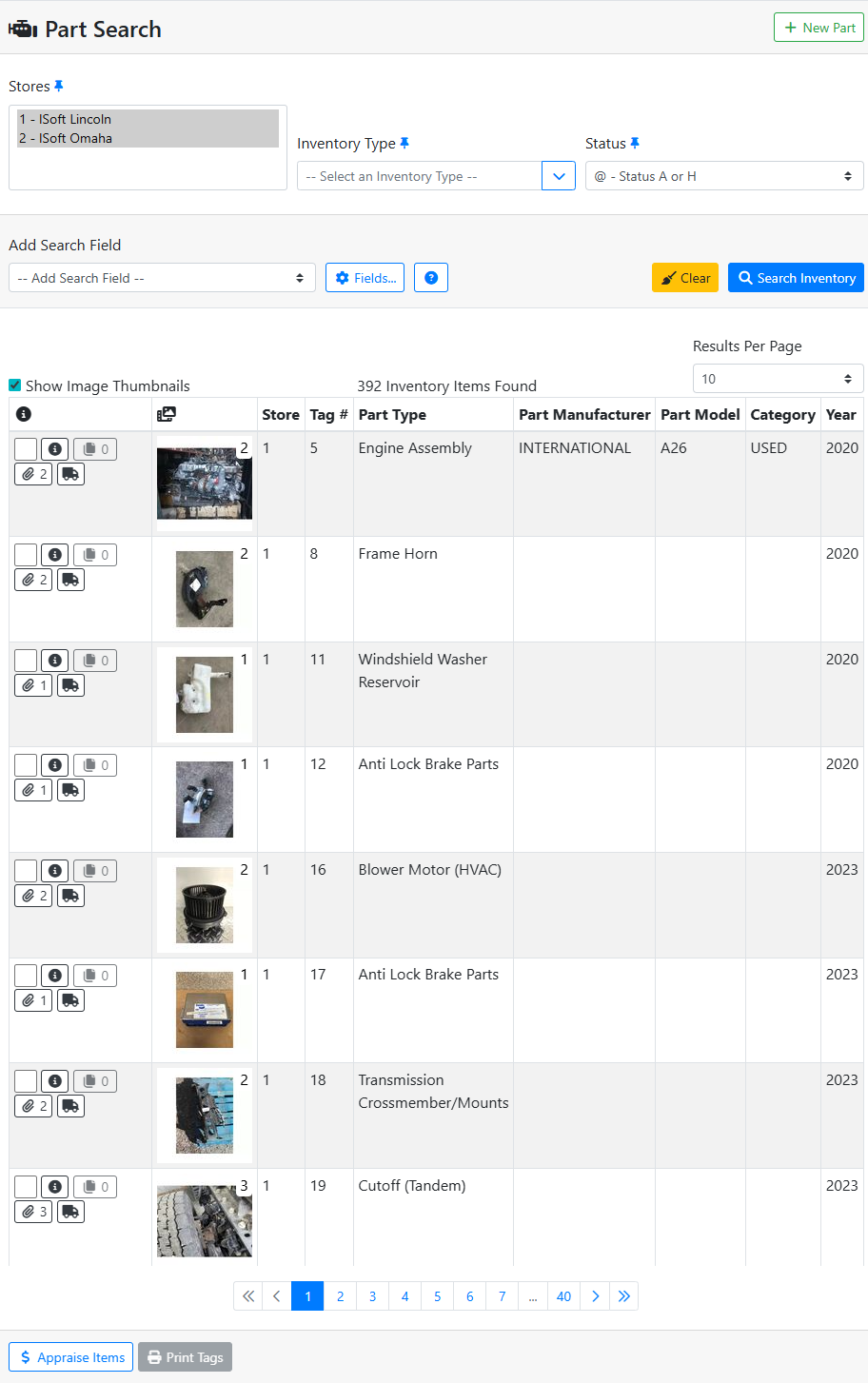
If the results don’t fit on one page, you will see buttons below the table to navigate to additional pages.

Click anywhere else on the item row to open the part record.
Click the Clear button to clear search results and reset search filters to their default state.
Read more tips about searching in ITrack.