
The History tab on a vehicle shows you the vehicle’s available and sold parts, and the vehicle sales performance.
The History tab is very similar to the Performance tab on a vehicle in ITrack Enterprise Desktop.
The History tab will look different for whole vehicles and parts vehicles.
On a whole vehicle for sale, the Available parts table will be empty. The Total Vehicle Cost shows the sum of purchasing the vehicle, and any costs associated with that vehicle, such as Work Orders or other add-on costs tracked on Purchase Orders. Once you sell the vehicle, the costs will be subtracted from the sales revenue to calculate the net profit.
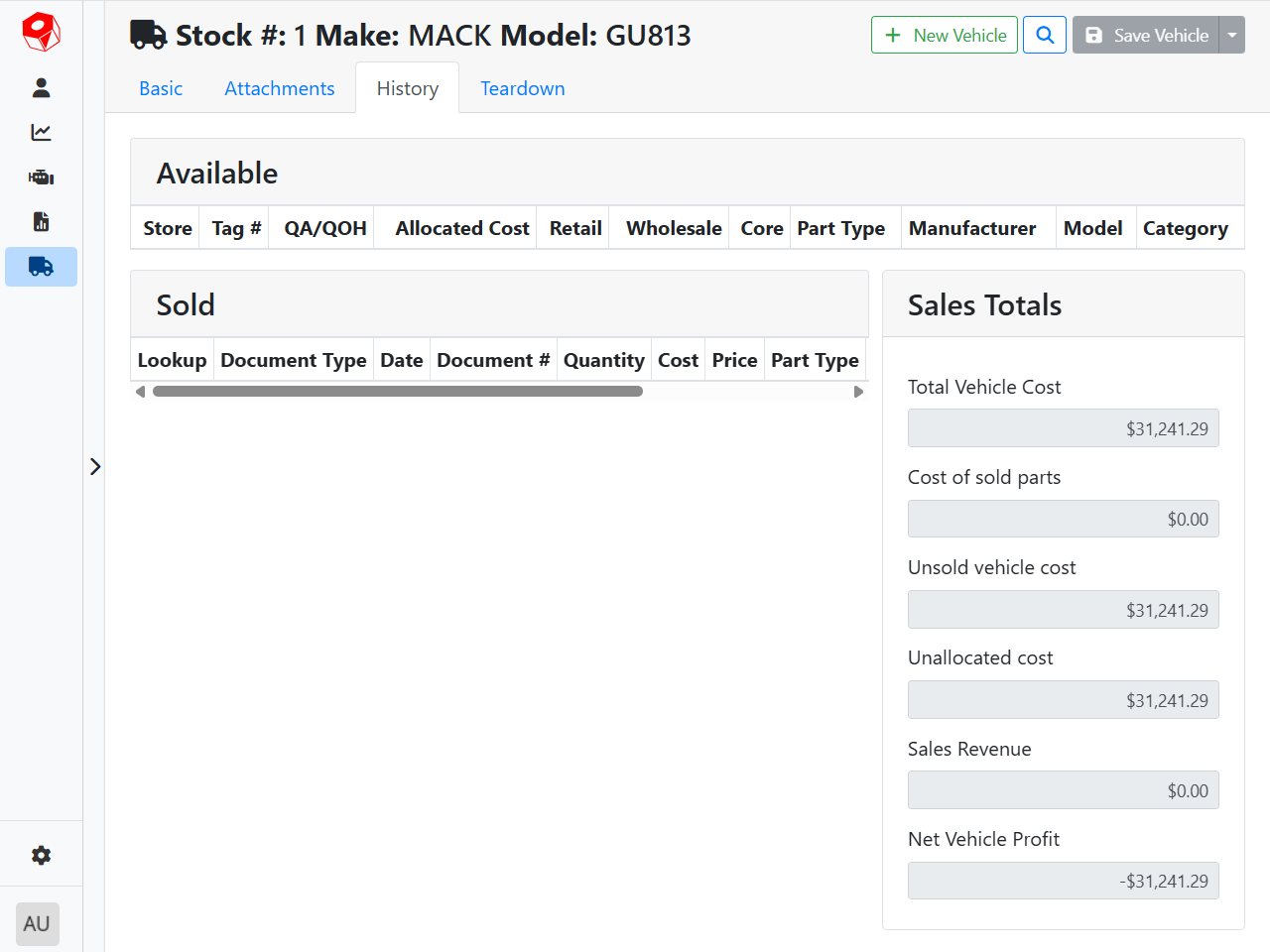
In this example, I have a whole vehicle for sale. The original purchase cost was $30,977.00. There was also some maintenance work tracked on it that totaled $264.29 in parts and labor, bringing the total cost to $31,241.29. Since this unit is currently sitting unsold on my lot, there is no sales revenue and the Net Vehicle Profit is showing a loss of the cost value.
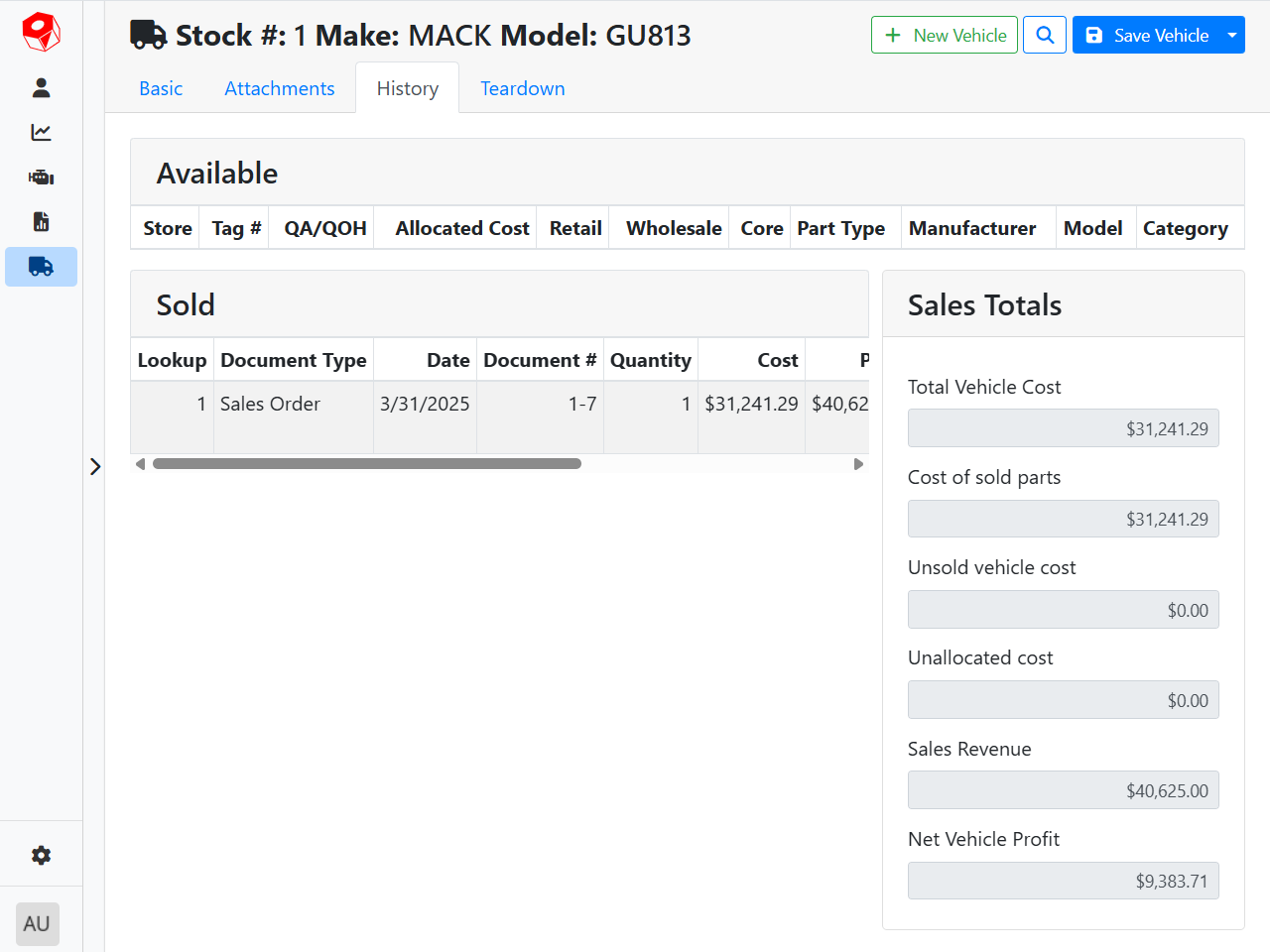
Once I sell that vehicle, I see the Sales Order for the sold vehicle in the Sold table, and the Sales Revenue reflects what I sold the vehicle for, $40,625.00. Subtracting the cost from the sales revenue shows a total Net Vehicle Profit of $9,383.71.
For parts vehicles, you will see the vehicle parts listed on the Teardown tab in the Available or Sold tables. Parts you have quantity in stock will show as available, and once sold on a Sales Order or consumed on a Work Order, you’ll see them reflected as sold. As you sell parts, the sum of the price of sold parts will show in the Sales Revenue field. Just like on a whole vehicle, the Net Vehicle Profit is calculated from the Sales Revenue minus the Total Vehicle Cost.
It is recommended that you leave costing on vehicle parts that are sitting in inventory at $0.00. % of Price Costing will determine the part cost and associate it to the part when it is sold on a Sales Order, but this can only happen if the part cost hasn’t been manually overridden.
Using % of Price Costing means that the cost will remain on the vehicle until parts are sold or consumed. When this happens, Cost of Sold Parts, also known as the Cost of Goods Sold (CoGS), will be calculated as a percentage of the sales revenue, and the cost will move from the vehicle to the part, reducing the Unsold Vehicle Cost. Once all parts on the vehicle have been sold, the Unallocated Cost pool will either be reduced to $0.00, or any remaining cost will remain on the vehicle. Use a write-down Sales Order to sell the remaining vehicle cost to yourself.
Read more about Costing.
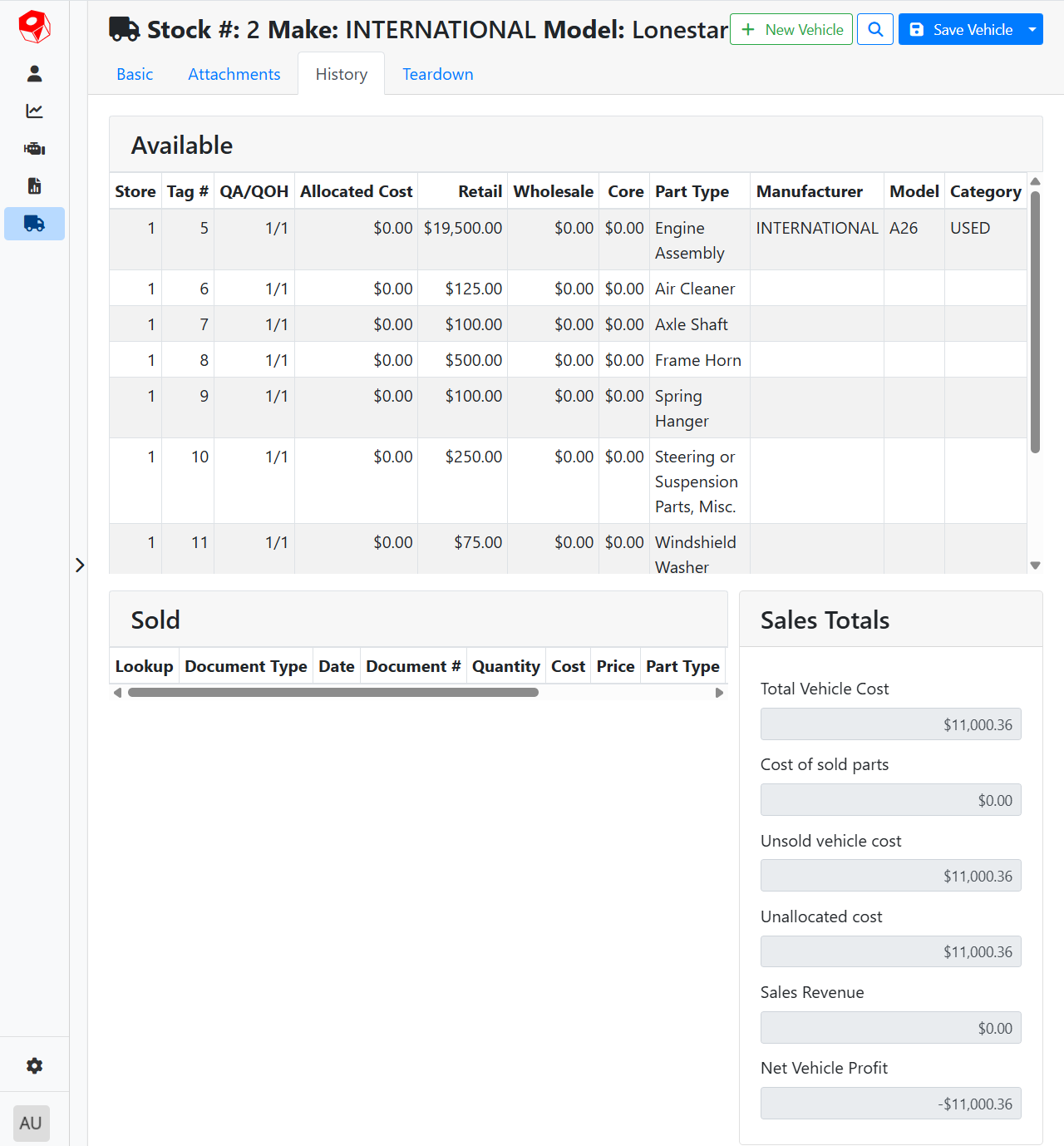
For example, this vehicle, Stock #2, has parts associated with it, but I haven’t sold any of the parts yet. They all show in the Available table, my Sales Revenue is $0.00, and all the cost is unallocated, so therefore all of the cost is associated with the vehicle in the Unsold Vehicle Cost.
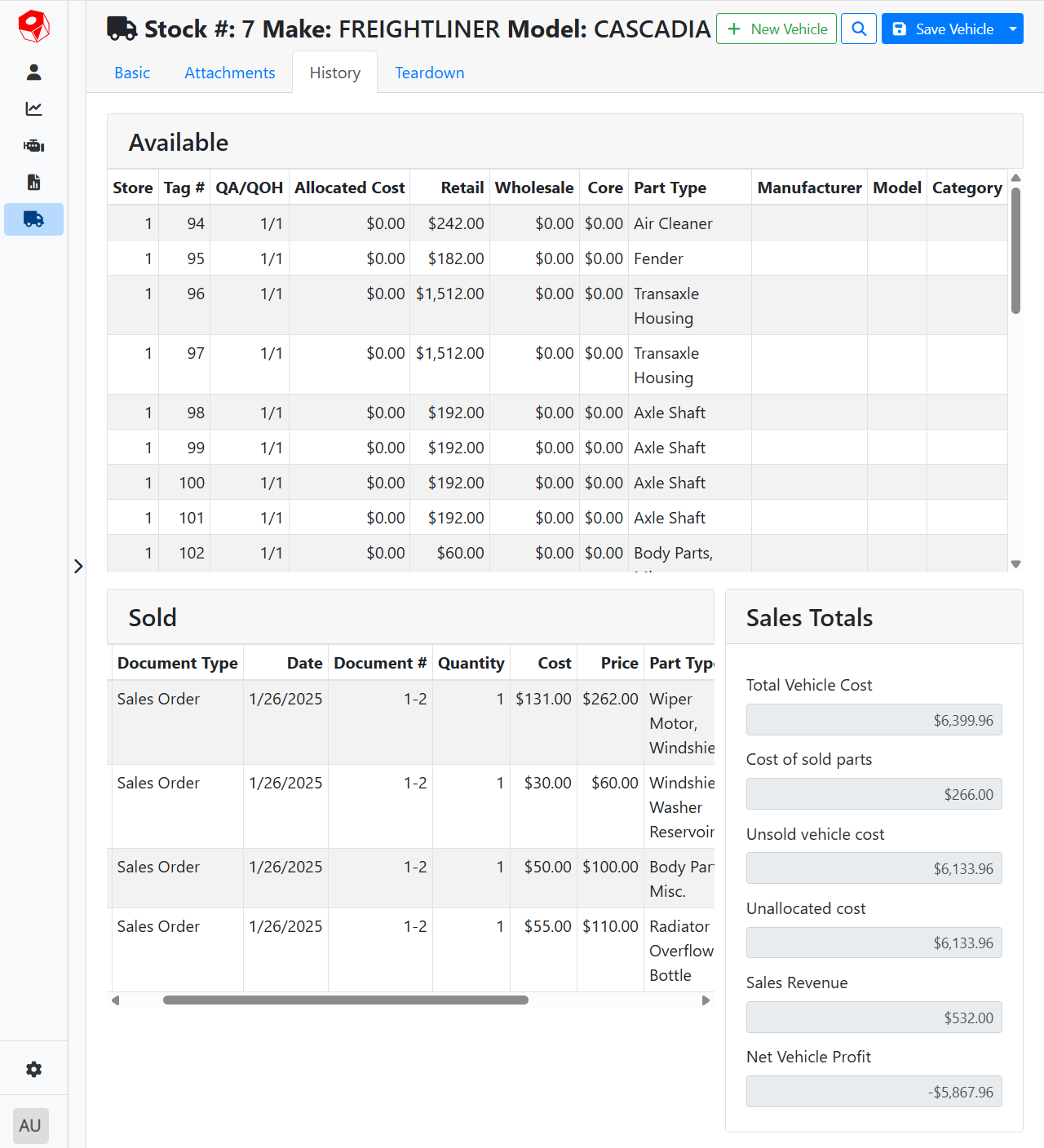
I have another vehicle, Stock #7, where I have sold some of the parts. I still have several available parts, but I can see the sold parts in the Sold table. I’m using % of Price Costing at 50% for Used Parts. The total Sales Revenue from these parts is $532.00, so the Cost of Sold Parts is calculated as 50% of $532.00, therefore it is $266.00. The cost allocation pool on the vehicle is reduced by this amount, reducing the Unsold Vehicle Cost from $6,399.96 to $6,133.96. The Sales Revenue is much less than the cost, so this vehicle isn’t profitable yet, but it will become profitable as I sell more parts.
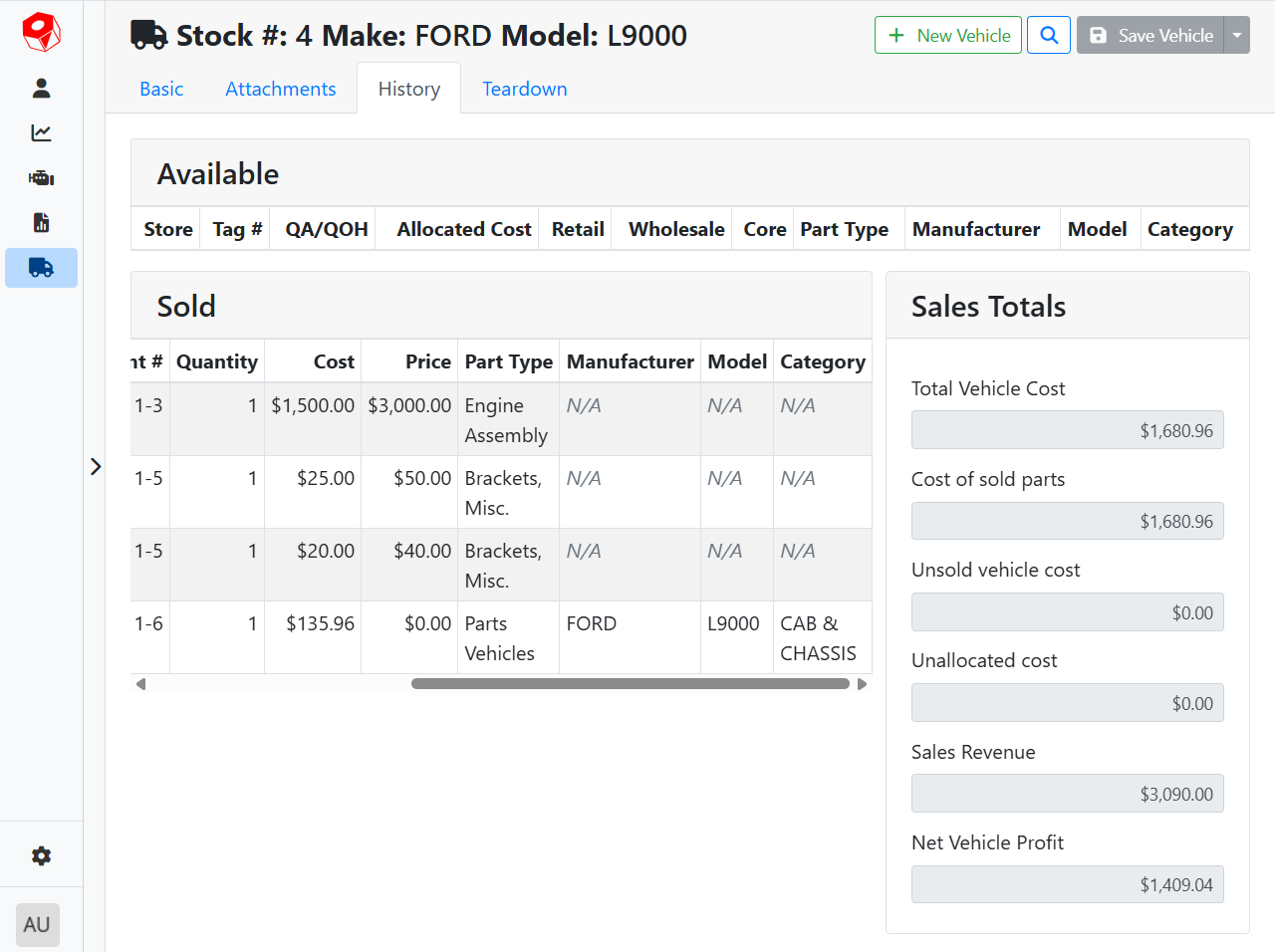
This vehicle, Stock #4, has had all of its parts sold. The Available table is empty, and the 3 parts that were sold off this vehicle are listed in the Sold table. With % of Price Costing set to 50%, the allocated parts cost came to $1,545.00, which is half of the total sales revenue of $3,090.00. Since the original vehicle cost came to $1,680.66, and the allocated parts cost total was less than that, the vehicle retained the remainder of the cost pool of $135.96. Since there wasn’t any value left on this vehicle, I scrapped it and handled the remaining vehicle cost on a write-down, represented by the final Sales Order with a $135.96 cost for $0.00 price.
Adding vehicle costs can only be done using Purchase Orders and Work Orders, and vehicle sales can only be done using Sales Orders. Those documents need to be created in ITrack Enterprise Desktop edition at this time.