
If you end up with a duplicate customer, you can use the Merge Customers option to combine them into one, while preserving all their document history such as Work Orders, Sales Orders, payment history, etc.
☑️ Selecting Customers to Merge
Merging customers is done on the Customer Search screen. At the bottom of the list of customers, you will see a Merge Customer button.
Read more about searching for customers. Searching for Customers and Vendors
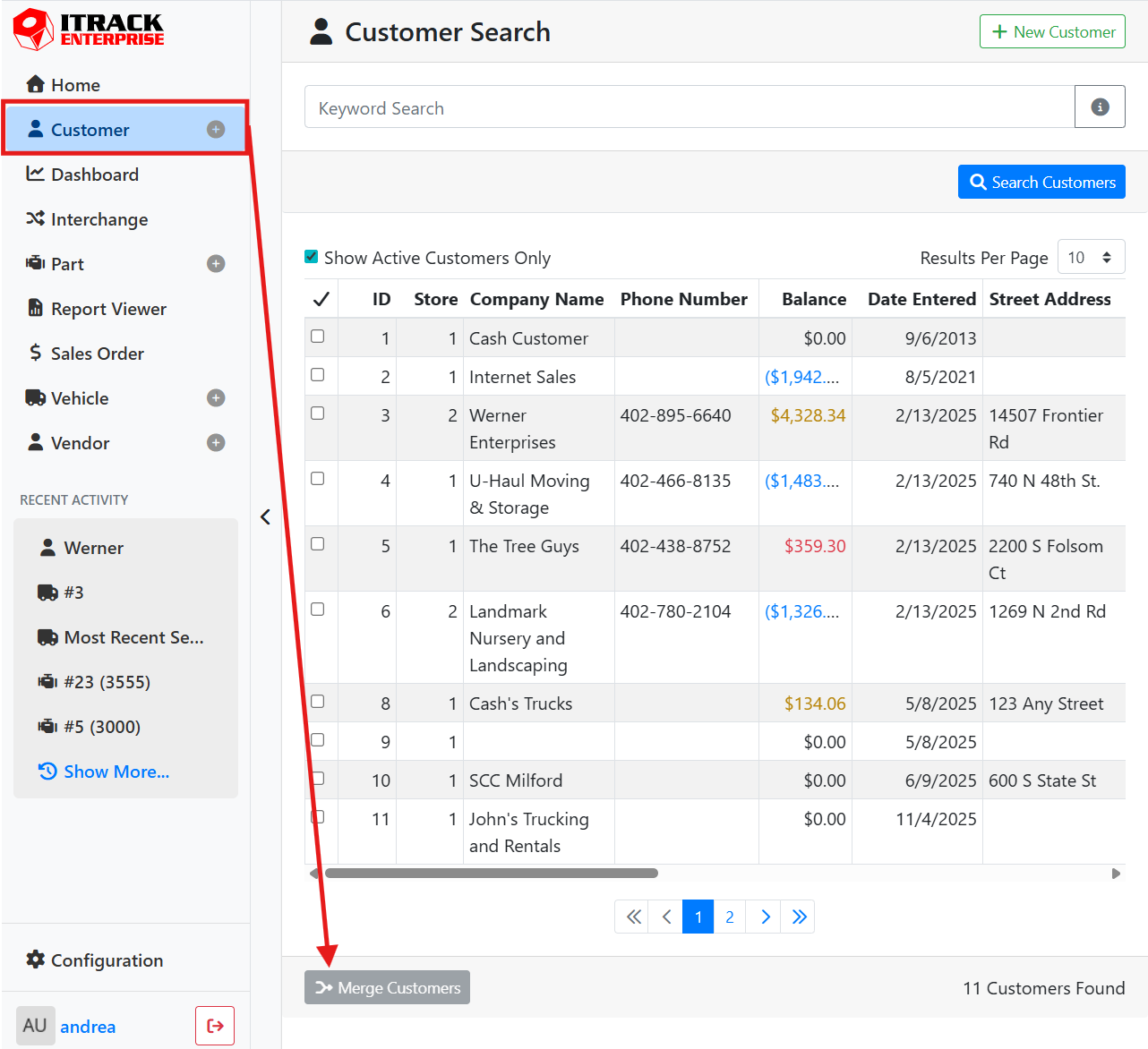
Search for the customers that you want to merge, then use the checkboxes on the left side of the list to select all of the customers that need to be merged together. You can merge more than two customers, if needed. Once more than one customer is selected, the Merge Customers button will be enabled.
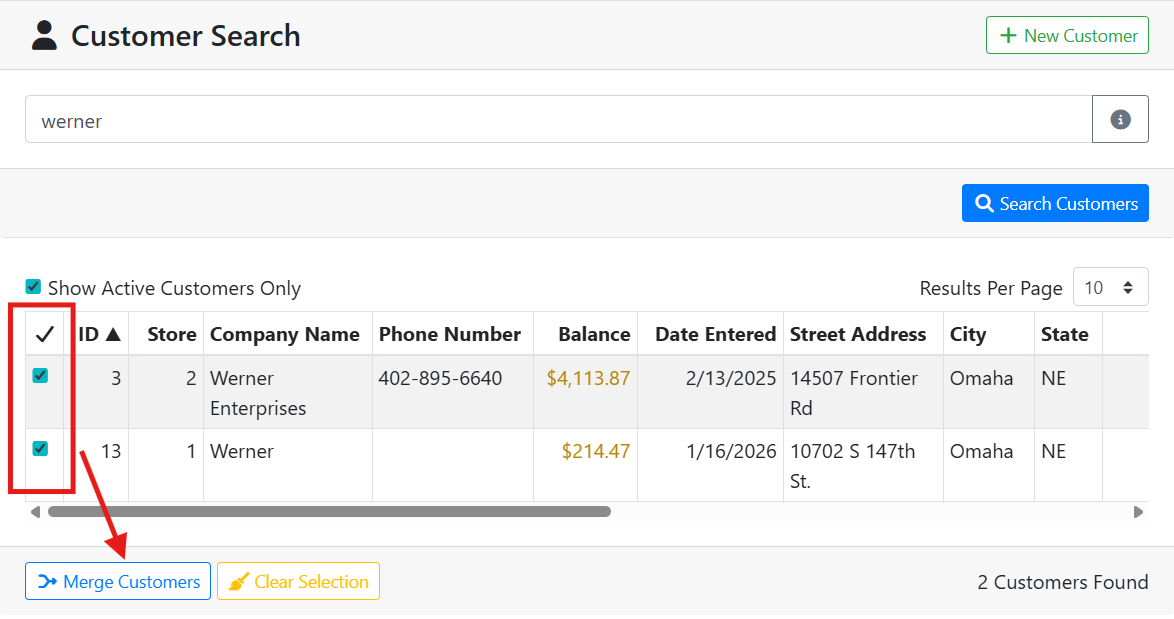
📥 Selecting the Destination Customer
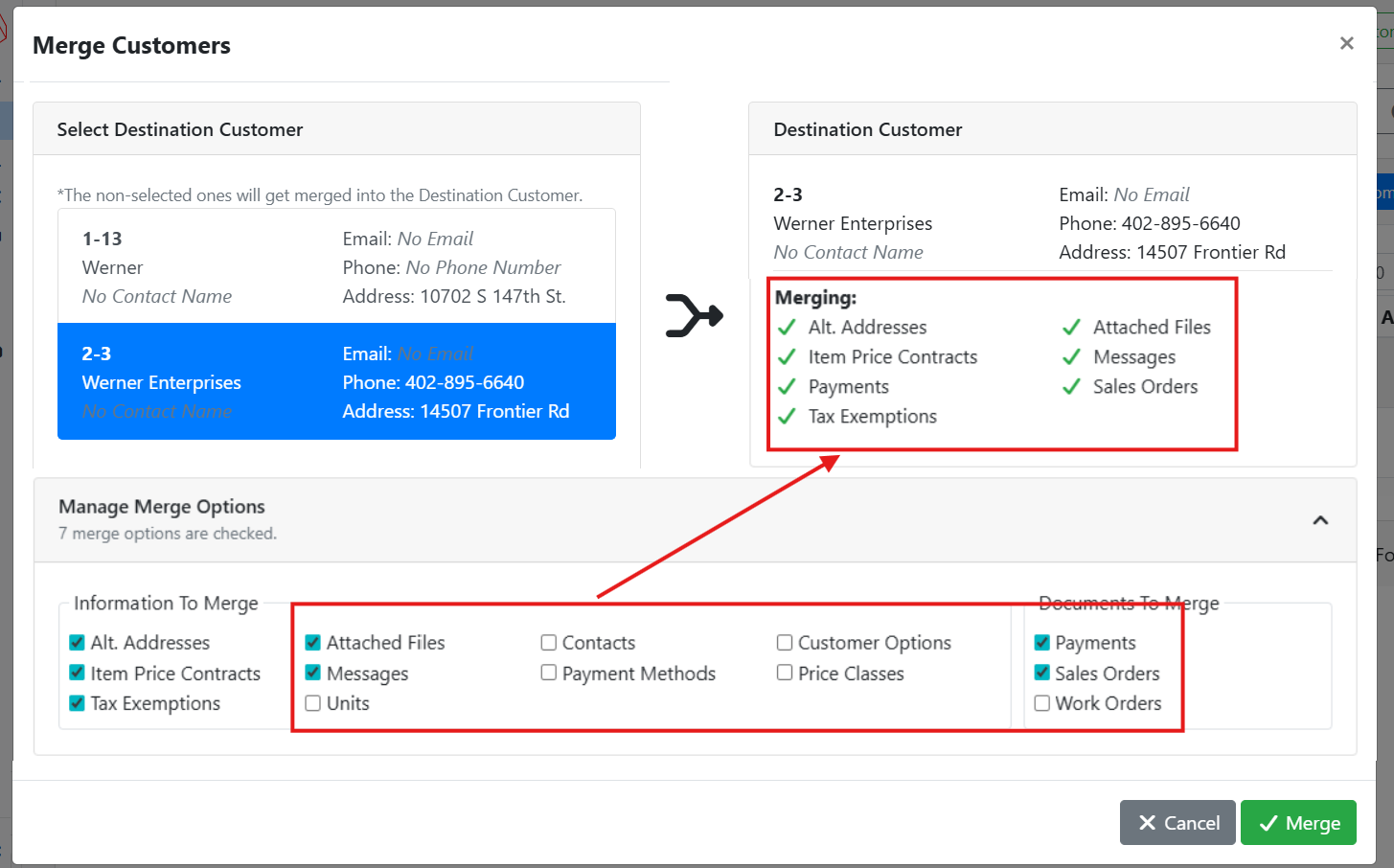
Clicking Merge Customers will open a window where you can select which customer you want to keep, and what should specifically be merged.
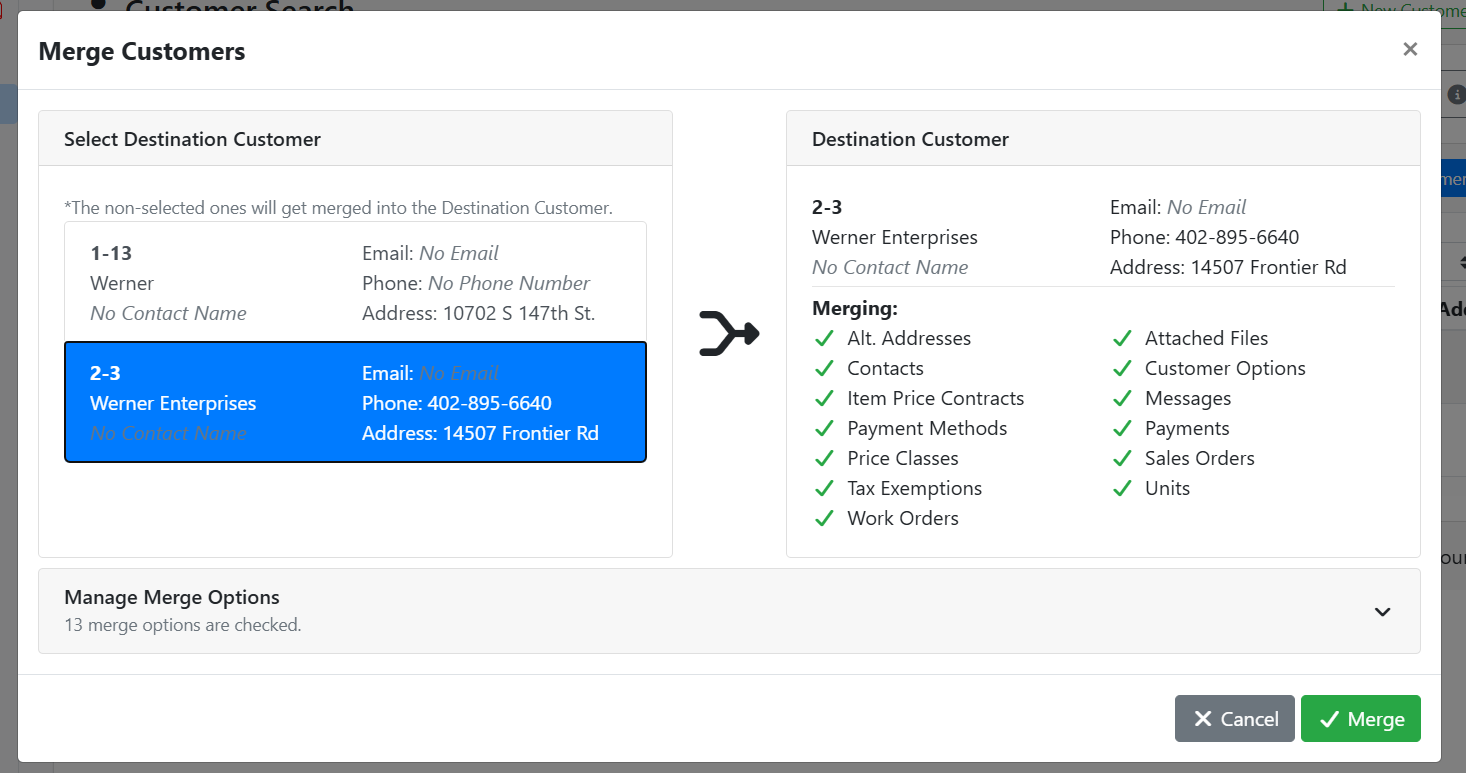
On the left side of the window, you will see a list of the customers you selected to merge. Select the customer record that you want to keep.
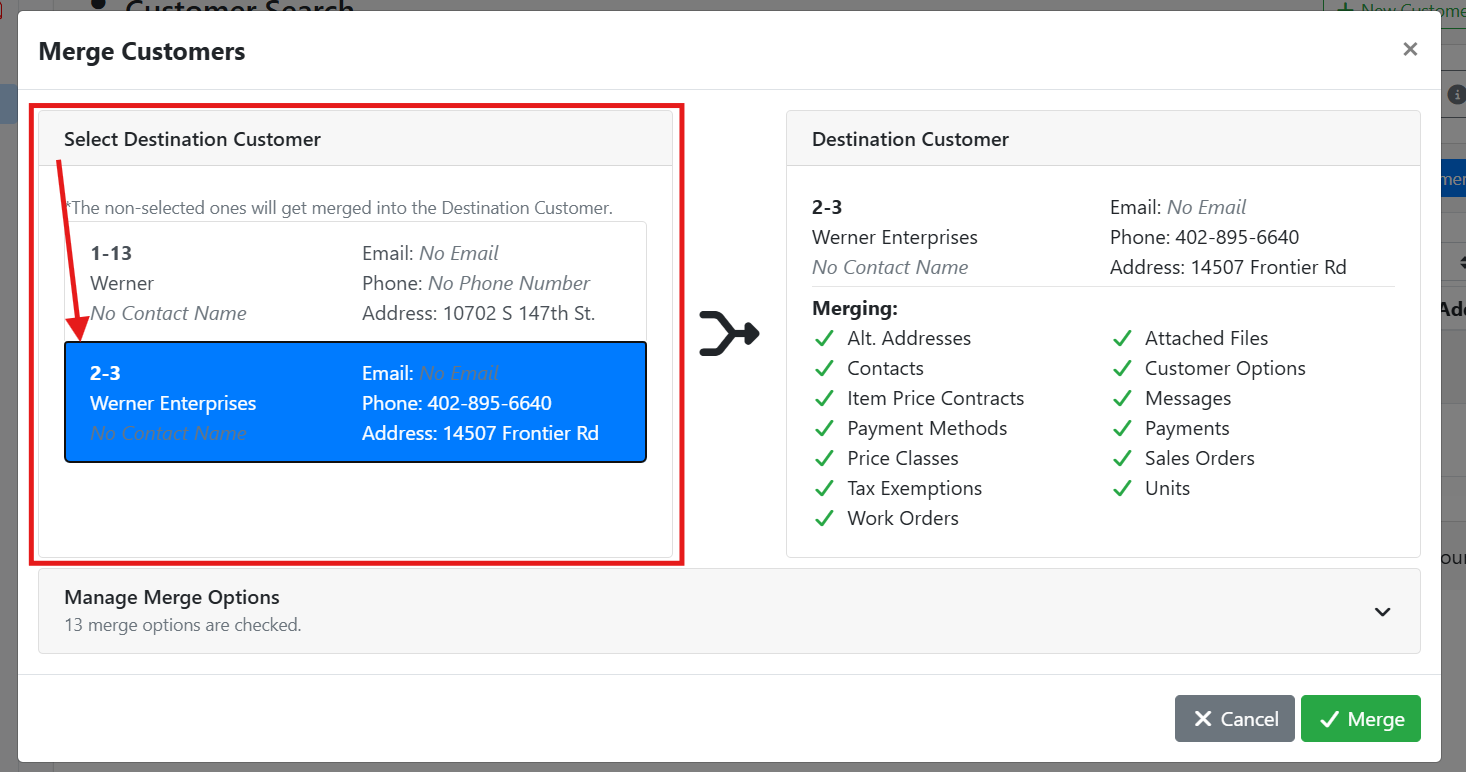
The right side of the window will show you details about the selected customer, and a summary of the actions that will happen when you merge the customers.
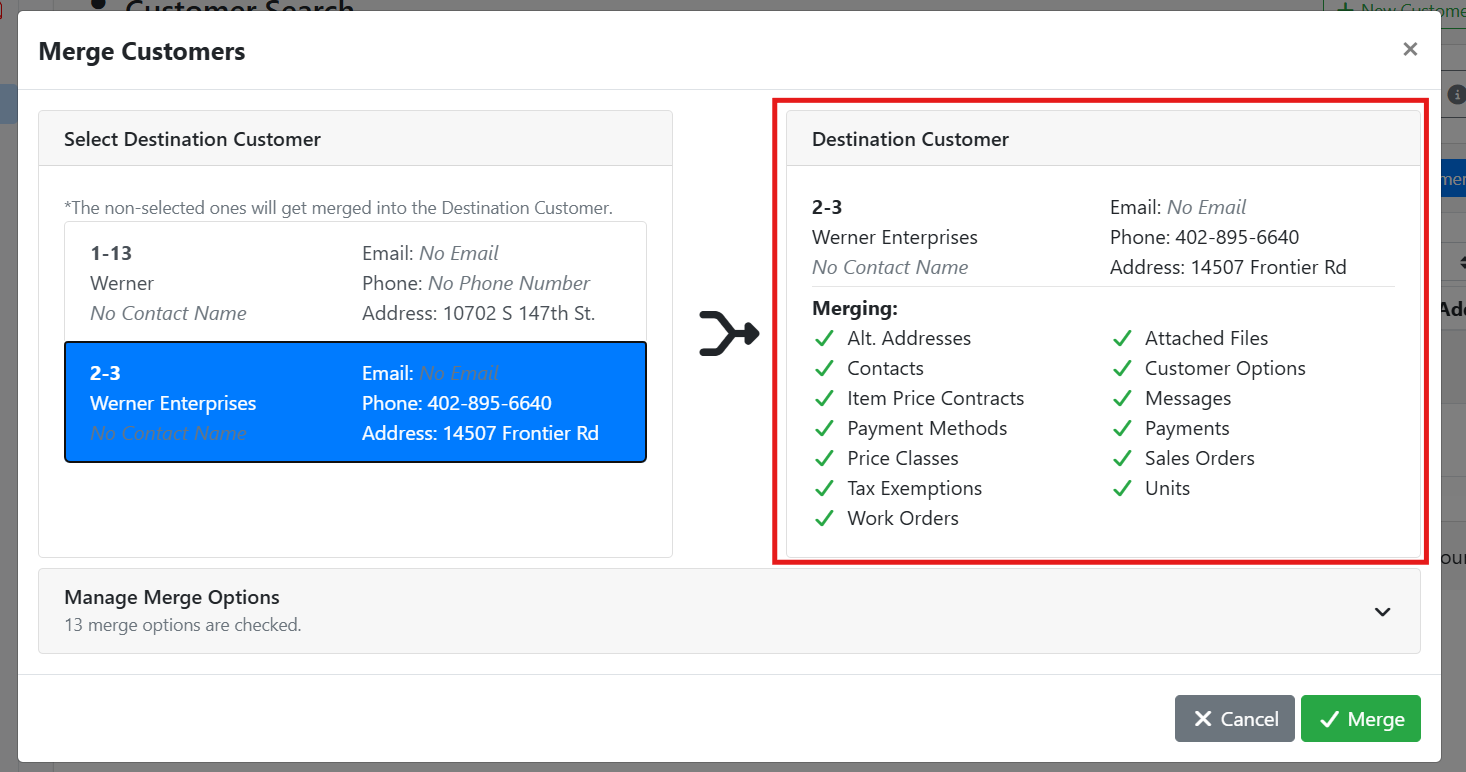
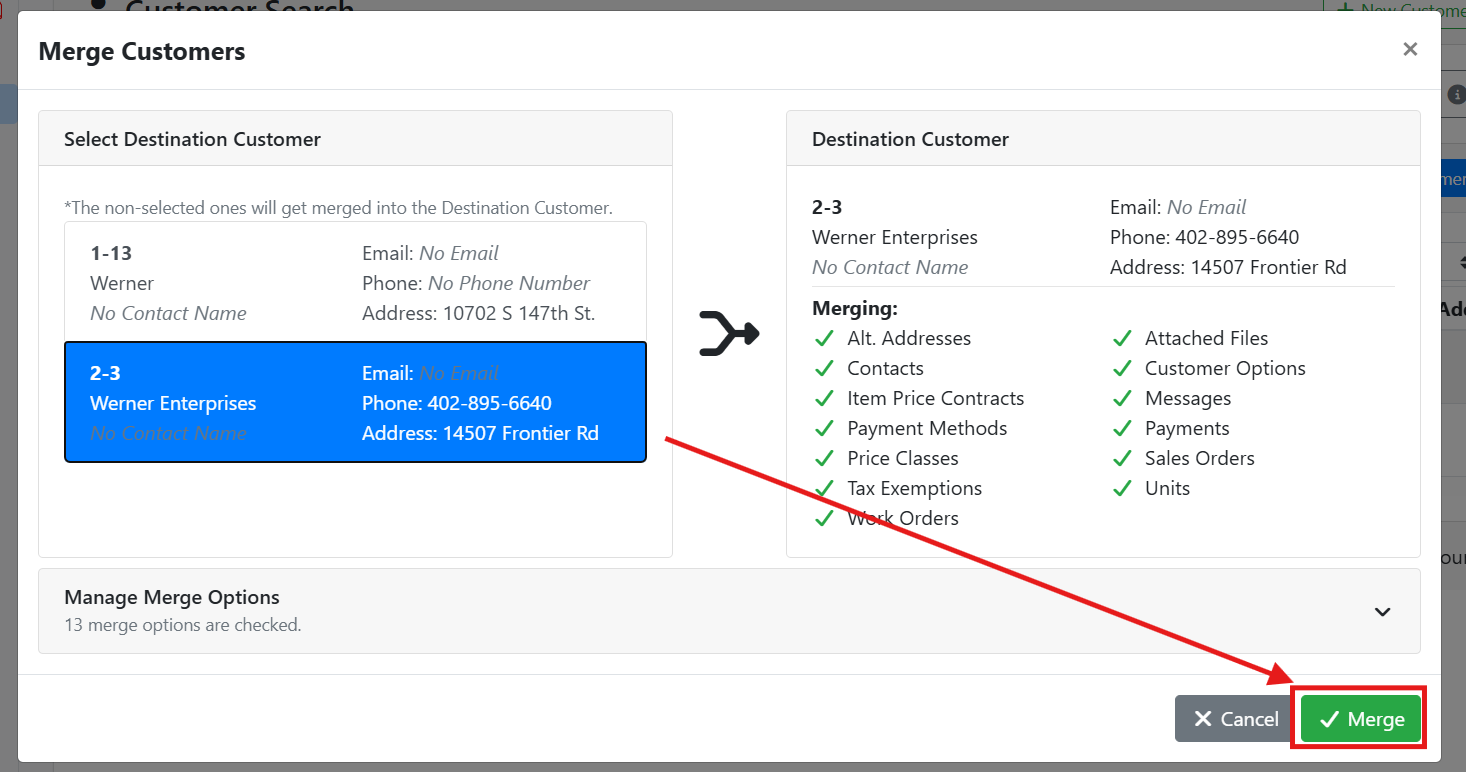
By default, everything will be merged to the destination customer. If you don’t need to exclude anything, you can click the Merge button at the bottom to complete the merge.
Merging customers can’t be undone, make sure everything looks correct before you proceed.
⚙️ Managing Merge Options
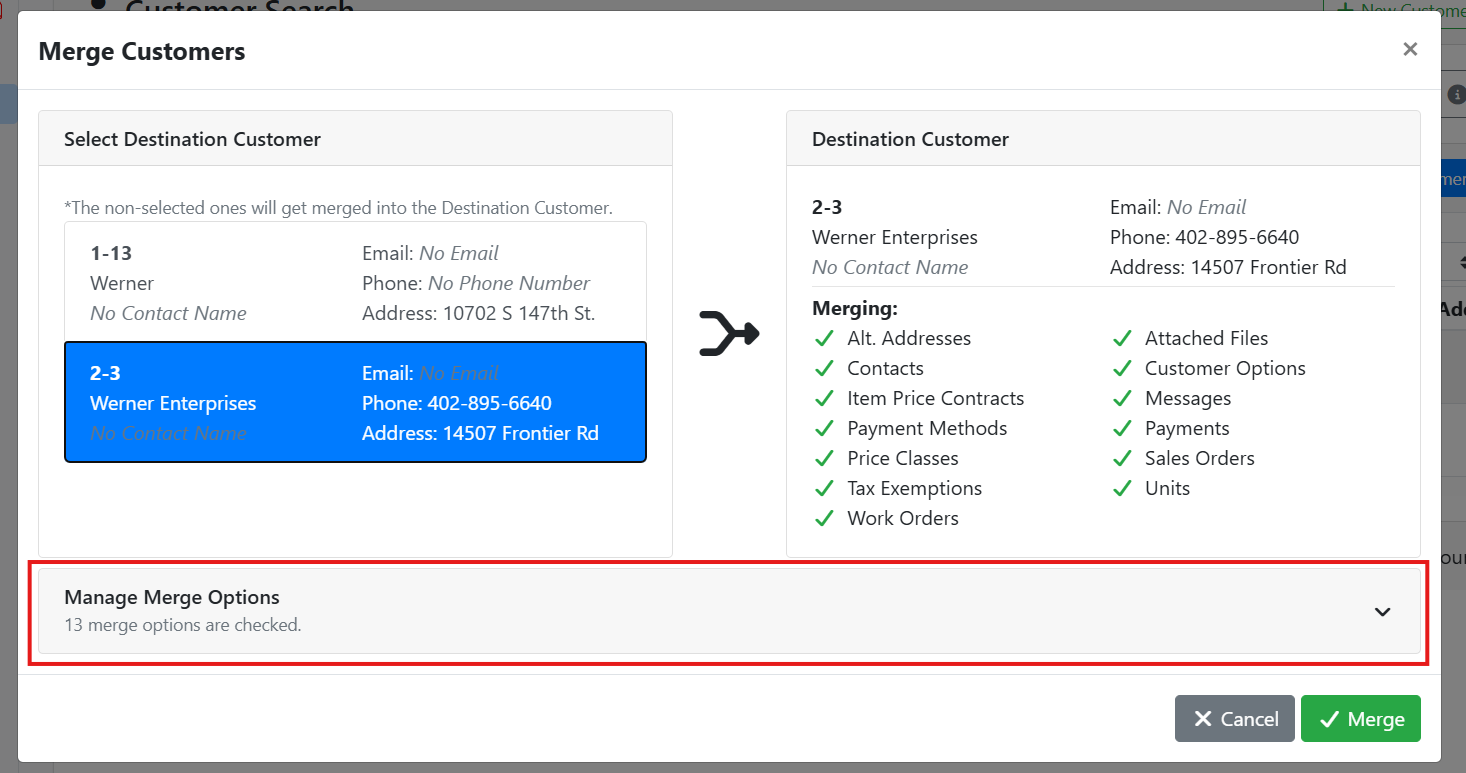
If you don’t want to merge everything to the destination customer, you can use the Manage Merge Options box to control what will get merged. Near the bottom of the merge window, click on the Manage Merge Options box to open it.
With the box open, you can see all the merging options available, including what information will get merged and what documents will get merged. This will match the list of options shown under the “Merging” list on the Destination Customer.
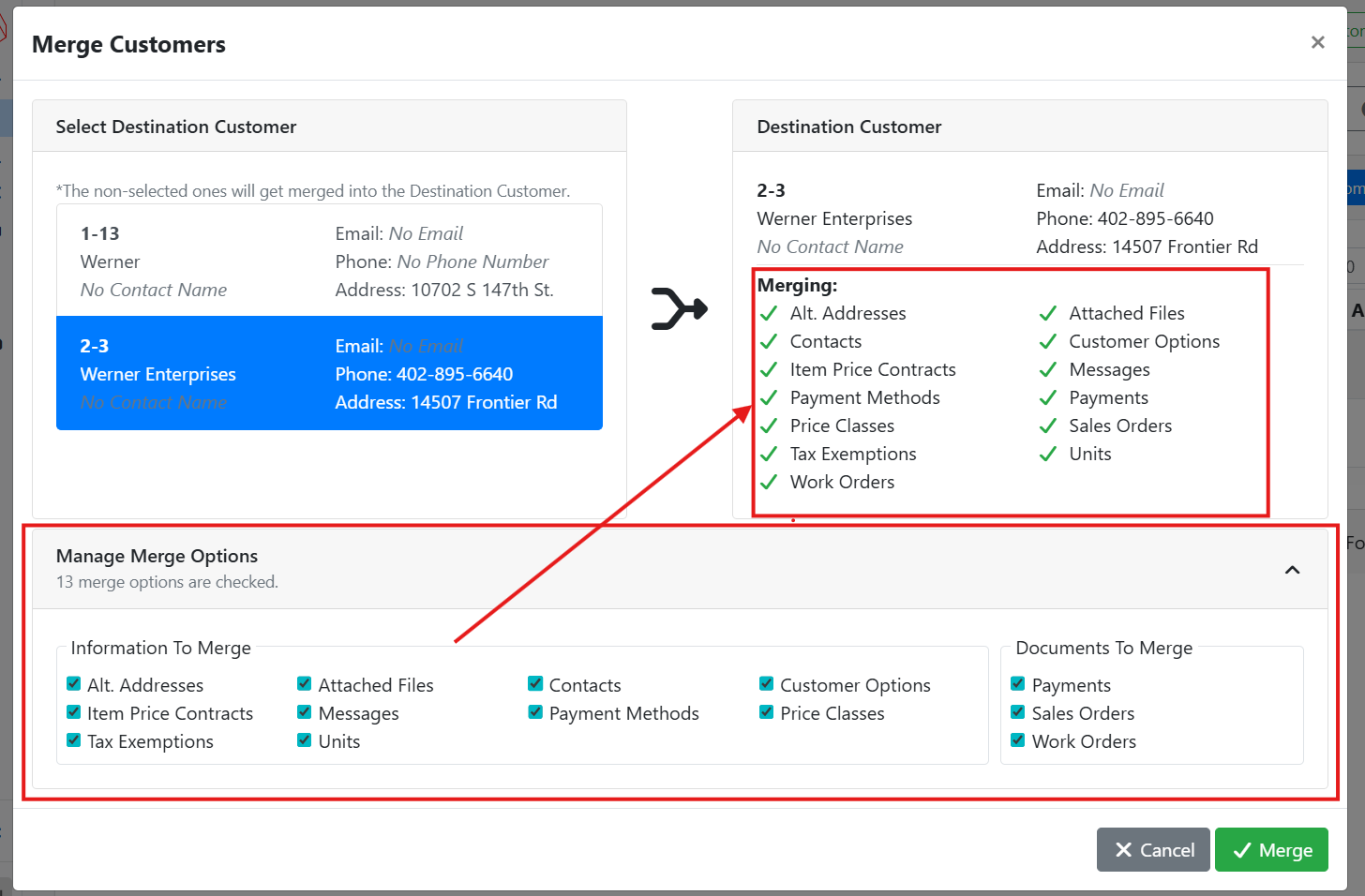
Uncheck any of the items you don’t want to merge. You will see the list of items under “Merging” update.
❓ What Happens When I Click Merge?
When you merge customers, all of the selected data will be moved from the merging customer(s) to the destination customer. The customers that aren’t the destination customer will be marked inactive, and will no longer appear attached to any documents. For example, merging Sales Orders from Customer 1 to Customer 2 means that Customer 1 will look like they no longer have any Sales Orders.