
Stores are different places where your company might operate and manage inventory. Stores help you organize your inventory, employees, financials, etc.
📥 Controlling Which Store Is Used
When creating a new part or vehicle, it is added to the store you are currently logged in to. To change which store you’re logged into, you will need to log out of ITrack and log back in under a different store.
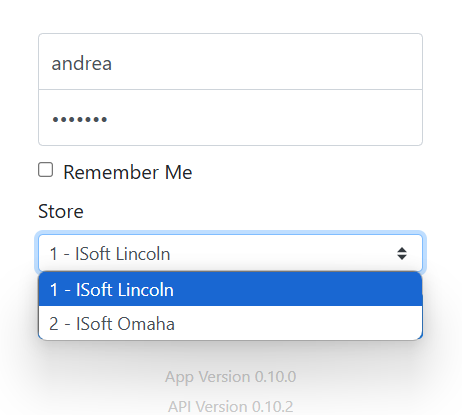
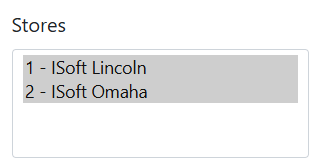
Employees can be assigned to specific stores, or might have oversight over all stores, depending on their User configuration. You may have a counterperson that only works at one store, and would only have access to affect quantity at their assigned store. They could request parts from other stores, but couldn’t affect their inventory directly. They would receive an error if they attempt to log in to a store they can’t access. On the other hand, you might have a parts manager or district manager who can oversee inventory at multiple stores. They could log in to different stores to enter new parts for multiple facilities. An administrator should determine what stores an employee can log into on their user profile.
🔎 Identifying Which Store Has Inventory Stocked
When searching for inventory, ITrack defaults to searching the store you are currently logged in to, but you can search for inventory at other stores by selecting them in the Store menu.
Read more about searching inventory.
Stores have a Display Code, which can be determined by your company, but are usually numbered. You can see this code next to the store name wherever the store name appears, and you will see this code used as a shortcut in places where the store name might not fit. Most tables will show the store’s display code instead of the store name.
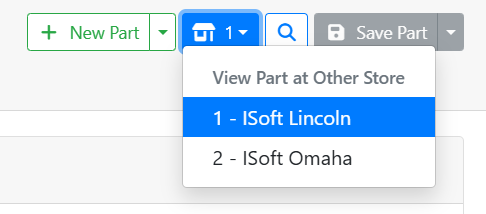
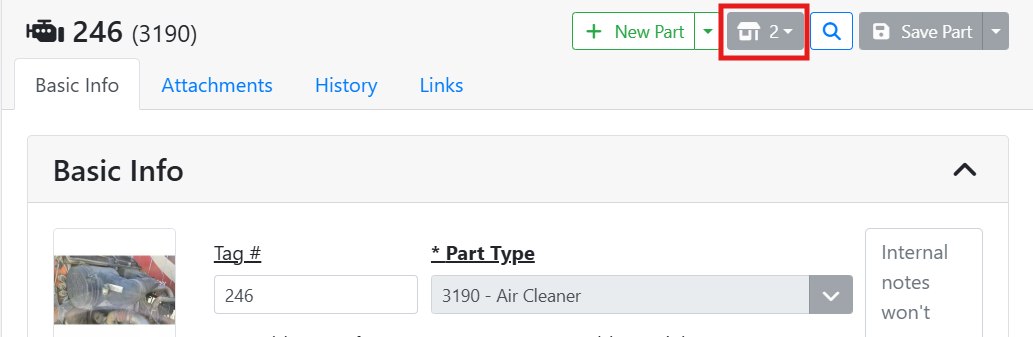
When viewing a part record, you will see a Store menu at the top of the part with the store display code. If the icon is gray, it means the part is only stocked at one store. If the part is stocked at more than one store, you can click in the menu to switch which store’s stocking information you will see for that part.
Read more about replicating a part between stores.
In my example, my stores are numbered 1 for ISoft Lincoln, and 2 for ISoft Omaha. When I search for a part, I will see a Store column that shows the store display code. The first air cleaner in this list is at my Omaha (2) store, where the other two air cleaners are at my Lincoln (1) store.
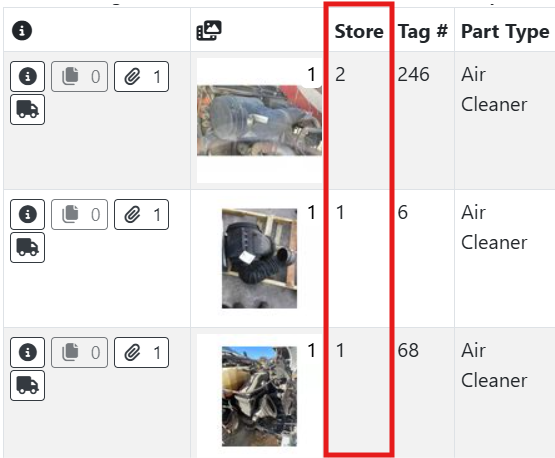
When I look at a part record, I will also see the store display code at the very top. Part #246 is located at Store 2, which is my Omaha store.
📤 Transferring Inventory Between Stores
Inventory can be transferred from one store to another using a Transfer Order.
At this time, Transfer Orders must be done in ITrack Enterprise desktop.
🏗️ Managing Stores
To Edit a store, select Configuration from the navigation bar, then select the Store tab.
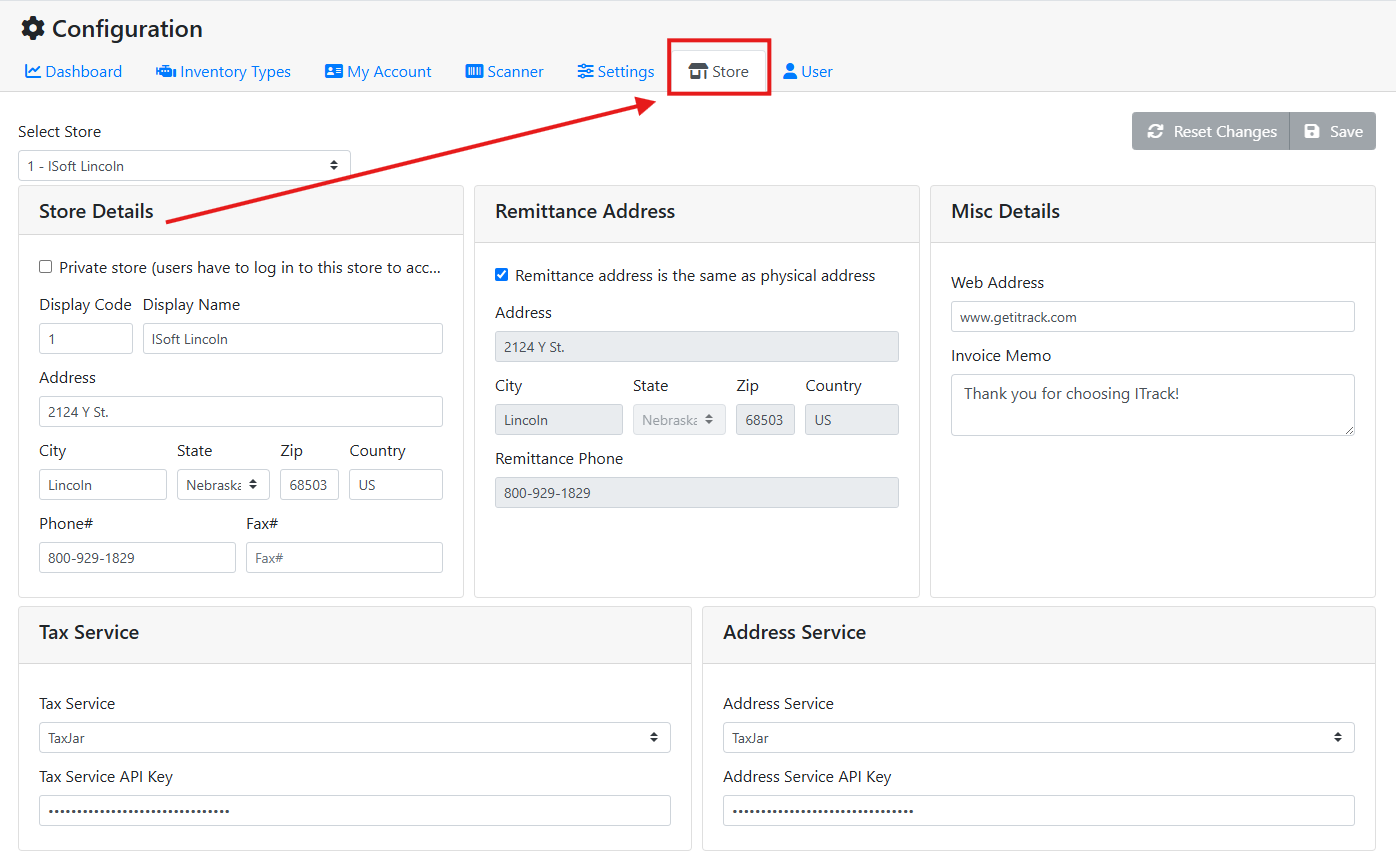
Read more about editing stores in the Configuration section.
Stores can only be added or removed in ITrack Enterprise Desktop at this time.