
ITrack lets you keep track of replenishable inventory, whether you sell those parts directly to customers or consume them on work orders. Replenishable parts won’t be marked as Sold when consumed, and instead you can monitor stocking levels and set vendor pricing for easy reordering.
The Inventory Overview screen can help you find inventory that needs reordering, and Purchase Orders are used to order more inventory. At this time both actions need to be done in ITrack Enterprise Desktop.
Scroll down on the part record to the Stocking box to see information about a replenishable part.
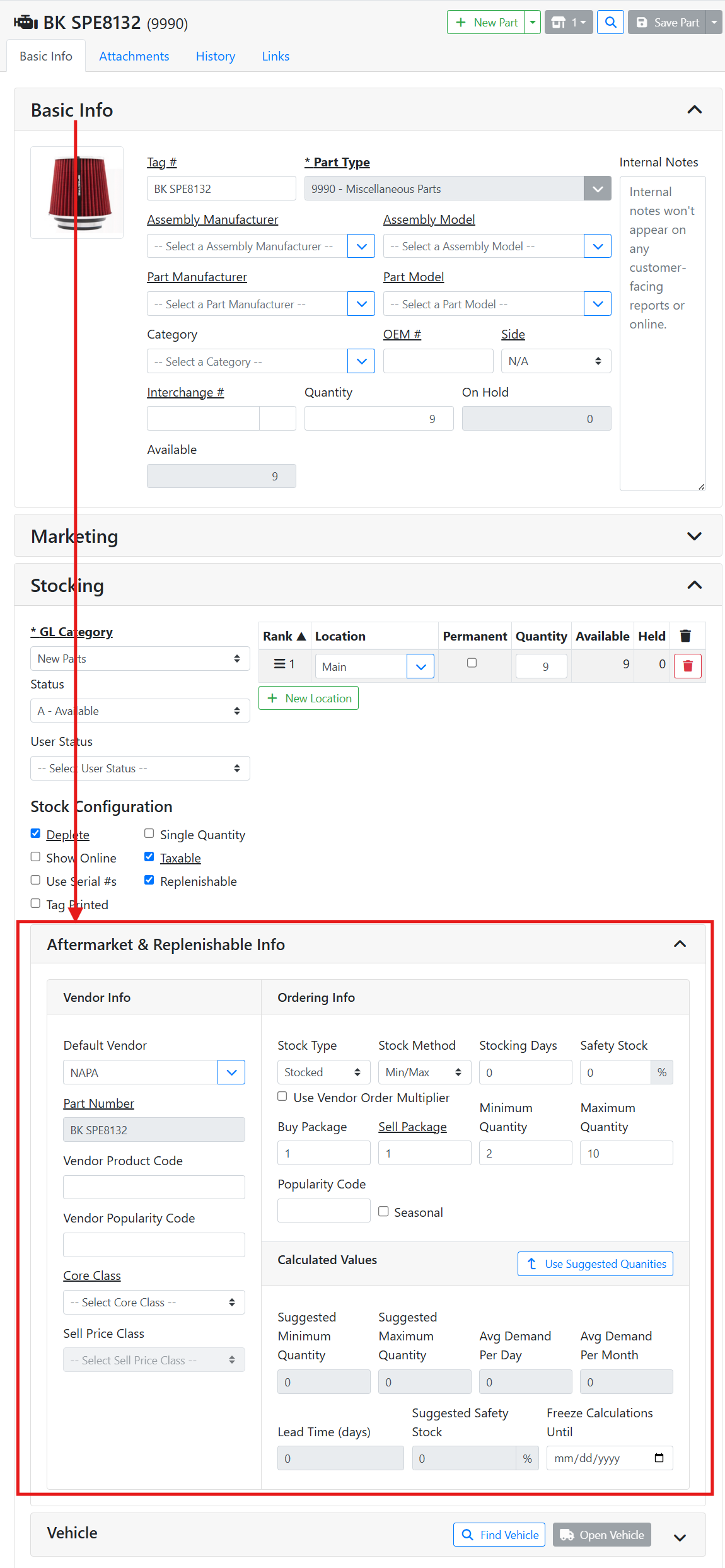
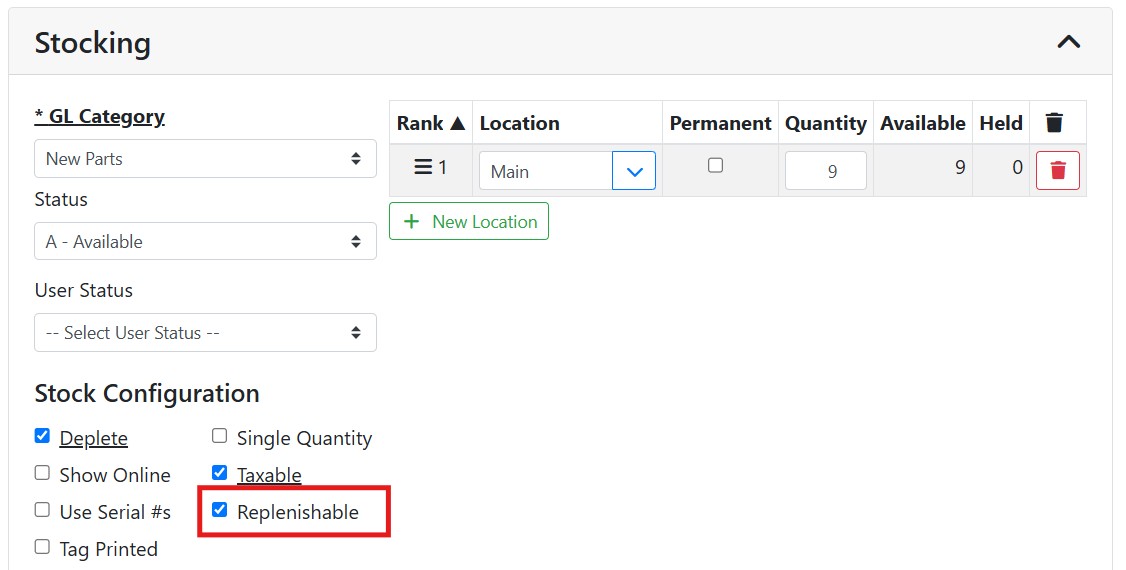
To make a part replenishable, check the Replenishable checkbox in the Stock Configuration area.
The Aftermarket & Replenishable Info box will appear.
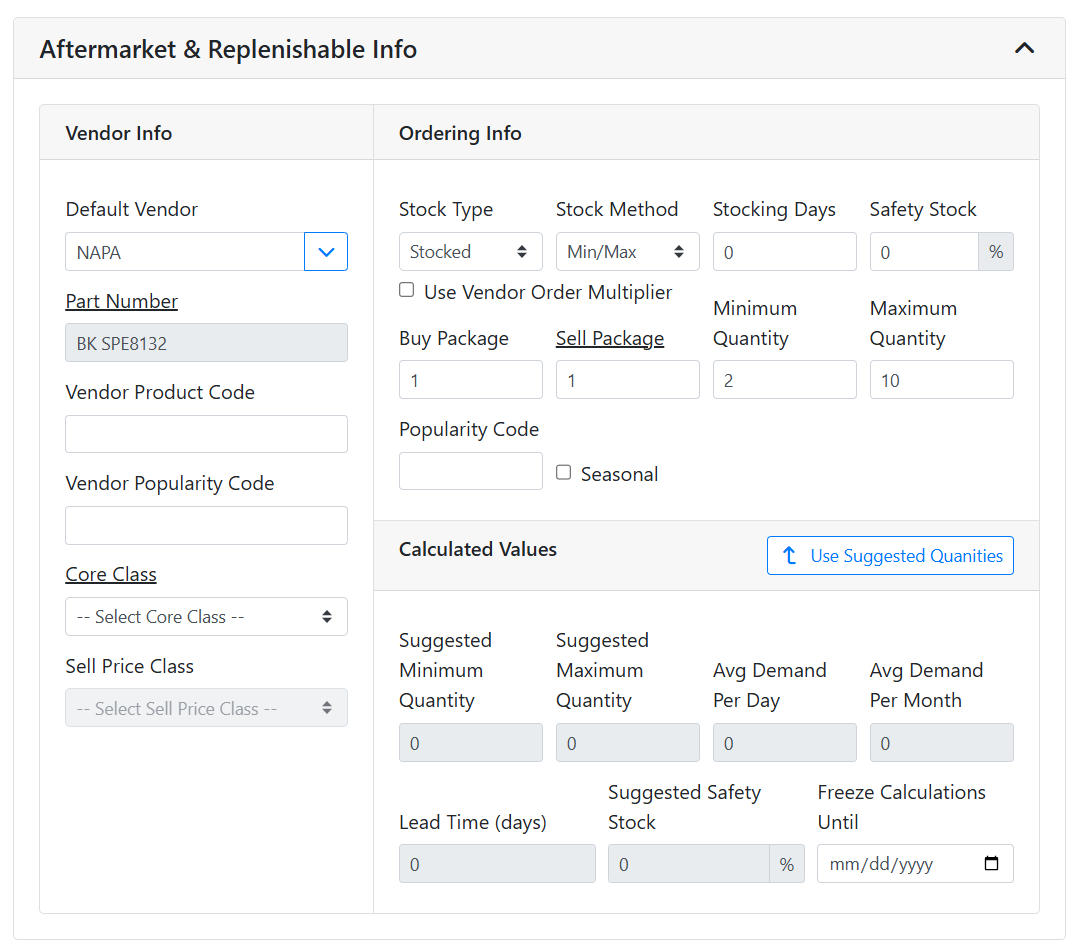
ℹ️ Vendor Info
In the Vendor Info section, you can specify the default vendor’s information for the part.
Default Vendor - The default vendor is used by default when creating new purchase orders for this part from the Inventory Overview screen.
Part Number, Vendor Product Code, Vendor Popularity Code - Numbers specific to the default vendor for identifying the item.
Core Class - If this part has a vendor core exchange, items with the same Core Class are considered interchangeable when returning the core to the vendor.
Read more about Core Exchanges.
Sell Price Class - You can assign a Sell Price Class to an item if you want to group items for easy discount pricing when selling to customers.
📝 Ordering Info
In the Ordering Info section, specify how you want to stock and reorder the item. Setting these values helps you keep track of stocking levels so that you know when you need to order more replacement parts and is used in the Inventory Overview screen.
You can always purchase items directly via Purchase Orders, regardless of your stocking configuration on the part. Stocking and ordering rules help you optimize the process and reorder inventory from the Inventory Overview screen in ITrack Enterprise Desktop.
Stock Type - Controls how and if the item is regularly stocked. The Inventory Overview screen will filter parts based on the stock type. There are three options in the menu:
-
Stocked - Use this for items you regularly keep in stock and reorder.
-
Special Order - Use this for items you stock on request, but don’t regularly reorder.
-
Obsolete - Use this for items you don’t plan to reorder. You may still have quantity that you want to use or sell, but you can mark it obsolete if that part isn’t available or you don’t plan to restock it.
Stock Method - If you regularly stock the item, this controls what method is used to determine if the item should be reordered when using the Inventory Overview screen. The options are:
-
None - No rules will be determined to reorder the item.
-
Min/Max - The item will be flagged to restock based on the Minimum and Maximum Quantity fields.
-
History - ITrack will evaluate the item’s historical usage to suggest reordering.
Stocking Days - The average number of days it will take to restock the item from the default vendor.
Safety Stock - Additional quantity to keep in stock above the quantity needed to fill historical demand during the vendor’s lead time.
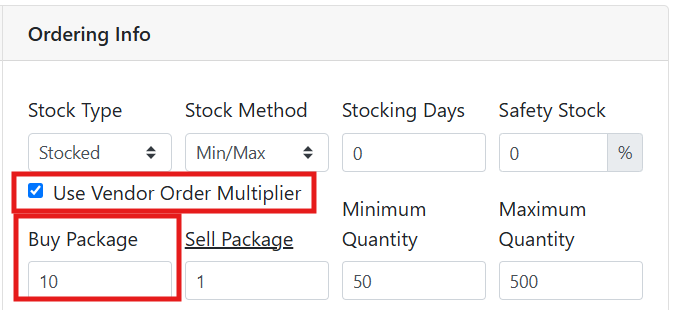
Buy Package and Use Vendor Order Multiplier - The Buy Package is the number of items in a package when purchasing. Check Use Vendor Order Multiplier if each ‘pack’ of the Buy Package amount should be listed as 1 quantity on a purchase order.
For example, if I stock bolts, I might use them on work orders individually so I want to track each bolt as individual quantity. However, I purchase them from the vendor in 10-packs. I will put 10 in the Buy Package field, and check the Use Vendor Order Multiplier box to indicate that 1 box purchased from the vendor increases the quantity of bolts in my inventory by 10.
Sell Package - The quantity that this item is normally sold in.
Minimum Quantity - The quantity at which to start a stock order.
Maximum Quantity - The quantity to order back up to during a stock order, also known as the stocking point.
Seasonal - Check this to indicate if the part follows a distinctly seasonal demand pattern.
🧮 Calculated Values
Calculated values show you historically how your replenishable part has been used. You can use these values to help you set stocking numbers or replacement quantity thresholds for reordering. Click the Use Suggested Quantities button to override the values in the Ordering Info section with the Calculated Values.
Suggested Minimum and Maximum Quantity - Suggested minimum and maximum quantity levels based on historical demand.
Average Demand Per Day and Month - The historical average daily and monthly demand from the last year for the part.
Lead Time (Days) - Based on recent purchase orders, this is the average historical time it takes the default vendor to fulfil orders for this item.
Suggested Safety Stock - A suggested amount of additional quantity to stock above the amount needed to cover demand during the vendor’s lead time.
Freeze Calculations Until - This lets you set a timer before historical demand patters will begin to be tracked.