
Most non-replenishable parts are unique and will only exist at one store, such as parts from a vehicle teardown. When looking at a part record, you will see the store display code at the top, and the Store drop down menu will be grayed out. This means it is only stocked at that one store.
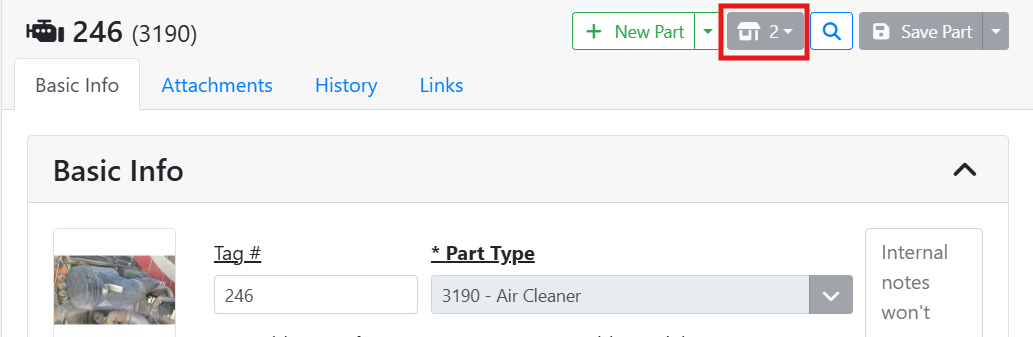
You might also stock the same part at more than one store. This is common with replenishable parts that are consumed on work orders or build orders. You can enter the part with a separate tag number at each store and keep track of them as different parts entirely, or you might replicate the part at all stores if you want the tag number and other properties to be the same.
Read more about the difference between Cloning a part and Replicating a part.
What's the Difference Between Cloning and Replicating a Part?
📦 How to Replicate a Part
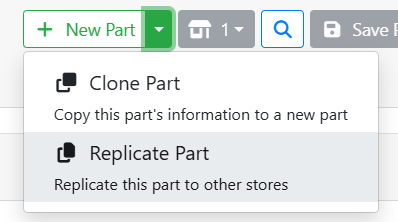
Replicate a part by opening the part record and using the drop down menu next on the + New Part button.
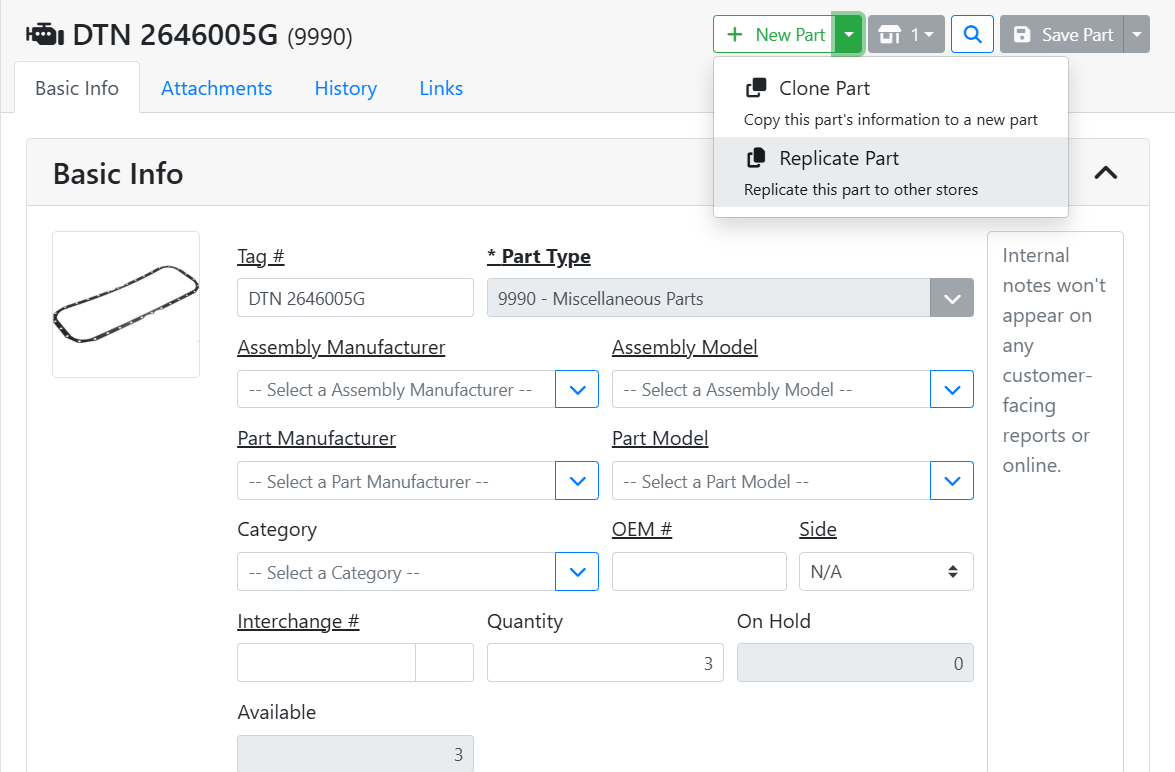
For example, I have a replenishable part for an oil pan gasket that I use on Work Orders. I currently have this part entered at Store 1, but I also plan to use this part at Store 2. I will use the menu next to the + New Part button and select Replicate Part.
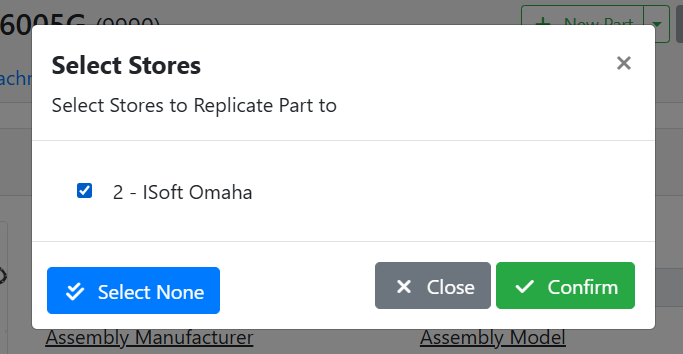
ITrack will ask me to specify which stores I would like to replicate this part to. Since I only have one other store, I select it, and click the Confirm button.
Now that the part record exists at both stores, I can use the Store dropdown menu to toggle which store’s version of the part I’m looking at. When I toggle between stores, the part record will update to show me the stocking information specific to the store I’m viewing.
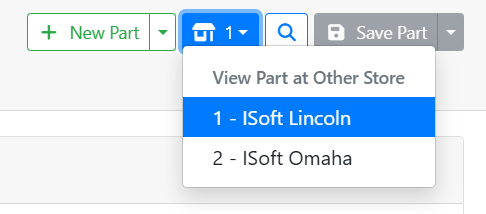
When you replicate a part to another store, it will start with 0 quantity. Stores always have unique locations and quantity for parts. When you replicate a part to a store, you are essentially saying “I plan on stocking this part at this store.”
Replicating a part to another store does not move quantity for that part to the other store. In order for the new store to have quantity for that part, it should be purchased into that store using a Purchase Order, or transferred to that store via a Transfer Order.
❓ What Data Is Shared Between Parts at Different Stores?
Each store’s version of the part can have some data specific to that store, and some data is shared between all stores. This is a setting specific to your company referred to as Global Fields. Global fields are underlined on the part record.
In my oil pan gasket example, I can see that Tag #, Part Type, Assembly Manufacturer, Assembly Model, Part Manufacturer, Part Model, OEM#, Side, and Interchange # are all underlined. If I make a change to one of these fields, that change will be reflected at both stores. On the other hand, Category, Quantity, On Hold, and Available are not underlined. These fields are unique to each store.
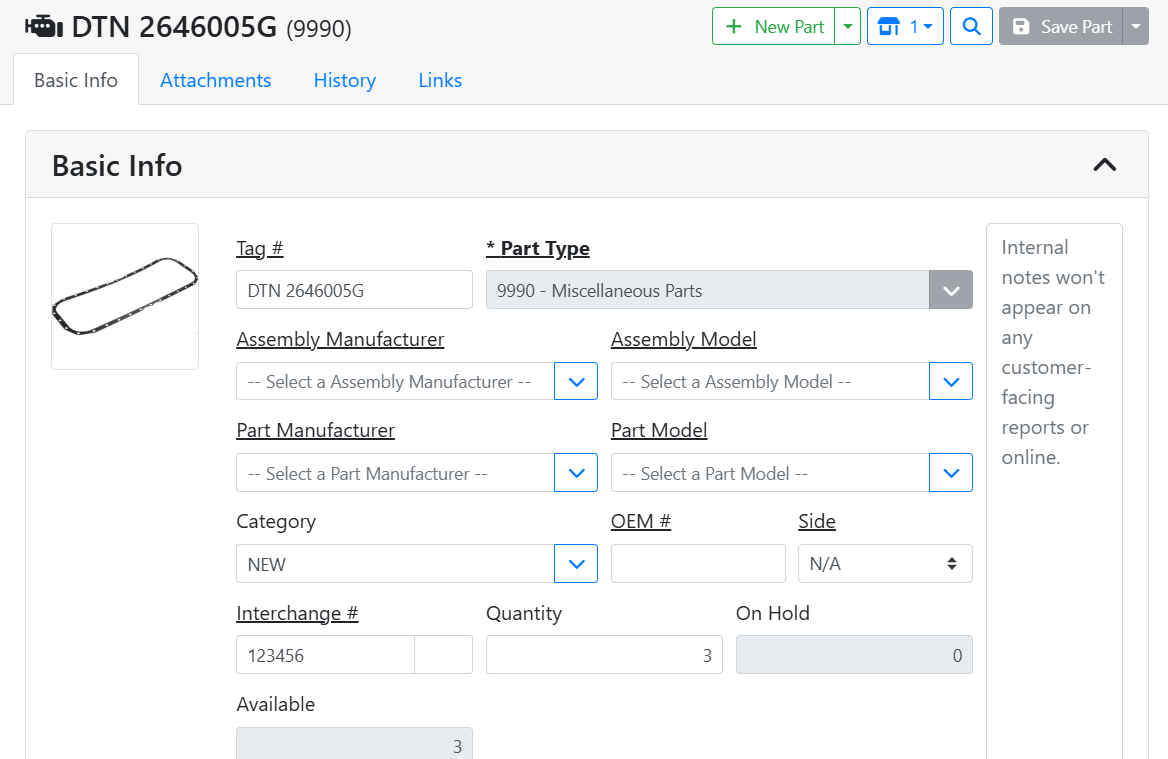
This is a pretty common set up. Global Fields should be properties that the part has no matter what. The manufacturer for a part doesn’t change depending on what store I have it stocked at. But each store will have different quantity and quantity on hand for the part, or might have the parts in different condition or category.
Managing which fields are Global Fields can only be done in the ITrack Enterprise desktop version at this time.