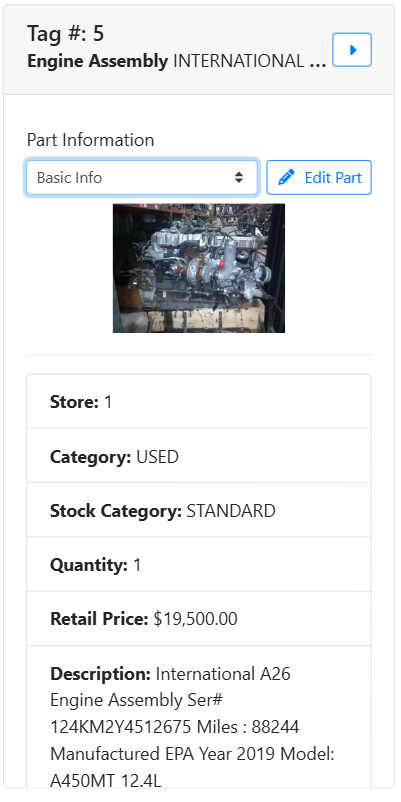
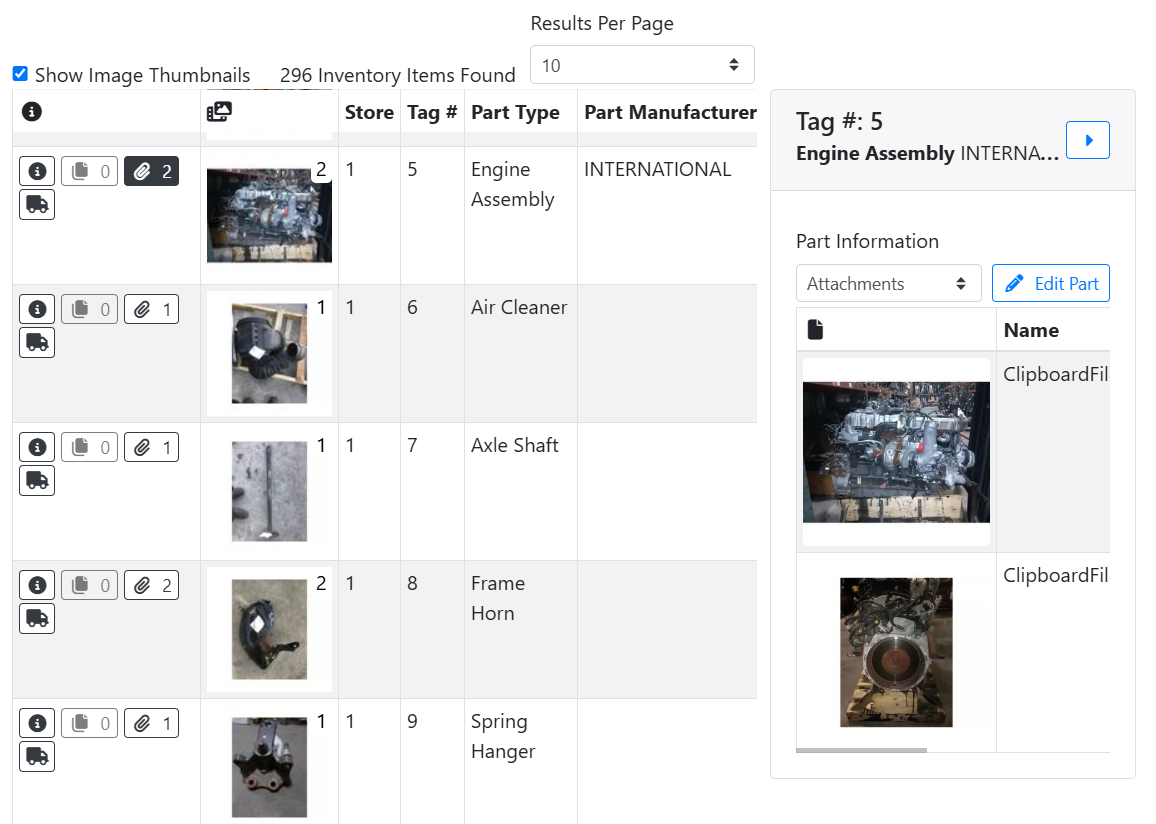
You can view some information about your search results without leaving the search page by clicking on one of the buttons in the Info 
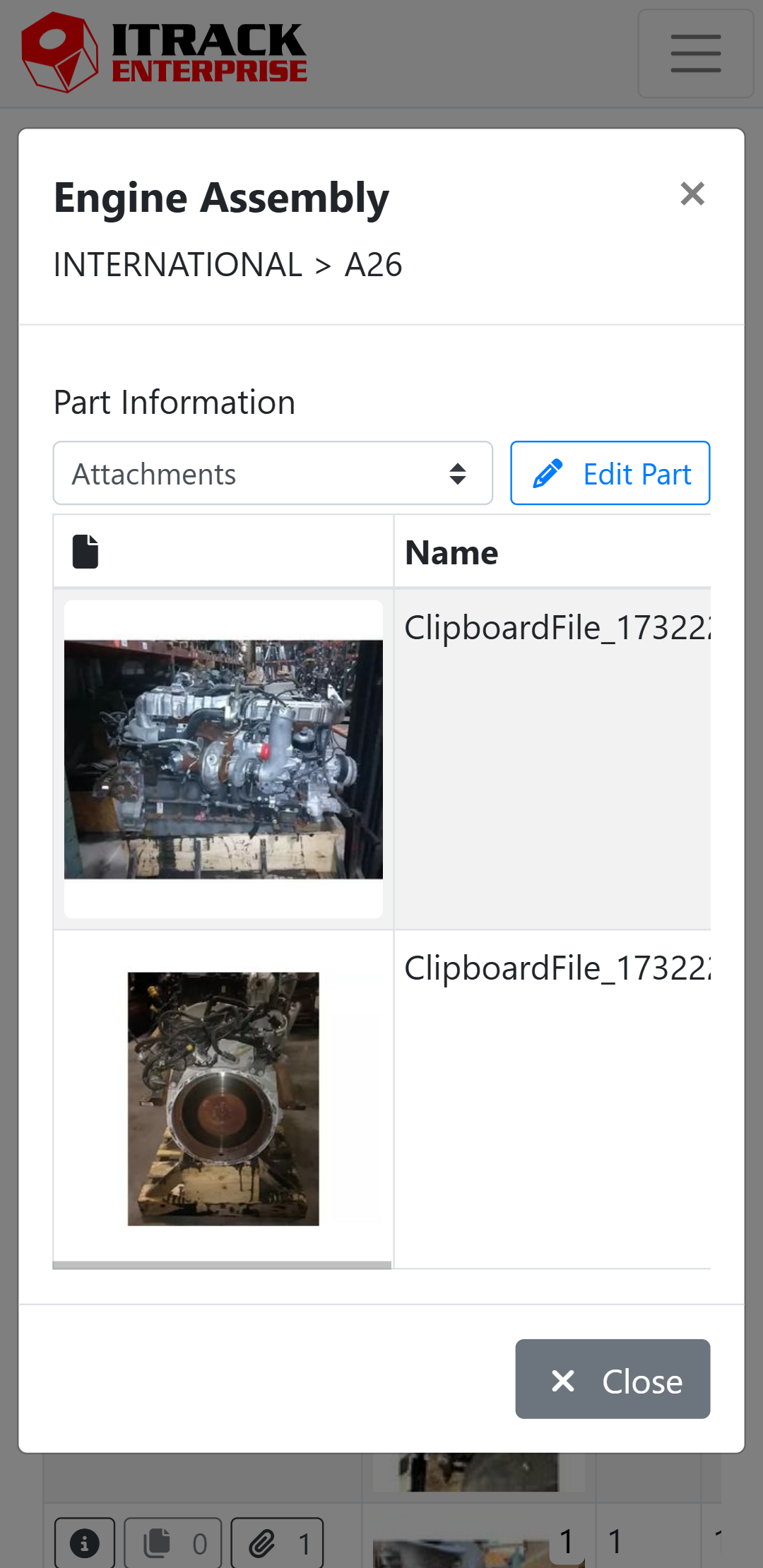
Depending on the size of your screen, this Detail view will open either to the right of the search results or, if you are on a smaller screen such as a smartphone, it may open in a separate window.
Close the Detail panel by clicking the arrow button 
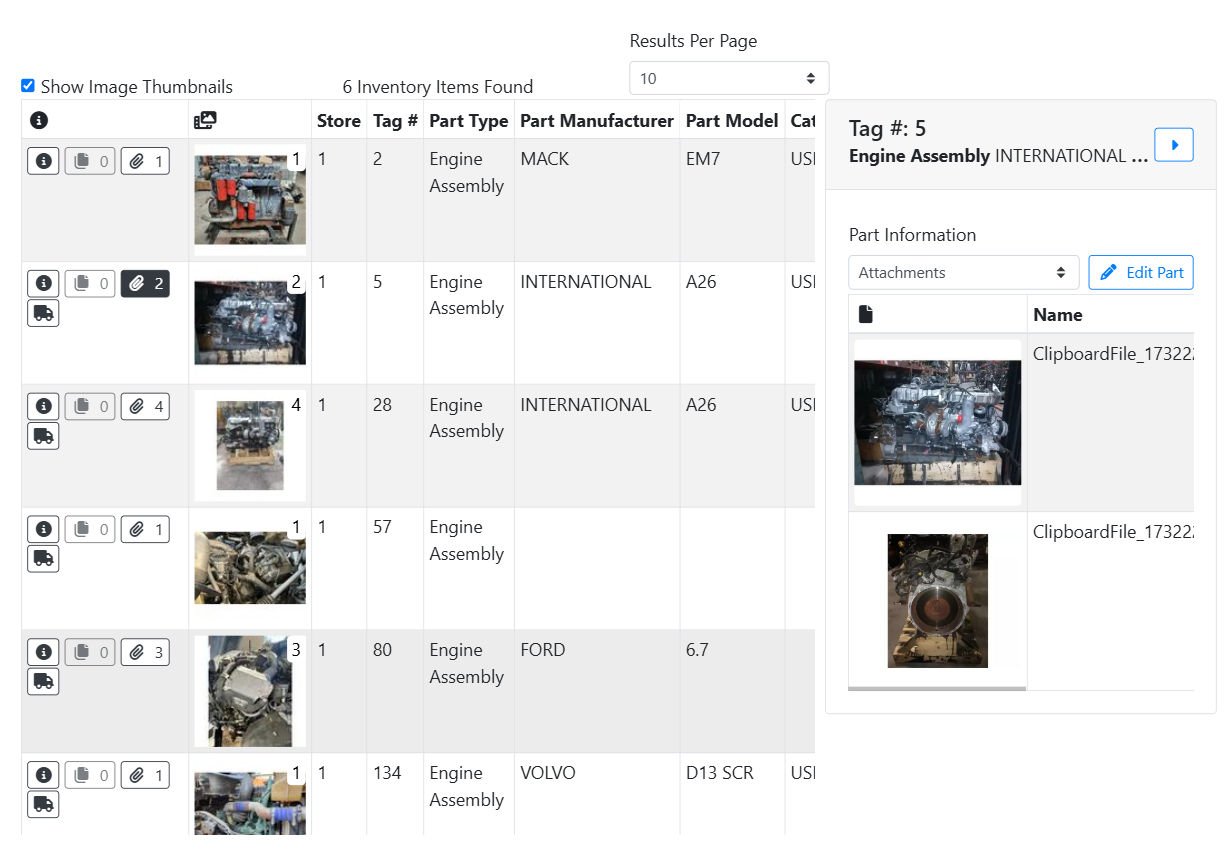
You can switch between different views in the Detail panel by clicking on different buttons in the search results table. A number on the button indicates how many items, such as the number of attachments. A button may be grayed out or not appear if nothing applies.
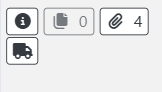
For parts, the available buttons are as follows:
-
Basic Info
-
Part Allocations
-
Attachments
-
Vehicle Info
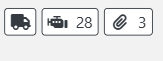
For vehicles, the available buttons are as follows:
-
Vehicle Info
-
Vehicle Components

-
Attachments
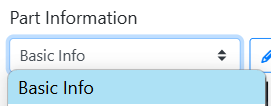
You can also switch between different view options inside the panel itself by clicking on the menu at the top. More options are available in the menu than by using the buttons.
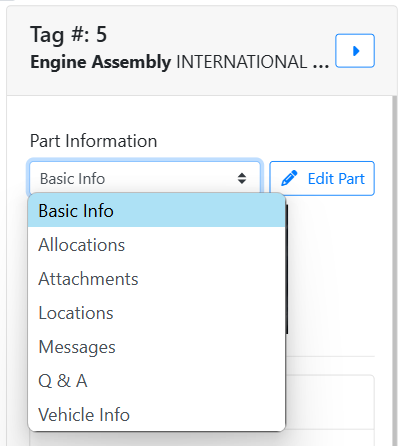
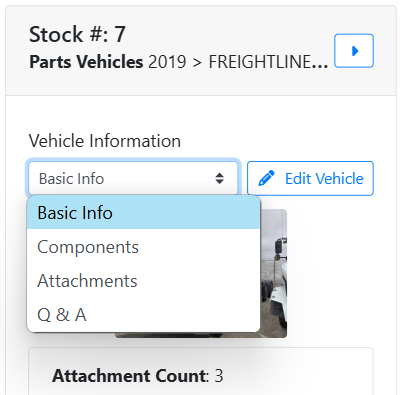
In this example, I clicked on the Attachments 
In this example I used the menu to switch to the part’s Basic Info.