
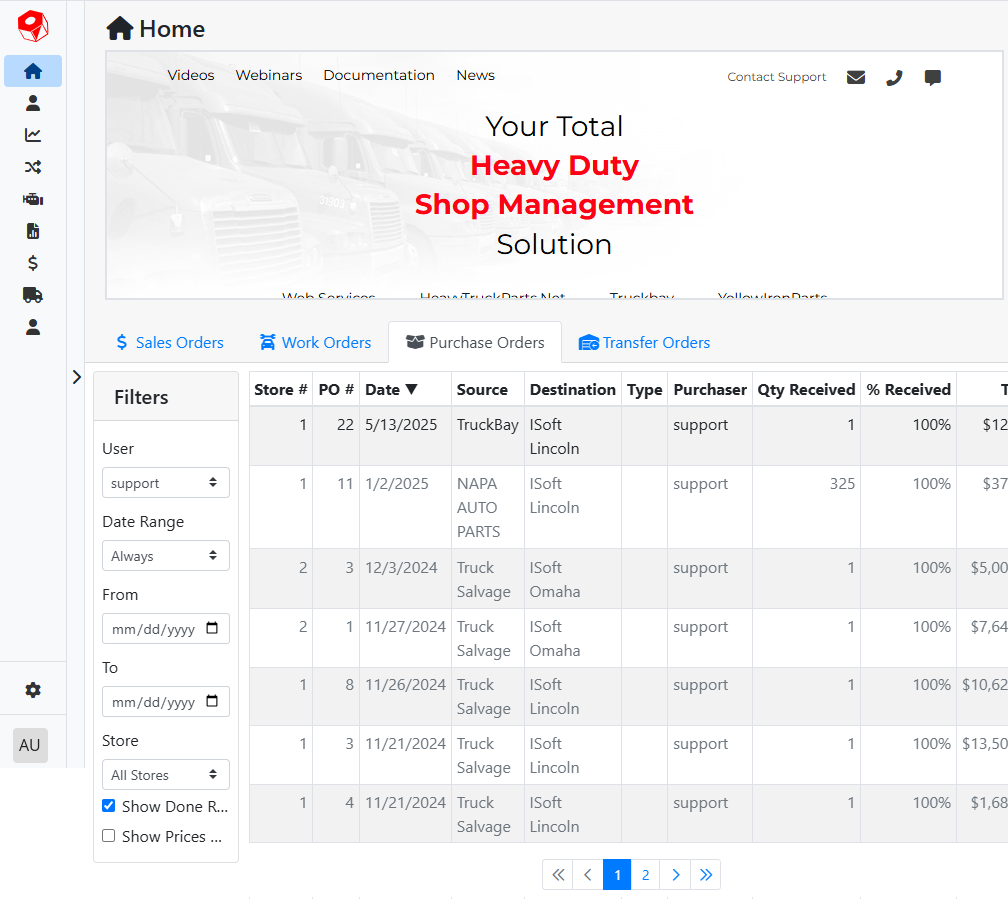
The Purchase Order list on the Home screen gives you an overview of your purchasing history. By default you will see your open POs, ordered by date, but this list can be filtered however you like.
⚙️ Filters
Filters control which Purchase Orders are shown in the table.
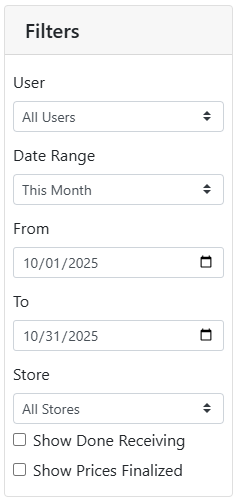
User - Filters by the counterperson assigned to the purchase order, or all counterpersons.
Date Range - Filters by the date assigned to the purchase order. Use the menu to select a range from preset options, or enter your own date range in the From and To fields.
Store - Filters by the store of the purchase order, or all stores.
Show Done Receiving- By default, only open, unreceived purchase orders will show. Enable this option to include received purchase orders in the list. Closed orders will display with gray text to disambiguate them in the list.
Show Prices Finalized - Enable this option to include purchase orders that have had prices finalized.
📄 Results
The list of Purchase Orders will display the following information. Click on any of the column headers to sort the list by that column.
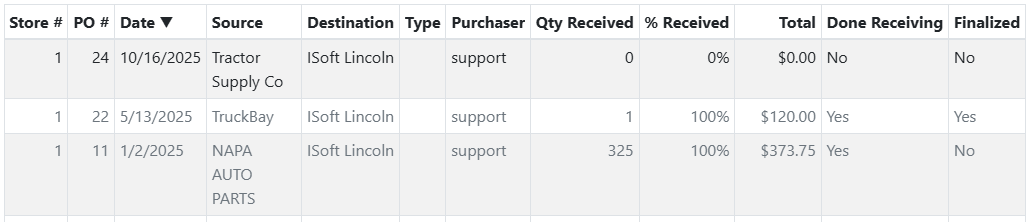
Store # - The store number the purchase order is assigned to.
PO # - The ID number for the purchase order.
Date - The date of the purchase order. It defaults to the date the purchase order was created but can be changed on the purchase order.
Source- The vendor assigned to the purchase order.
Destination - The receiving destination for the purchase order. This can either be the store to receive the shipment, or a customer, if drop-shipping the order.
Type - The type assigned to the purchase order.
Purchaser- The counterperson assigned to the purchase order. The counterperson defaults to the user who creates the sales order, but can be overridden on the sales order.
Qty Received - The quantity of items received on the purchase order, out of the total number of items ordered.
% Received- The percentage of items received out of the total number of items on the purchase order.
Total - The sum of charges on the purchase order.
Done Receiving - Whether the purchase order has been marked as done receiving or not.
Finalized - Whether the purchase order has been marked as finalized or not.
Currently Purchase Orders can only be accessed in ITrack Enterprise Desktop.