ℹ️ Basic Info
The Basic Info box on the Part screen contains some of the most important information about your part, such as the Tag #, Assembly and Part Manufacturer and Model, Category, and Quantity. Not all fields are required, required fields are bolded and have an asterisk on the label.
Required fields may differ for every company and can be configured in Configuration > Settings. Read More about Settings.
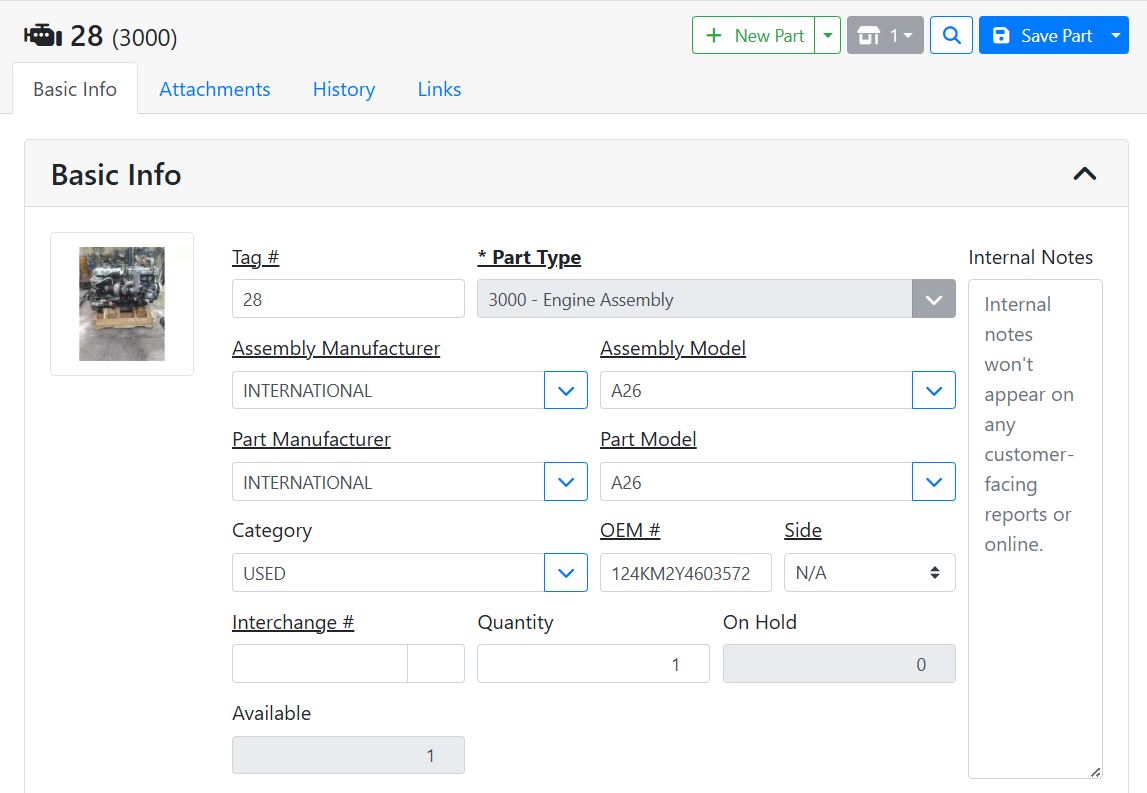
Tag # - The Tag Number is the unique identifier for this part. If you do not set a Tag # when creating a part, it will be automatically assigned.
Part Type - The Part type is an important field that determines how the inventory record is classified. Different inventory types will be treated differently and may have different default settings, different custom fields, it will determine how the item is listed online, whether it is pickable, and so on.
Read more about Inventory Types.
Internal Notes - Notes you want to track on the part. Internal Notes won’t appear online or on any customer documents.
Assembly and Part Manufacturer and Model - The manufacturer and model of the part, and the manufacturer and model of the assembly the part came from. The part and the assembly it came from may be the same, but in case they are different, you are able to specify that.
Category- Categories are used to map a group of similar items together for online marketing. For parts, typical categories are New, Used, or Rebuilt.
OEM # - The original equipment manufacturer ID. The OEM # field isn’t required by default in ITrack, but may be useful for your customers when listing a part online.
Side - The part’s side, if applicable. For example, you will want to specify the side for headlamp assemblies, seats, mirrors, doors, fairings, etc.
Interchange - The Interchange Group Number assigned to this part.
Read more about Interchange.
Quantity, On Hold, and Available - The total quantity you have stocked for this part is shown in the Quantity field. Quantity may be On Hold if a document such as a Work Order or a Quote is using the item, but hasn’t been finalized yet. Once a document consumes or sells the item, the quantity will be reduced, or the held quantity may be released if the document expires, for example if a customer never follows through on a quote. Available quantity is how much is not on hold.
Quantities listed on a part are specific to the store you are viewing. Different stores may have different quantities in stock. Read more about Stores.
Custom Fields - Custom fields can be set by your company based on whatever information you want to capture on a part. The custom fields that show can be different depending on the inventory type and the part manufacturer and model.
Read more about Custom Fields.
💵 Marketing
The Marketing box on the Part screen lets you specify how the part appears online and in Sales Orders.
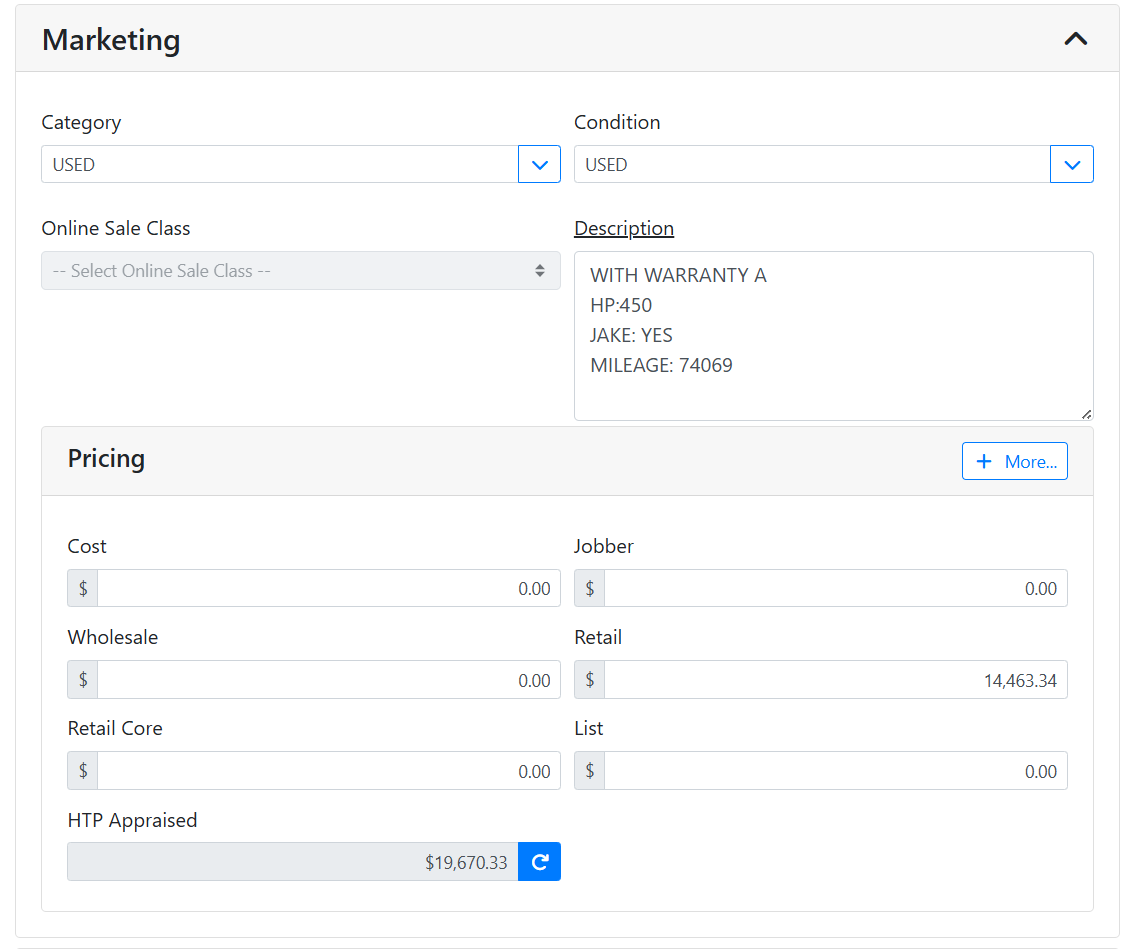
Category - Categories are used to map a group of similar items together for online marketing. For parts, usually this is the sellable category, such as Used versus Rebuilt parts.
Condition - The condition the item is in, for example, New, Used, etc. Type in the field to add new values. The difference between the Category and Condition fields is based on how they are used online. Category needs to match a specific category list on HeavyTruckParts.net, but the Condition field can be anything you want to use in your own database.
Online Sale Class - This field is used on HeavyTruckParts.net to indicate your promised turnaround time on orders.
Description - The description is a public field, and will appear with the item in online listings and will print on documents such as customer invoices. It is very common to put a lot of detail in here to help your online customers decide if they want to buy your item.
Pricing - The pricing box shows you prices and costs set for the item. By default, only the most common fields are shown, click the +More… button to see more fields.
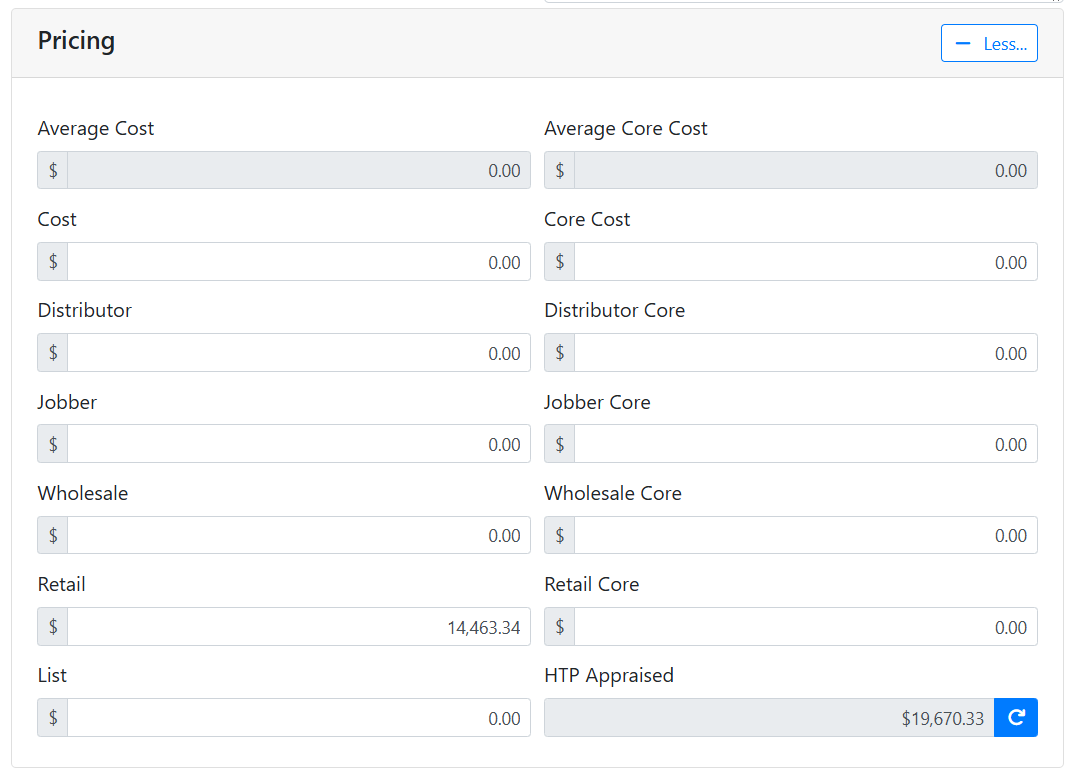
Average Cost, Average Core Cost, Cost and Core Cost - Average Costs are determined automatically by ITrack from document history, such as % of Price Costing on Sales Orders for vehicle parts, or Purchase Order history from replenishable or aftermarket parts. The Cost field is an override field where you can manually input a cost, but it is not recommended since there won’t be any tracking or accountability around how the cost was determined.
Read more about Costing.
Distributor, Jobber, Wholesale, Retail, and List Pricing - The prices you want to set for the item. Pricing fields let you set optional pricing categories that you can assign customers to. For example, you might set a Wholesale price tier that you offer to specific customers, and on those customer records you can assign them to use wholesale pricing. Typically the values are used in the following way:
-
Retail price is the default price your item will use when sold, and will be the price that appears online by default.
-
Distributor is usually the lowest markup price on an item.
-
Jobber is usually a markup between the distributor price and the wholesale price.
-
Wholesale is usually a markup between jobber and retail.
-
List price may appear in advertising or may be the manufacturer’s suggested price.
Core Costs and Prices - Set Core prices for the item if you want to charge the customer for a core exchange. If the item isn’t part of any core exchange, leave the core fields at zero.
Read more about Core Exchanges.
HTP Appraised - The HTP Appraised value uses price information from HeavyTruckParts.net to show you what other similar parts are being priced at. It does not guarantee that your part has that value, since that depends a lot on the part’s condition. However, it can help you see what other vendors are listing.
📦 Stocking
The Stocking box on the Part screen helps you manage the details of how a part should be stocked, restocked and managed.
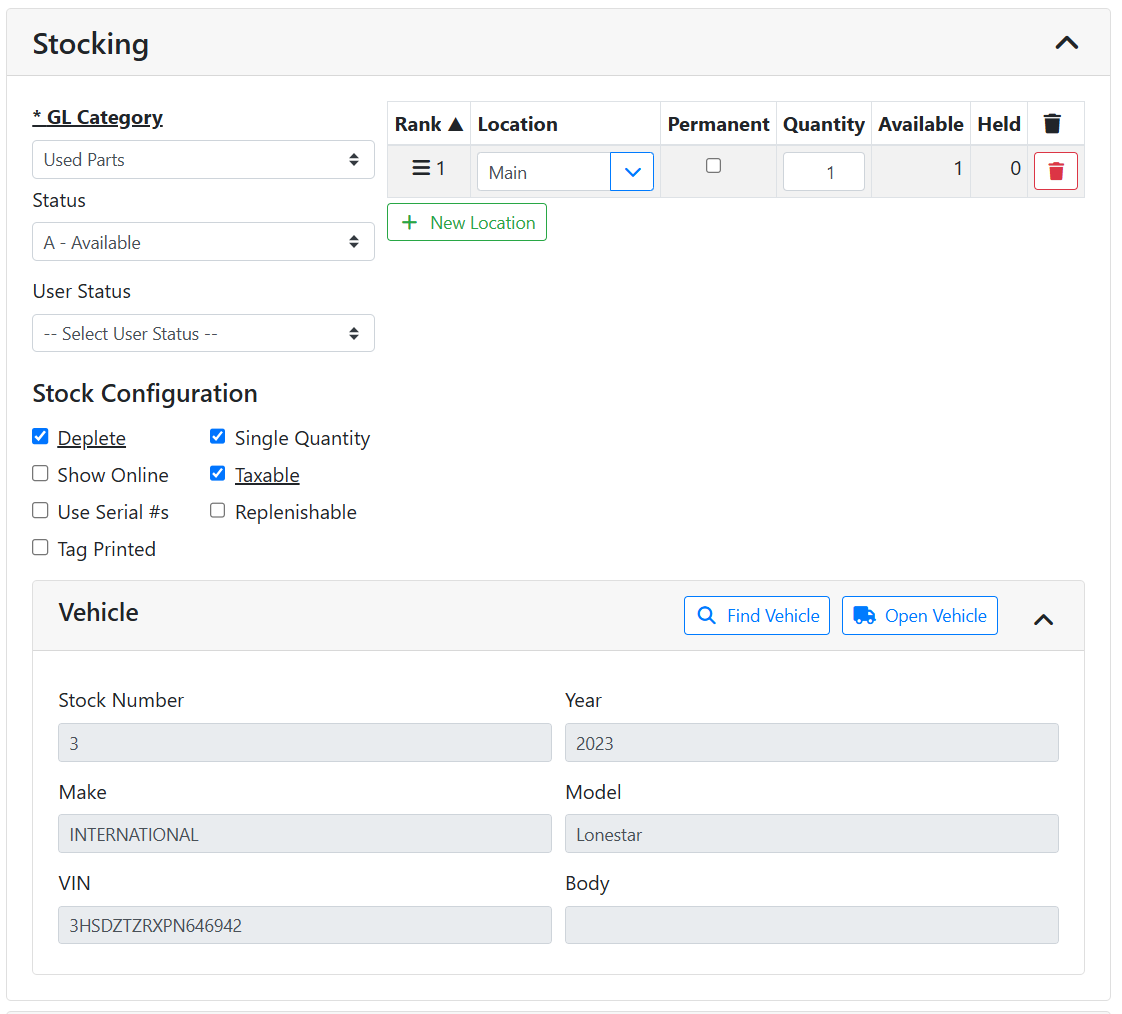
GL Category - The general ledger category that this part is assigned to.
Locations - The location is used to determine where in your facility the parts are located, and how much quantity is at each location. You can assign locations to each store based on how you organize everything.
Read more about Inventory Locations.
Status - The status is used to determine whether the inventory item is stocked or not.
Read more about Inventory Statuses.
User Status - The User Status is a custom field that can be used by your company however you like. Contact ITrack support if you would like to use this field and they can help you insert it into your database.
Deplete - Controls whether the item quantity is depleted when sold or consumed. Most of your real inventory in your database should be set to deplete. Usually items are set to not deplete if they represent a service, fee, charge, or some shop supply that is unlimited or not tracked. For example if you charge for fluids or air on a Work Order, you might want that tracked as a non-depletable inventory item.
Single Quantity - Setting an item to Single Quantity means the quantity can never be above 1 and never allows multiple locations.
Show Online - Whether the item appears on ecommerce sites, such as HeavyTruckParts.net.
Taxable - Whether to charge sales tax when the item is sold.
Use Serial #s - Whether the part is serialized or not. Serialized parts will have a unique serial number and custom fields for each individual item.
Read more about Serializing parts.
Replenishable - Replenishable parts will not be marked as sold when depleted and will have extra fields related to stocking and reordering.
Read more about Replenishable parts
Tag Printed - Whether the tag has been printed for this part yet or not. When you print a tag from ITrack, this box will automatically be checked, or you can modify this status manually.
Printing needs to be done in ITrack Enterprise Desktop at this time.
Vehicle - The Vehicle box contains information about the vehicle this part was pulled from. If you entered the part from a vehicle teardown, this is filled out automatically, or you can add it later. Click the Open Vehicle button to go directly to that vehicle.
Read more about vehicle teardown and associating parts to vehicles.
📦 Fulfillment
The Fulfillment box lets you specify how to handle returns and core exchanges.
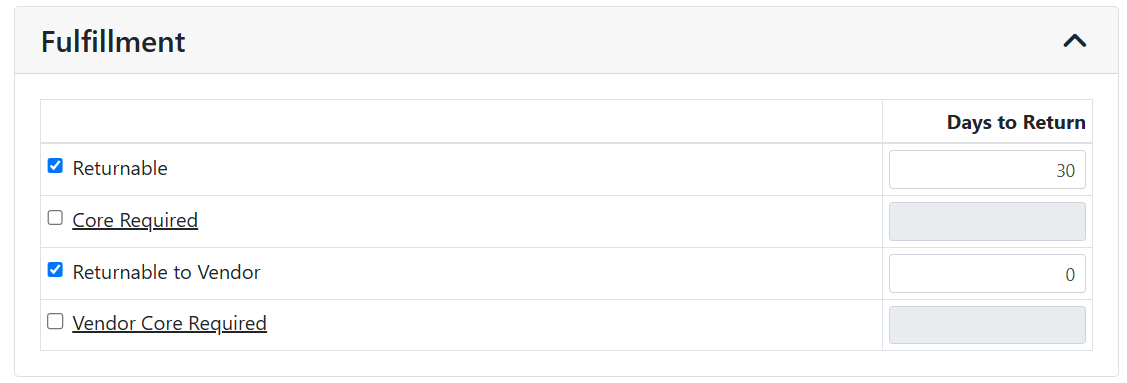
Returnable - Whether you allow a customer to return the item.
Core Required - If checked, a core exchange will be expected when this item is sold. An inherent core charge will be added to documents, and allows a dirty core exchange to refund the core charge.
Read more about Core Exchanges.
Returnable to Vendor - Whether the vendor you purchased this part from allows returns. When checked, you can perform a return on a Purchase Order.
Core Required to Vendor - If checked, a core exchange will be expected when this item is purchased. An inherent core charge will be added to Purchase Orders in the amount of the core cost, and a core must be exchanged to refund that core cost.
Days to Return - For each type of return, the maximum number of days that type of return is allowed.
💵 Sales and Shipping
The Sales and Shipping box on the part lets you indicate a part’s dimensions and weight so that you can calculate shipping.