
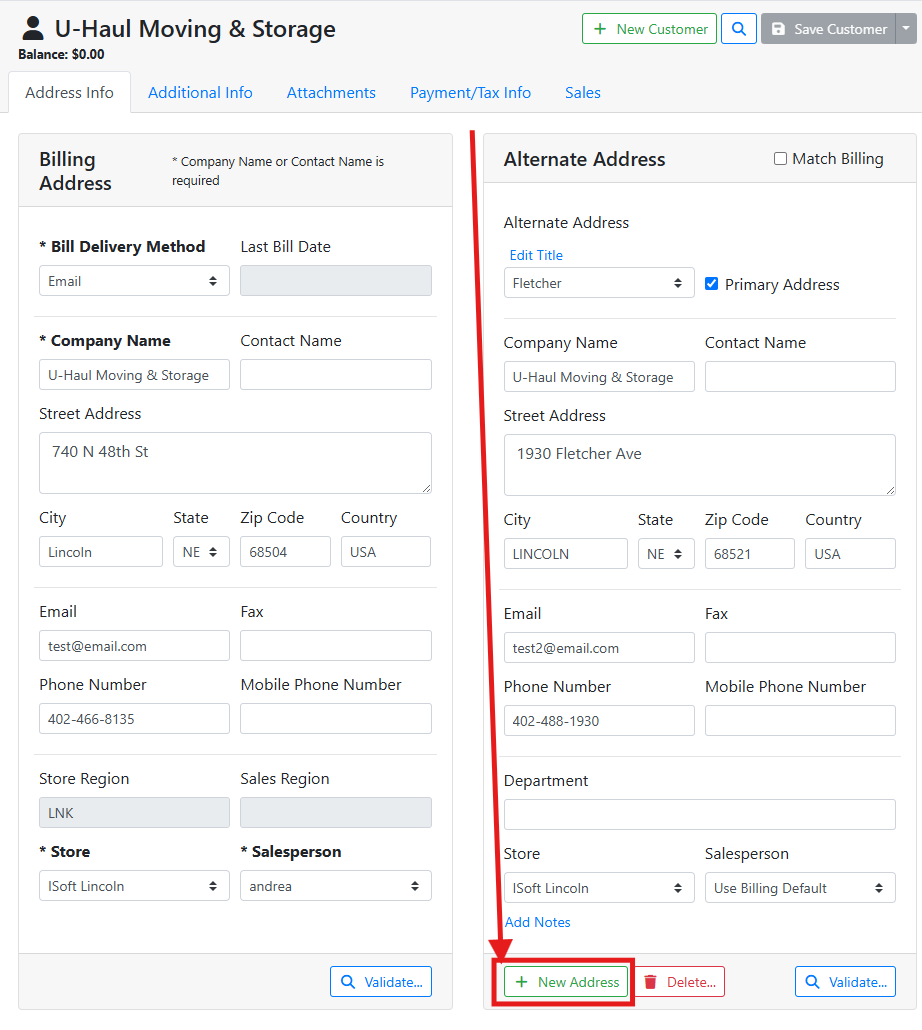
📍 Billing Address
The Billing Address for a customer or vendor is the address used for billing for the organization or person. If your customer or vendor is a person, they will likely only have one address, and you can put all information under Billing Address.
Company Name - The name of the company if the record is a business. Leave this field blank if the record is a person. Every customer and vendor needs at least a Company Name or a Contact Name.
Contact Name - If your customer or vendor is a person, their name. If the record is a company, this is your primary contact person at the organization. Every customer and vendor needs at least a Company Name or a Contact Name.
Street Address, City, State, Zip Code, Country - The primary address for the record.
The City, State, and Country will automatically complete if you enter the Zip Code first.
Email - The email address, if applicable.
Fax, Phone Number, Mobile Phone Number - The contact numbers, if applicable.
Validate - The Validate button is used to verify and update an address when your company is using a tax integration service.
Read more about Address Validation.
📍 Alternate Address
Customers and Vendors might have more than one address you would like to keep on file. Storing Alternate Addresses allows you to manage shipping and billing to all associated addresses while maintaining only one record for financial record keeping.
They might have their bills sent to a PO Box or corporate office, but receive shipping at a separate location, or they might operate out of several different physical locations and need shipping to all locations.
For customers that have alternate addresses, you can pick the shipping address from their address list when creating a sales order, or if drop-shipping to a customer on a purchase order. For vendors that have alternate addresses, you can pick the “ship from” address on a purchase order.
Creating sales orders and purchase orders can only be done in ITrack Enterprise Desktop at this time.
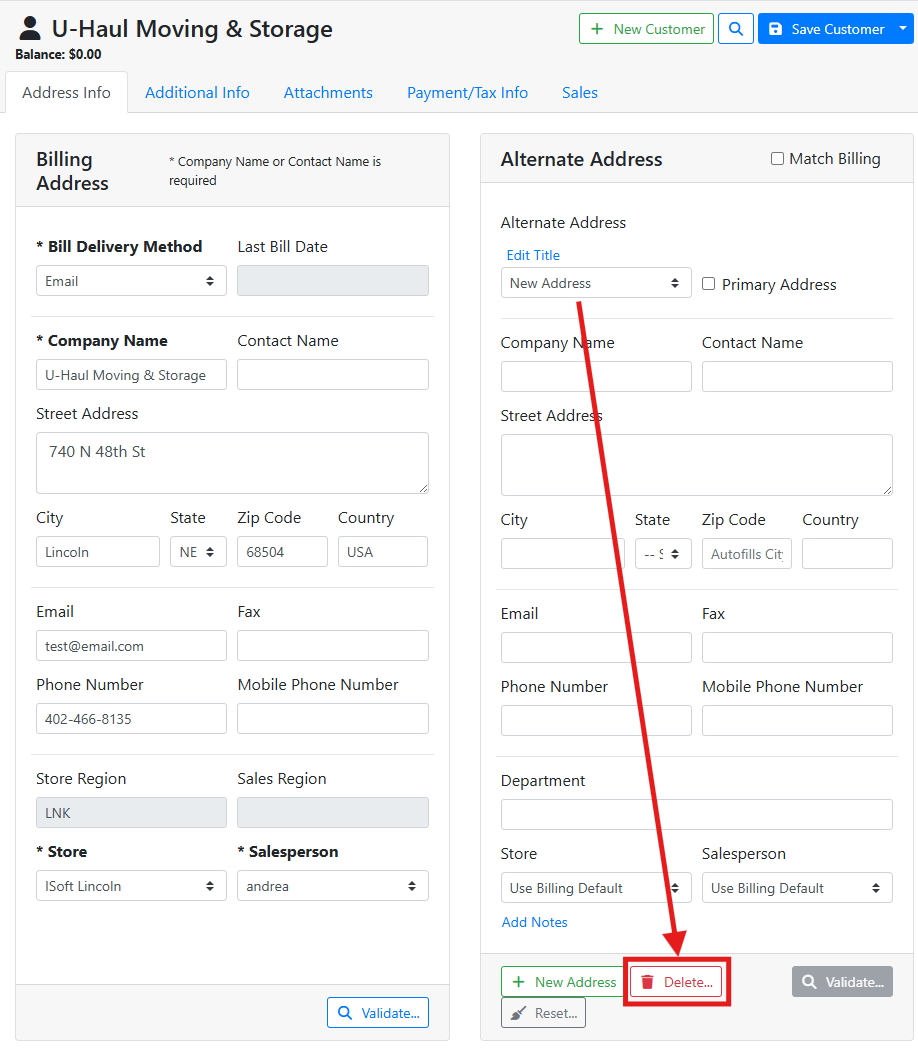
To add an alternate address, click the +New Address button near the bottom of the Alternate Address box.
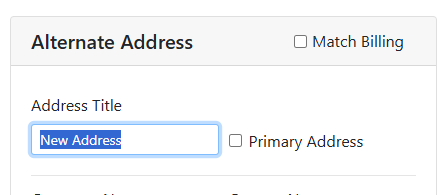
Make sure to give the new address a title. The Address Title is a required field and is used to identify the address when selecting a shipping address.
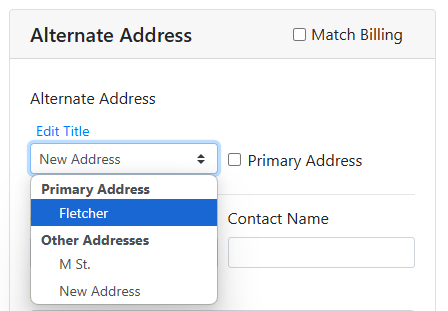
When you are done editing the title, the title is replaced by a menu to select other addresses. Use the menu to select other addresses if you need to review or make changes to them.
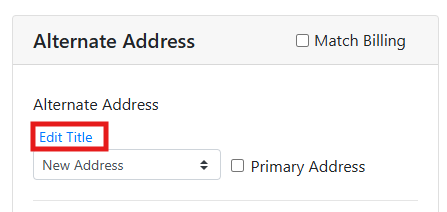
Click Edit Title if you need to change the title of any alternate address.
Click the Delete button at the bottom if you need to remove an address. You can use the Reset button to clear the address if you haven’t saved it yet.
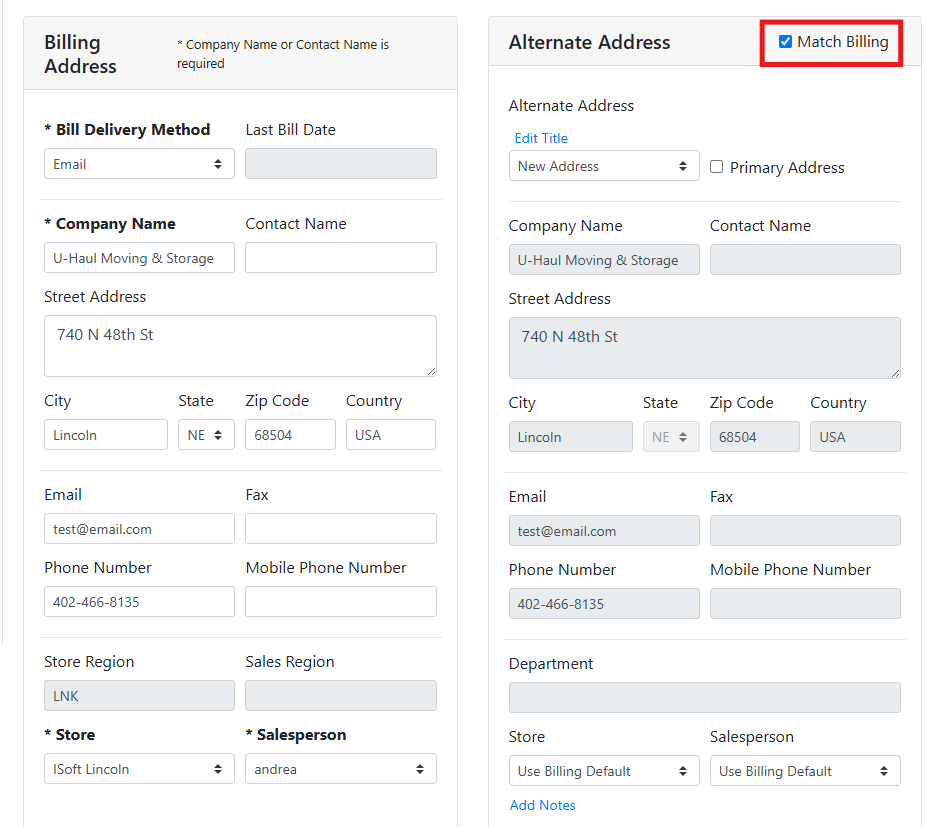
Match Billing - Checking the Match Billing checkbox will copy the billing address into the alternate address and keep them in sync. While checked, you can’t edit the alternate address. You can, however, check and then uncheck the box as a quick way to copy information from the billing address.
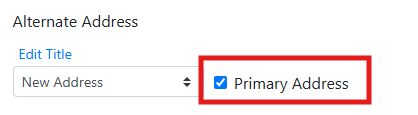
Primary Address - Making an address the Primary Address will make it the default address used. Only one address can be marked as the primary address. Leave this unchecked if you don’t want to designate a primary address.
Department - If the alternate address represents a specific Department at a company, you can indicate that here.
Add Notes - You may add notes to the address. This may be useful if the address has special considerations.
👤 Customer Address Info
Customer and Vendor Addresses generally work the same. There are a few fields specific to Customers, however, and are described below.
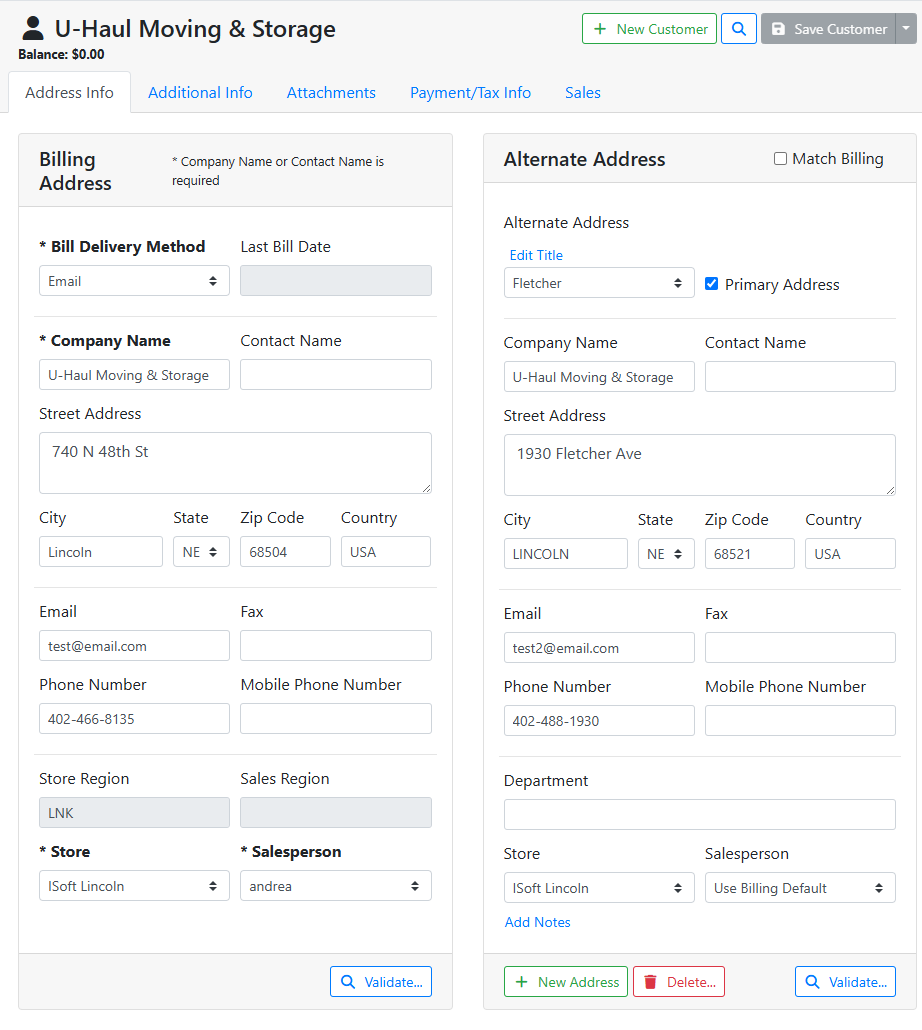
Bill Delivery Method - When sending Billing Statements using the mass-mailing report feature, this determines whether the customer gets an email, a printed invoice, or both.
The mass-mailing report feature is only supported in ITrack Enterprise Desktop at this time.
Last Bill Date - The last date the customer received a bill.
Store Region - If your company has configured Store Regions, the region is assigned based on the customer’s billing address, and used to automatically assign the customer to a store.
Sales Region - If your company has configured Sales Regions, the region is assigned based on the customer’s billing address, and used to automatically assign the customer to a salesperson.
Read more about Sales and Store Regions.
Store - The default store assigned to the customer. The store assigned to a customer affects how the customer appears in searches. You also have the option to set a store for each address if your customer has more than one address.
Salesperson - The default salesperson assigned to the customer. The default salesperson on the customer automatically sets the salesperson when creating a Sales Order. You also have the option to set a salesperson for each address if your customer has more than one address.
👤 Vendor Address Info
Customer and Vendor Addresses generally work the same. There are a few fields specific to Vendors, however, and are described below.
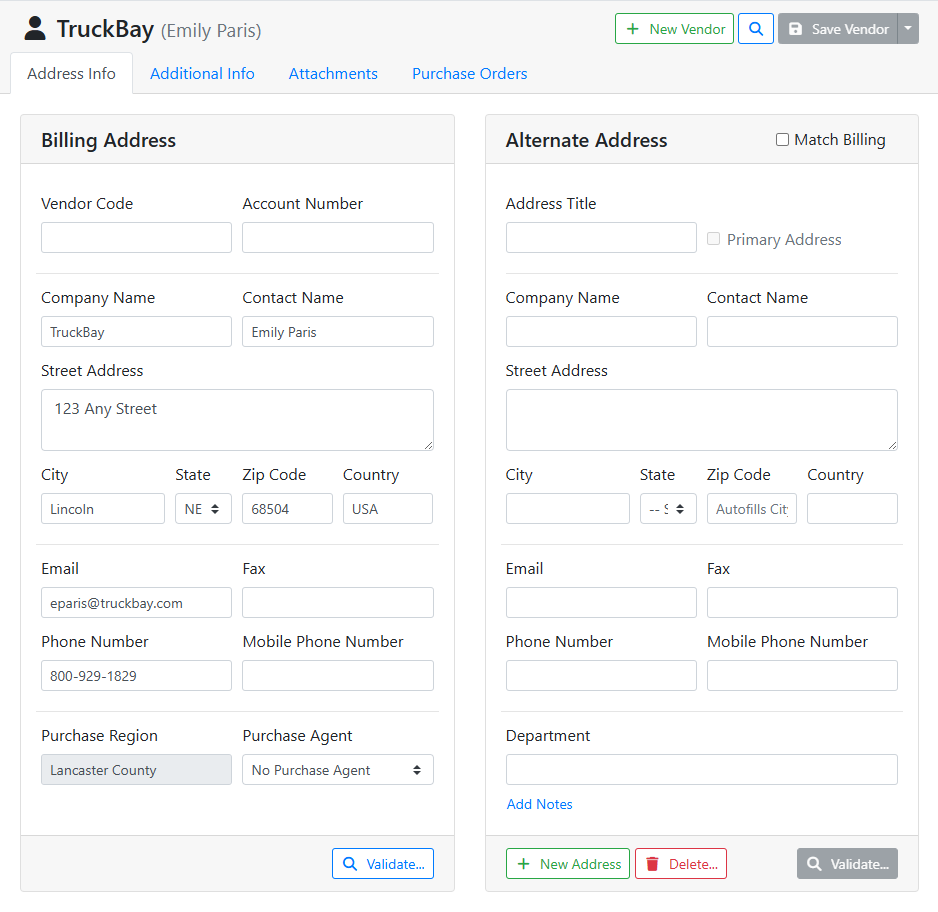
Vendor Code - A unique code assigned to the vendor to quickly identify them in menus.
Purchase Region - If your company has configured Purchase Regions, the region is assigned based on the vendor’s billing address, and used to automatically assign the vendor to a purchase agent.
Read more about Purchase Regions.
Purchase Agent - Purchase agents can be assigned to vendors if your company splits purchasing between different agents with different assigned vendors. Purchase agents can be restricted from searching for vendors assigned to other purchase agents with a User Permission.
Read more about User Permissions.