
AI apps are generally pretty good about interpreting your questions and getting results. If you want to know if it can answer your question, the best thing you can do is ask!
📈 Test Your Setup
The first time you start using AI, it’s a good idea to test your setup and validate the results. A good way to do this is by asking your AI app a very basic question that you know the answer to, to confirm it can properly log in and access data. You should see it attempt to access your data, and it may ask you some follow up questions.
In this example, I asked Claude how many open sales orders I have. With the custom connector enabled, it knows it can get some of this information from my software. It first checks to see if it can connect, then it tries to log in. It checks what stores I have access to, and since I have access to more than one store, it asks me which one it should log in with.
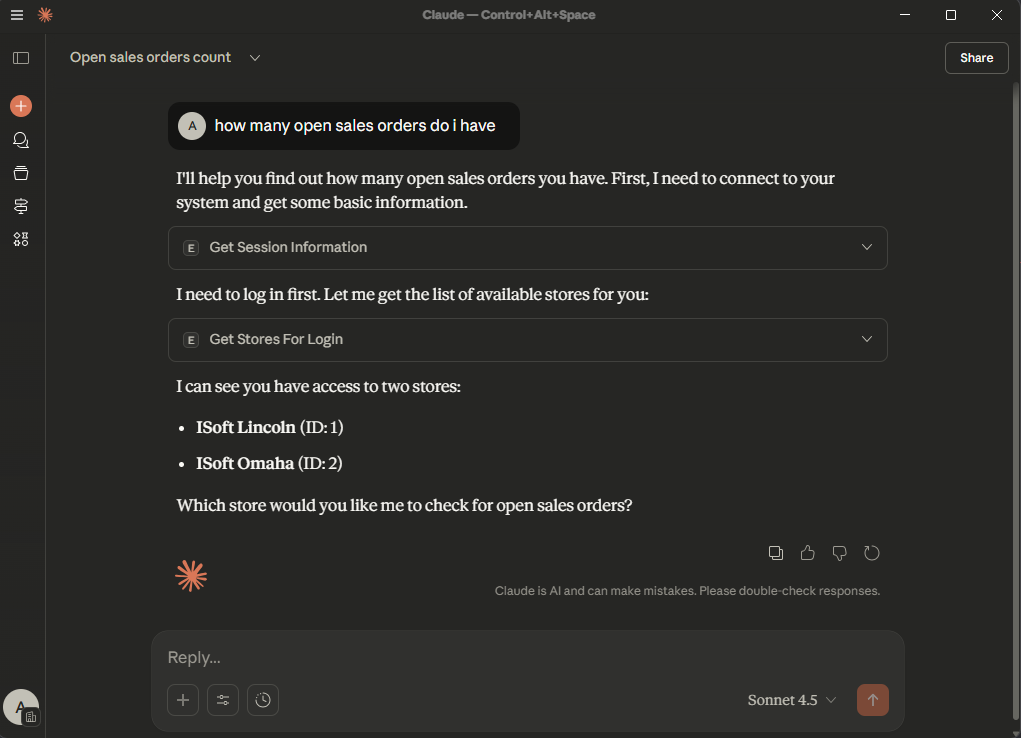
At this point I actually know I have configured everything correctly, because if I hadn’t, it wouldn’t be able to see the stores in my database. However, I want to see it get me something more specific, so I tell it which store I want to see sales orders from. Claude and other agents might show you step by step what they’re doing.
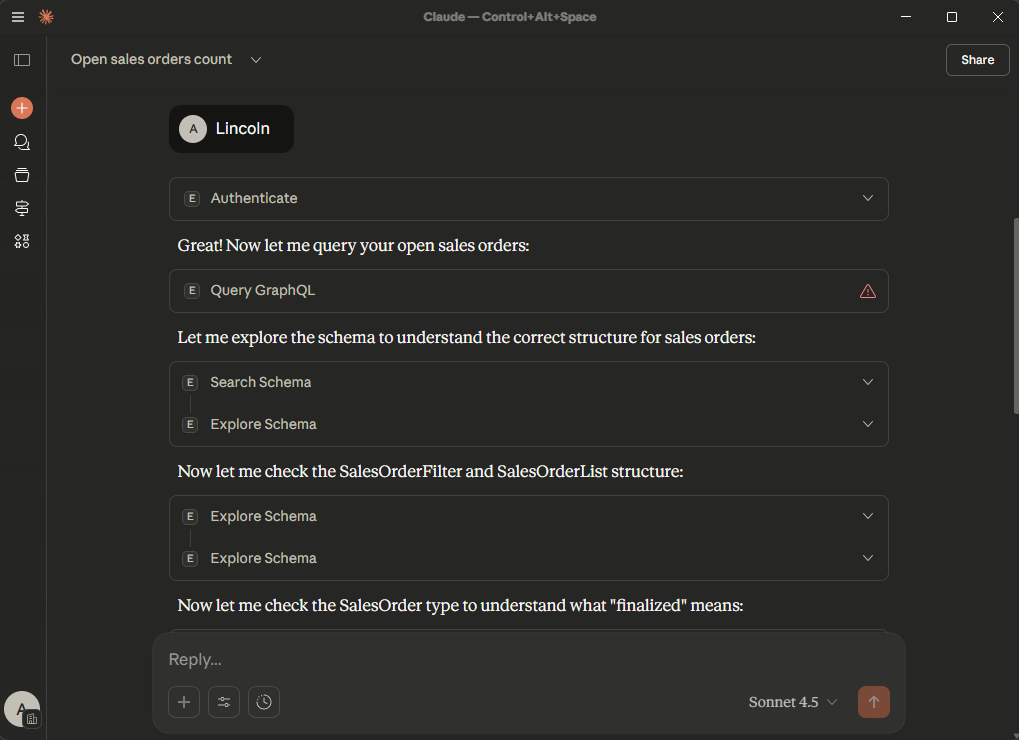
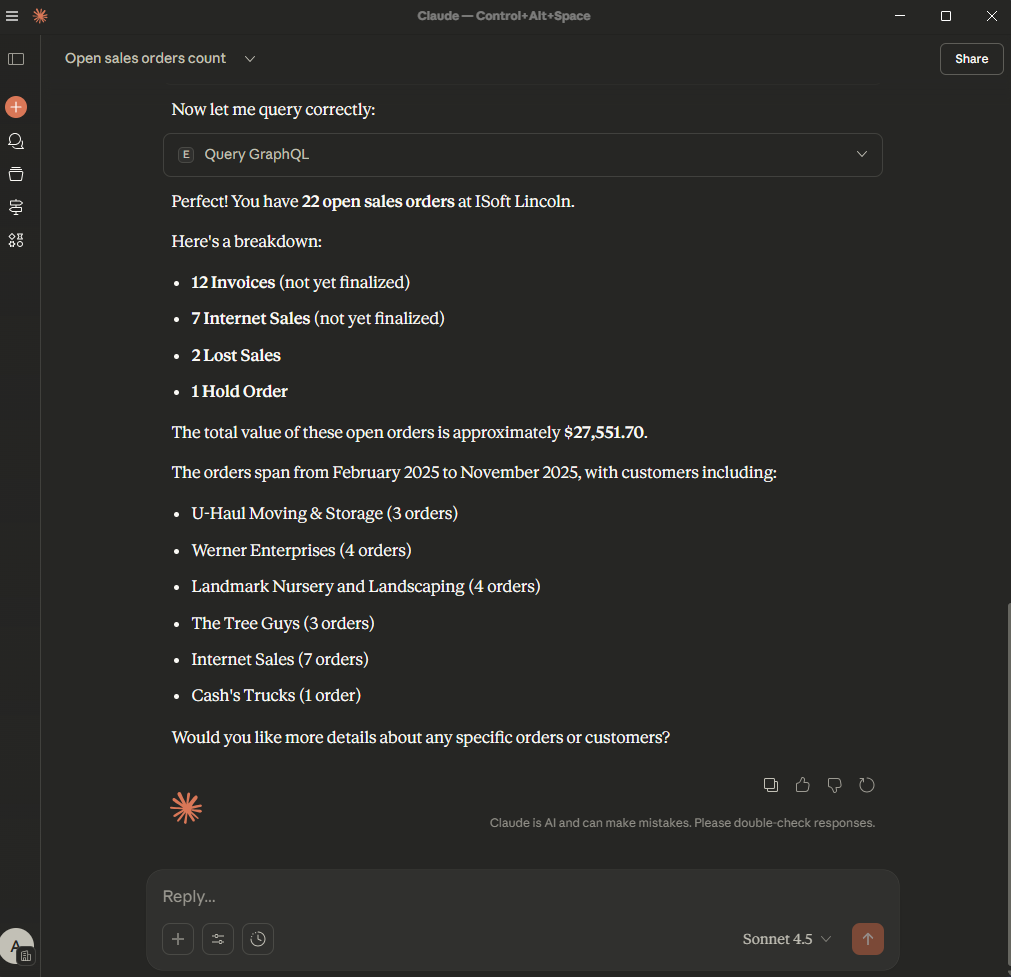
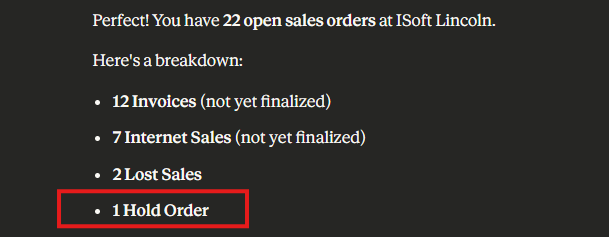
After a few steps, it eventually tells me it found 22 open orders.
I can then compare that to data I already have in ITrack. On the Home screen, I search for all sales orders for the Lincoln store that are not closed, for all counterpersons and all dates. I only see 21 sales orders, however.
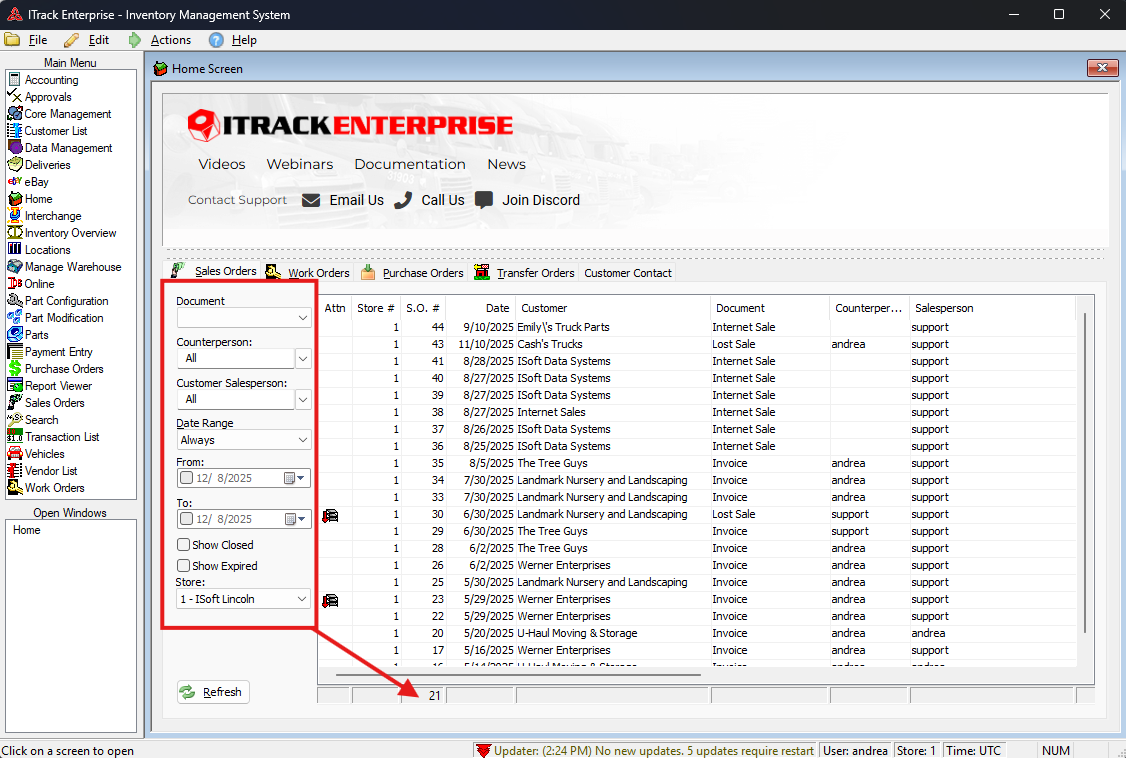
Looking back at Claude’s answer, I can see the total includes one hold order, but I don’t see a hold order in my list.
In the Home screen in ITrack again, I include Expired orders, and now I can see this hold order in the list and verify the count.
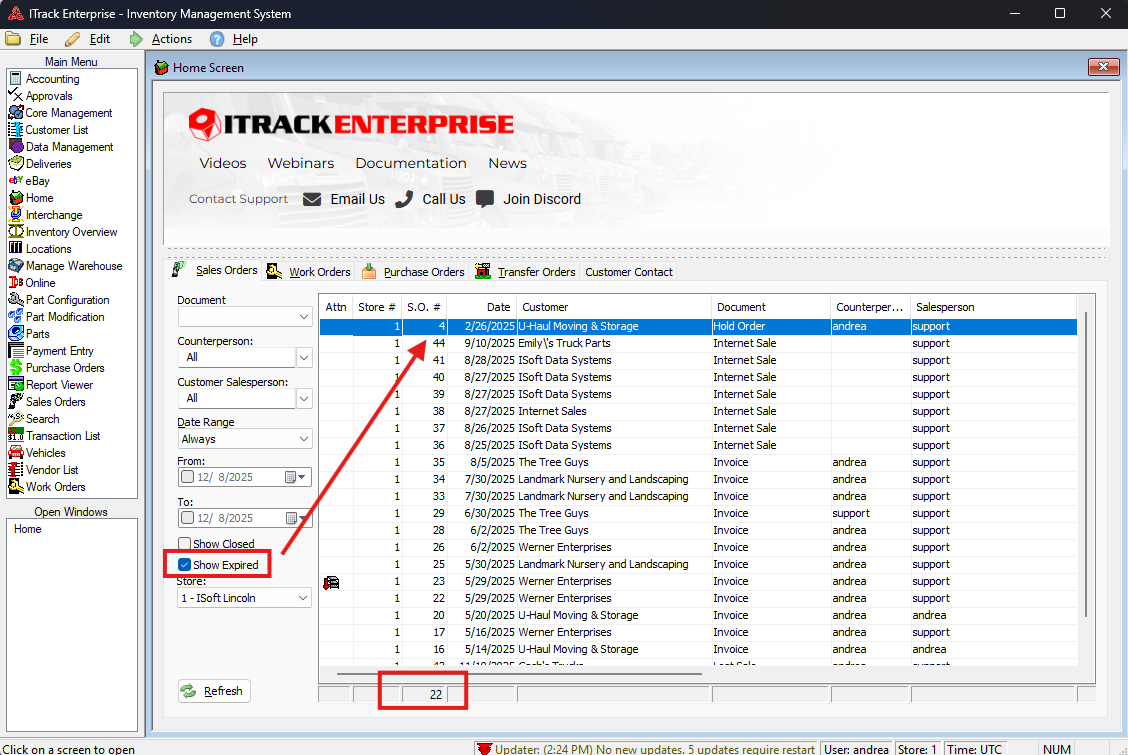
This is a good example of data verification that also demonstrates that the AI app might not understand the data the same way that I do. While AI apps are pretty good at understanding most things, it might take some time for them to get to know your company and how you understand your data.
It may take some practice writing your prompts to get you the data the way you need it. It is always a good idea to verify the data given to you for accuracy.
❓ What Can an AI App Do?
AI apps can be especially good at finding patterns in data, summarizing data, finding problem data, or building reports. You can also ask your AI app to create spreadsheets, graphs, interactive reports, etc.
For example, I gave my app the following prompt “can you give me a summary report in a webpage format that shows a bar graph of the sales order types and separately an aging breakdown”. Since I asked it for a webpage format, it’s going to create an interactive artifact for me. You can see it working as it builds the page.
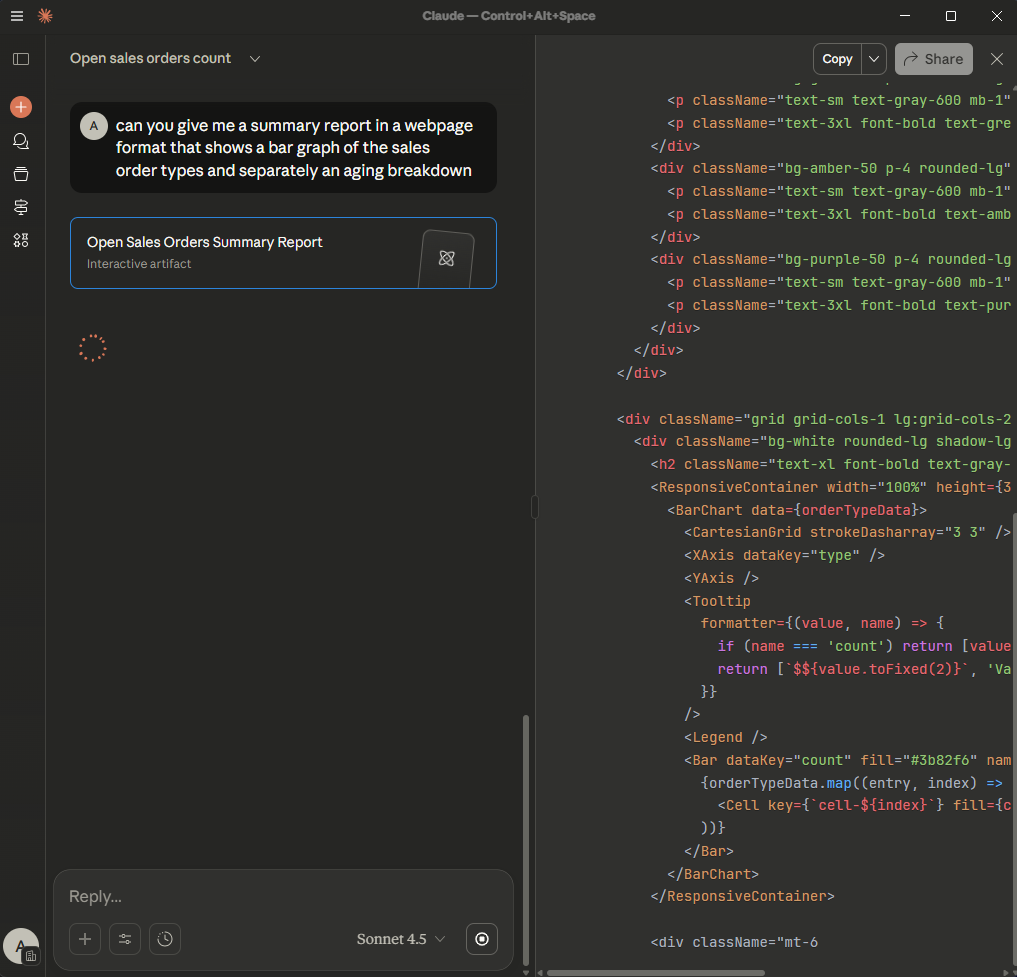
In less than a minute, it’s able to give me a report.
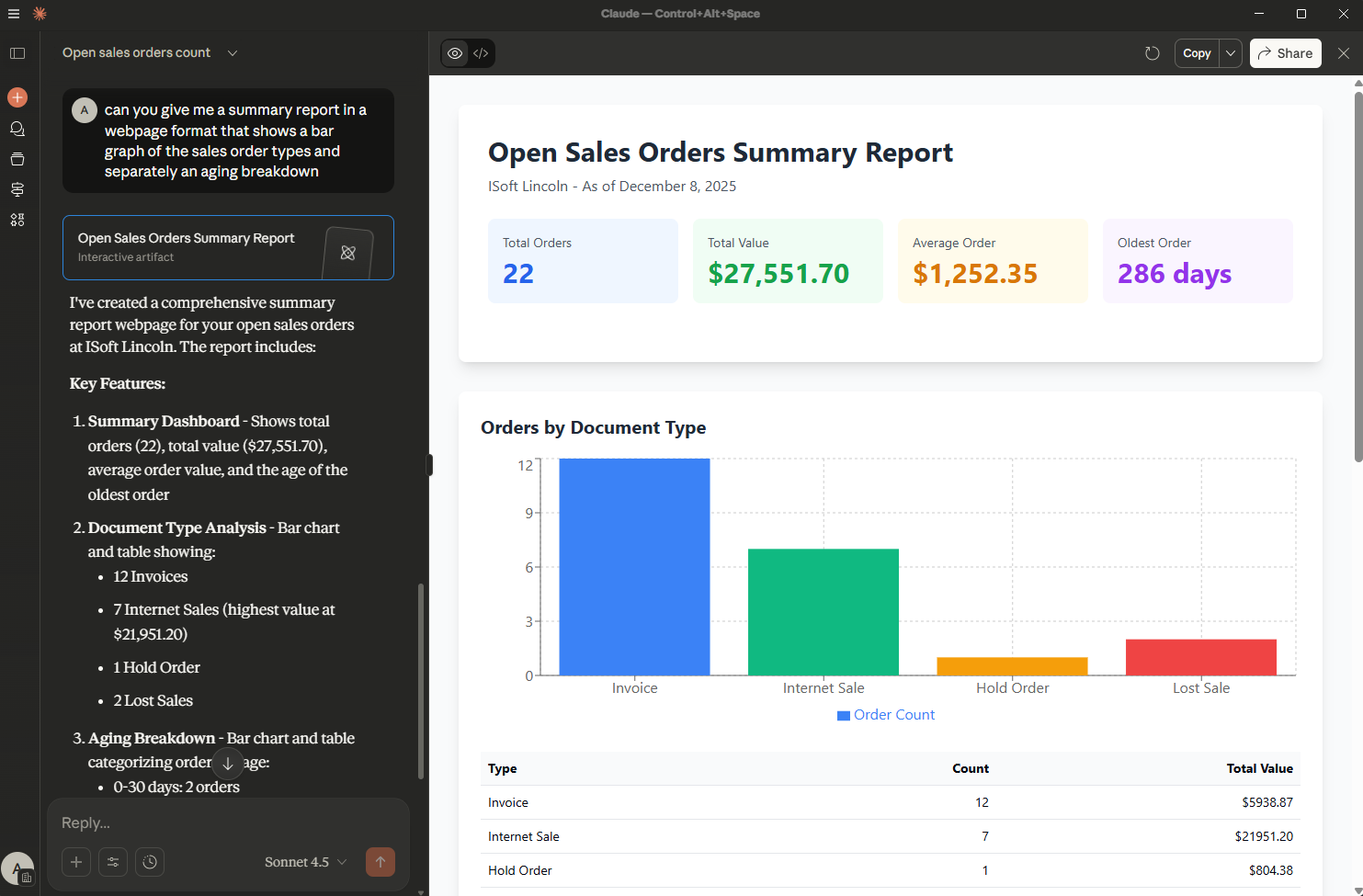
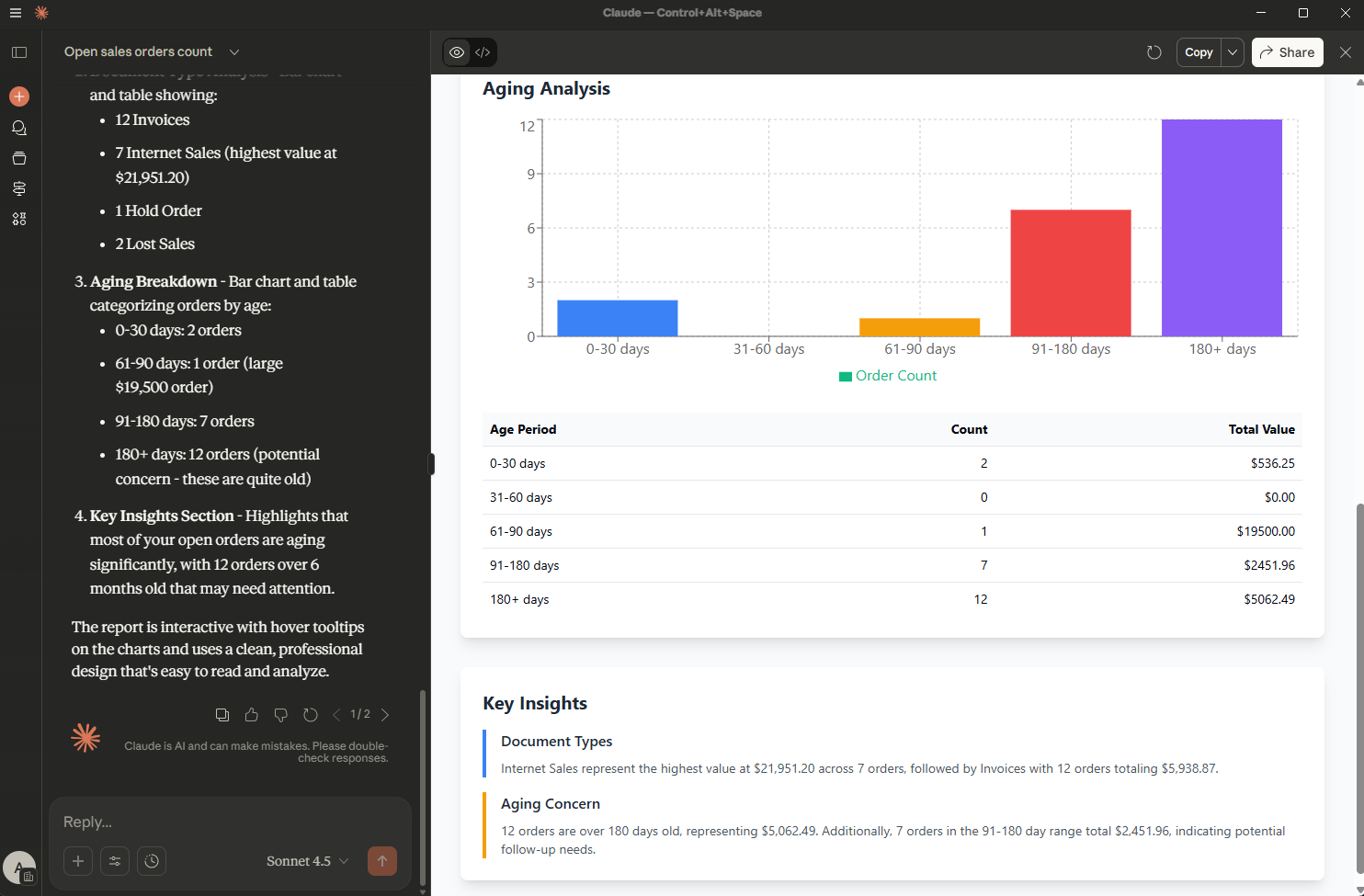
I like this format and want to share it with my salespeople. I can click the Share button in the top right corner of the Claude window to generate a sharable link to this report.
💡 Tips for Writing Prompts
Be Specific. AI apps usually return better results if you provide more details on what you’re looking for. For example, instead of "Show me sales data," try "Show me sales performance for last month broken down by salesperson."
Ask Follow-Up Questions. AI apps typically remember your conversation context, so continuing a question like a dialog is usually more helpful than starting over. This is especially true if it got you something close but not exactly what you wanted.
Request the Format You Want. Tell the AI app how you want the information given to you. "Give me a brief summary" vs "Show me detailed breakdowns" vs "Can I get a list I can copy?"