This page will walk you through the installation and first time set up of a Custom Connector (MCP).
Documentation and screenshots provided here are for a specific version of Claude, so your app may look different.
You will need:
-
An account with with an AI app that supports MCP connectors such as Claude (Anthropic).
-
Network access to your ITrack server and its host address.
-
Your ITrack Enterprise API version needs to be version 6.0 or higher.
-
An ITrack username and password.
➕ Add A Custom Connector
Your AI application should have an area in settings to add a Connector. It may be called something different in your application such as an extension or an MCP server.
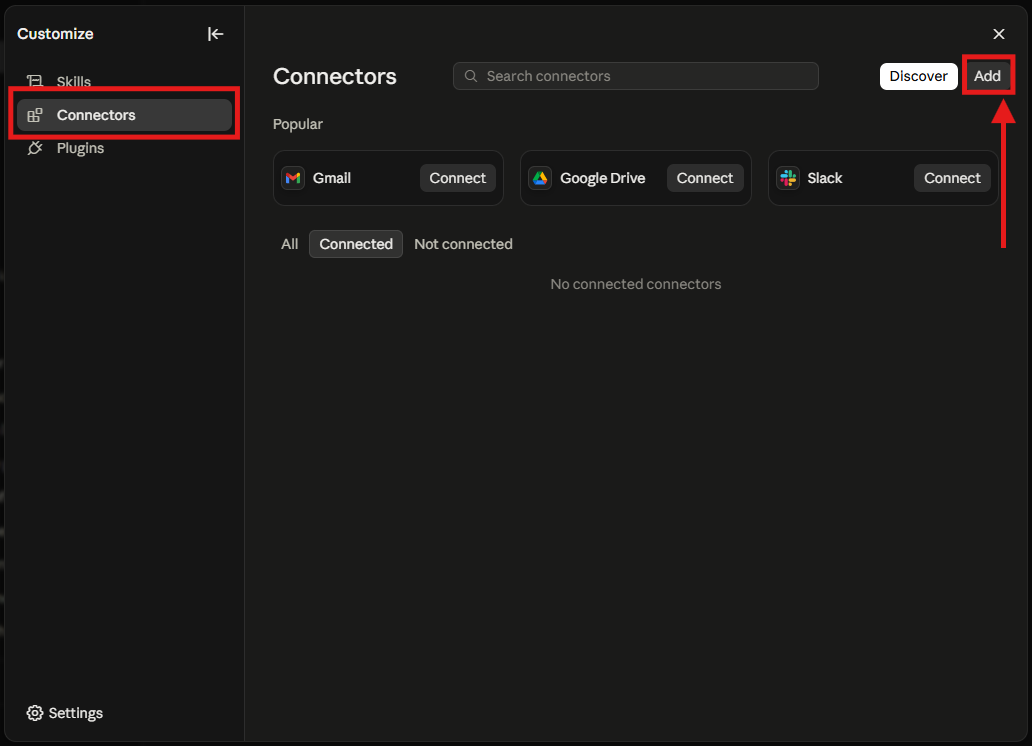
In Claude, go to Settings > Customize, or select Customize in the main sidebar.
In the Customize window, select Connectors and click the Add button to create a Custom Connector.
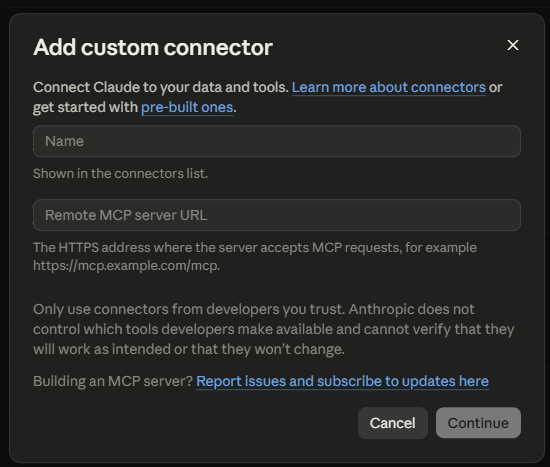
A window will open where you can input your connection settings. All you need is to name the connection something that makes sense for you, and the address you use to connect, followed by /mcp.
Your domain may have a longer URL if you use ITrack LX for scanning. It is possible you will have an extra path in the domain such as /teardown. For example your MCP Server URL might look something like this: https://mycompany.itrackenterprise.com/teardown/mcp. Check with ISoft Support if you don’t know your URL.
For example, I will enter ITrack Enterprise as the name of the connection. In the Remote MCP server URL field, I enter https://<my-server-name>.itrackenterprise.com/mcp.
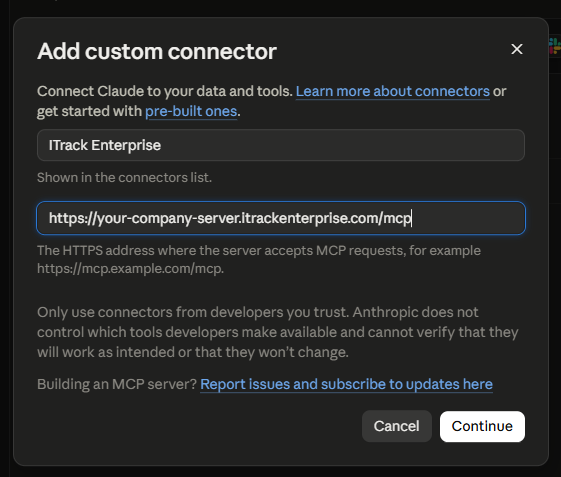
Your server address will be different than shown here. It is the same address you use to access ITrack Enterprise on the web. If you don’t know your server address, contact ISoft support.
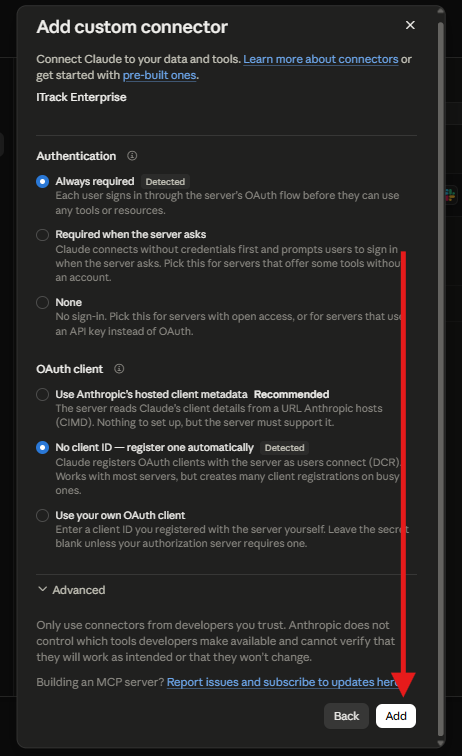
When you click Continue, Claude will try to connect to your server and check settings. It may give you some advanced options, but ISoft recommends you leave all the default settings and click Add.
🔌 Connecting to Your Server Via the Connector
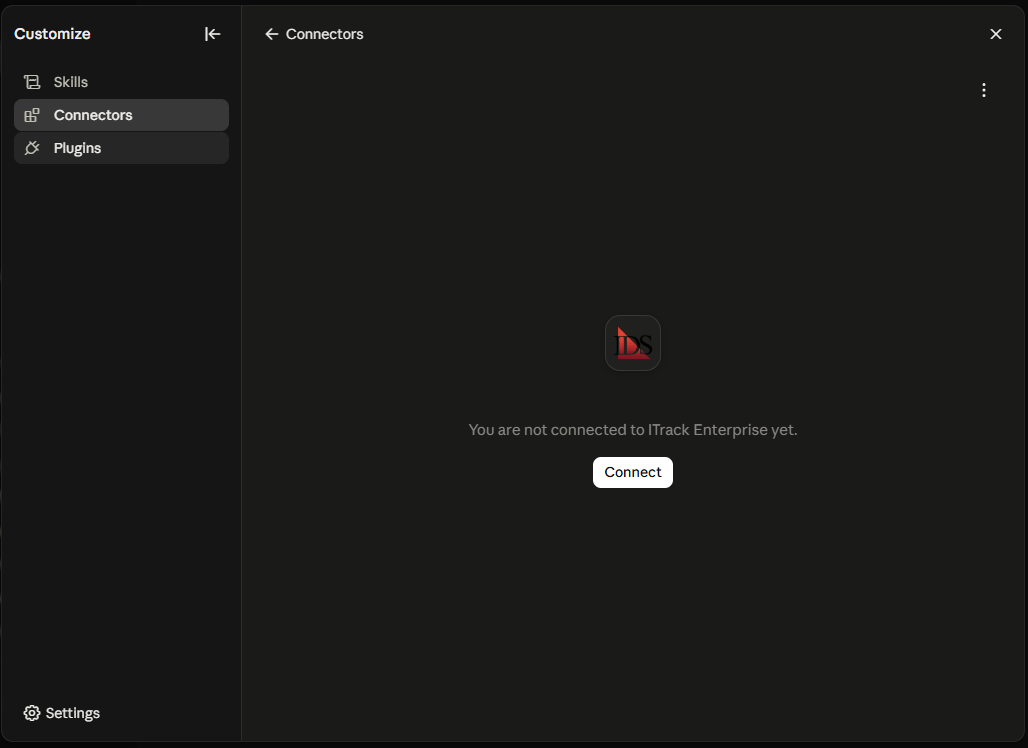
After you you add the connector, you’ll need to connect to it. Click the Connect button to continue.
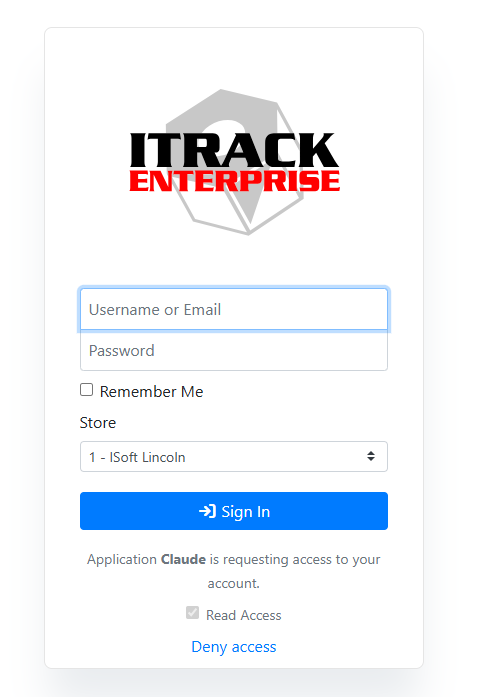
Claude will navigate you to a login window specific to your server. Enter your same username and password that you use to log in to either ITrack.
Each user in your organization who connects to a custom connector should be using their own username and password. Do not share your password with anyone.
After you sign into your account with Claude, your connection is complete.
Connecting uses OAuth, Read more about OAuth with ITrack.
⚙️ Configure Tool Permissions
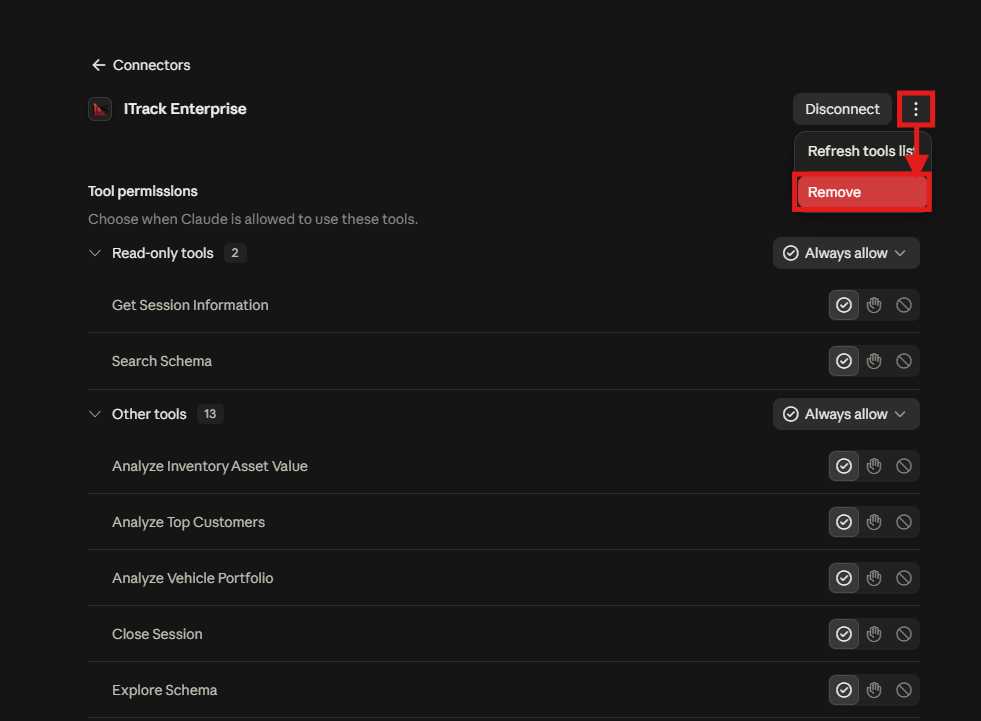
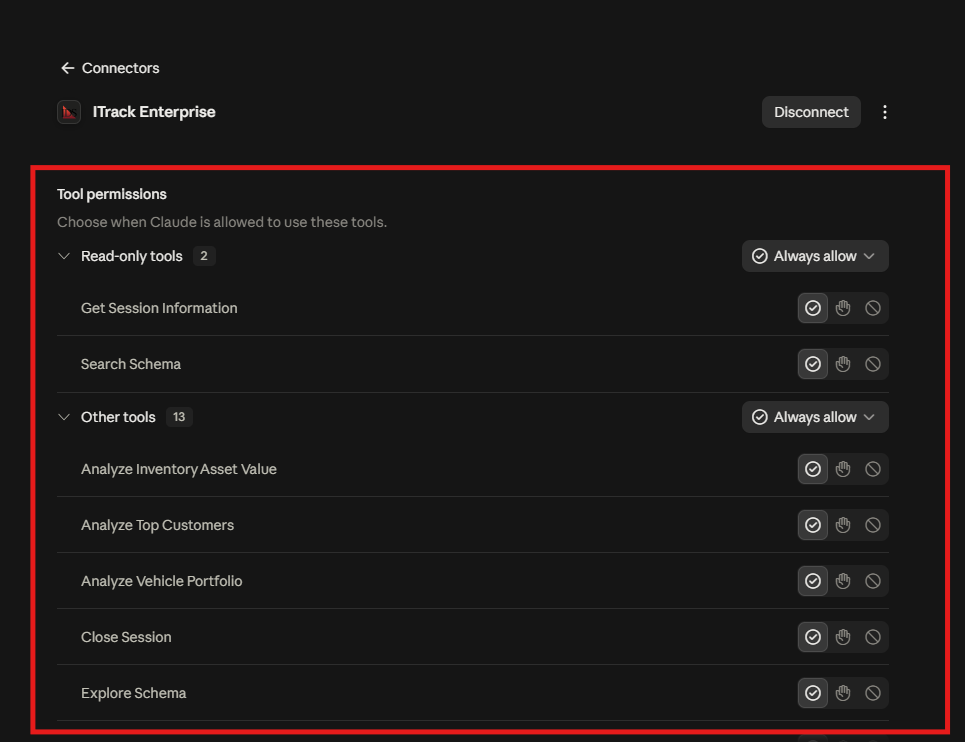
Claude allows you to toggle which tools in the connector it is allowed to access. Go to Customize > Connectors and select your ITrack connector.
Unless you specifically want to disallow Claude from accessing certain functions, you likely want Always Allow enabled for all tools. If you want, you can set some of the tools to require permission from you before they access the tool, or you can disable access entirely.
Read more about Tools.
⚙️ Managing the Connector
Your connector will usually stay connected. You may need to reconnect if your network connection to ITrack is interrupted. If this happens, follow the same steps in the Connecting to Your Server Via the Connector section of this document.
You can manually disconnect at any time by clicking the Disconnect button on the connector.
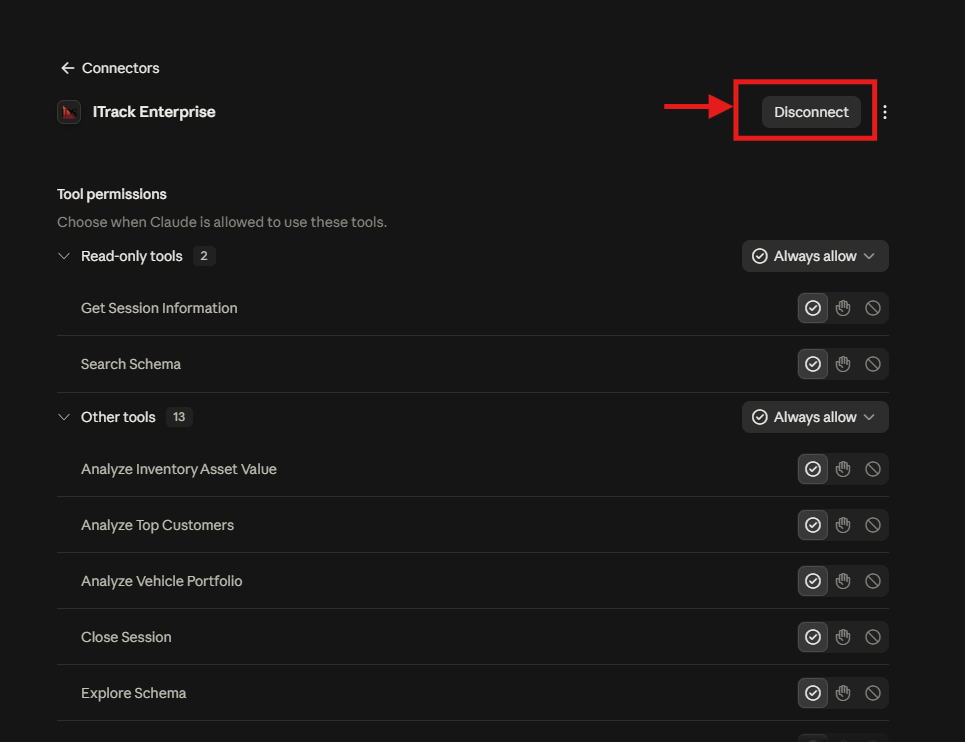
If you would like to completely remove the connector, use the menu and click Remove.